Why Is My Android Battery Icon Flashing When I Plug It In? (2026)
why is my android battery icon flashing when i plug it in is a question that sounds alarming but usually has a simple answer: your phone is telling you something is wrong with the charging connection. A blinking battery icon almost always means power is reaching your phone inconsistently — or that the phone detected moisture or heat and paused charging to protect itself.
Most causes are easy to fix at home with no tools. This guide explains what the flashing icon means on Samsung, Pixel, Motorola, and other Android phones, the fixes in order of likelihood, and when the problem is serious enough to stop using the phone.
What the Flashing Battery Icon Means When You Plug In Your Android
A solid or steadily filling battery icon means charging is proceeding normally. A flashing icon means the phone keeps starting and stopping the charge — detecting power, losing it, detecting it again. Like a flickering light bulb, the connection is intermittent.
The exact behavior varies by manufacturer:
- Samsung Galaxy. A flashing outline means the phone detects a charger but cannot draw stable current. A flashing battery with a thermometer means it is too hot or cold to charge; a water-drop icon means moisture in the port.
- Google Pixel. Some Pixels pulse gently while charging normally — the warning sign is a fast, erratic blink with the percentage jumping up and down.
- Motorola, OnePlus, and others. A blinking icon with no percentage gain usually points to a weak charger or a cable that cannot carry the current the phone requests.
The flashing icon is a symptom, not the disease — the phone is correctly refusing an unstable charge. Work through the fixes below in order, from most to least likely.
Fix 1: Reseat the Cable and Clean the Charging Port
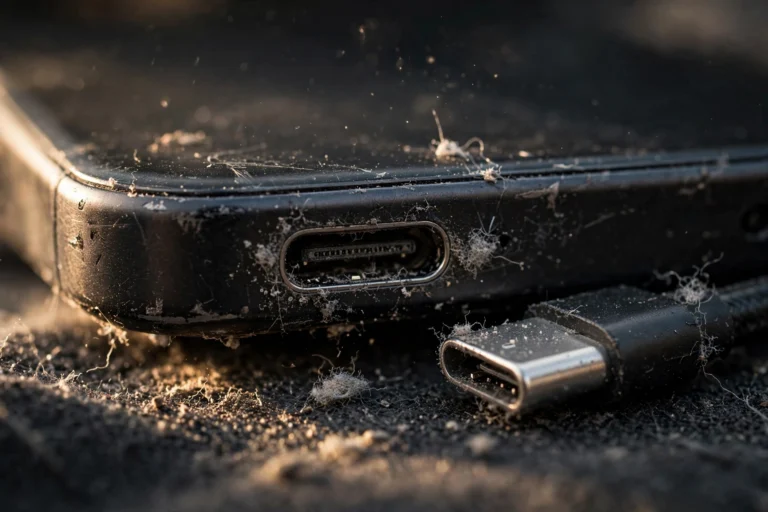
The number one cause is also the simplest: pocket lint packed into the charging port. Over months in pockets and bags, lint compresses into a dense pad at the bottom of a USB-C port, so the cable cannot seat fully and the connection becomes intermittent.
- Power the phone off and unplug it.
- Inspect the port with a flashlight. Gray, fuzzy material packed around the center pin is your culprit.
- Gently scrape it out with a wooden or plastic toothpick. Never use metal — a pin or paperclip can damage the contacts.
- Finish with a short burst of compressed air, holding the can upright.
- Plug the cable back in firmly. It should seat with a snug click — a loose, wobbly plug means remaining debris or a worn port.
This one fix resolves the flashing icon for a surprising number of people.
Fix 2: Try a Different Cable and Charger
If the port is clean, the cable is the next suspect. Cables fail internally long before they look damaged — repeated bending breaks the tiny wires inside, so the cable carries only a trickle of current and the icon blinks as the phone tries and fails to ramp up.
- Test with a known-good cable and charger. If the flashing stops, you have found the problem.
- Match the wattage. A 5W iPhone-era brick cannot satisfy a modern Android expecting 25W or more, and the phone may flash its icon to signal an inadequate charger.
- Respect proprietary fast charging. Samsung Super Fast Charging, OnePlus SuperVOOC, and Motorola TurboPower need compatible chargers and cables — a generic USB-C cable can trigger the flashing icon.
- Inspect the connector for bent pins, corrosion, or a cracked housing.
- Try a different wall outlet. A faulty outlet or overloaded power strip can deliver unstable power.

“When a phone flashes its battery icon with one charger but charges fine with another, the charger was the problem in about nine out of ten cases I have seen.”
Cheap gas-station cables are the most common offenders. A quality USB-IF certified cable costs little and eliminates an entire category of charging weirdness.
Fix 3: Check for Moisture or Temperature Warnings
Sometimes the phone flashes its icon deliberately to protect itself. Modern Androids monitor moisture and temperature and refuse to charge until conditions are safe.
- Look for a water-drop icon. Samsung shows this when moisture is detected in the port. Unplug immediately and air-dry for several hours, port facing down — never use rice, whose dust worsens the problem.
- Check the temperature. A phone left in a hot car may show a flashing battery with a thermometer. Move it somewhere cool and wait for room temperature before charging.
- Cold matters too. Phones block charging below freezing to protect the battery. Warm the phone gradually in your pocket — never with a hair dryer.
- Try wireless charging as a test. It bypasses the port entirely — if wireless works while wired flashes, the port is the issue.
These protective behaviors are features, not bugs. A phone that refuses to charge in unsafe conditions is doing exactly what it should.
Fix 4: Rule Out a Software Glitch
If the hardware checks out, a software hiccup may be behind it. Try these before assuming the phone needs repair:
- Restart the phone to clear temporary glitches in the power management system.
- Boot into Safe Mode. A misbehaving app — especially battery “optimizer” apps — can interfere with charging. If the flashing stops there, uninstall recently added apps one by one.
- Clear the USB settings cache. Go to Settings > Apps, tap the menu and choose Show system apps, find USBSettings, then tap Storage > Clear cache. This resets the phone’s memory of connected chargers.
- Install pending updates via Settings > System > Software update — manufacturers occasionally fix charging bugs.
- Ignore “battery calibration” apps. No app can recalibrate a modern battery — do not waste time on this.

Fix 5: When the Flashing Icon Means a Hardware Problem
If the port is clean, cables and chargers are known-good, moisture and temperature are ruled out, and a reboot changed nothing, the problem is inside the phone:
- A worn-out charging port. If the cable wobbles even when the port is clean, the port needs professional replacement.
- A failing battery. Check Settings > Battery > Battery health (where available) for serious capacity loss.
- A swollen battery. If the back of the phone is bulging, the screen is lifting, or the phone rocks on a flat table, stop using it immediately. A swollen lithium battery is a fire risk — do not charge it, do not puncture it, and take it to a professional for safe disposal.
- Charging circuit damage. Drops and water exposure can damage the phone’s charging IC. This needs board-level repair.
“A flashing battery icon plus a phone that dies at 20 percent is the classic signature of a battery at the end of its life — not a charger problem.”
Port replacement is usually affordable at a reputable shop. On a phone more than three years old, compare any repair quote against the price of a newer device first.
FAQ
Why is my battery icon flashing but the phone still charges slowly?
The phone grabs small sips of power between dropouts, so the percentage creeps up slowly while the icon blinks. Clean the port and swap the cable — that combination resolves it in most cases.
Can a flashing battery icon mean water damage?
Not necessarily. Moisture detection is a warning — the phone protecting itself. If the icon keeps flashing when the phone is fully dry after a known dunking, get it checked for actual damage.
Why does my Samsung show a flashing battery with a thermometer symbol?
That means the phone is outside its safe charging temperature range — usually too hot. Move it out of direct sun, remove a thick case, and let it cool; charging resumes automatically.
Is it safe to keep using my phone while the battery icon flashes?
Using the phone is fine, but do not ignore the cause — an intermittent connection generates extra heat at the port. Fix it rather than living with it; if the battery is swollen, stop using the phone entirely.
My icon flashes only with one specific charger. Is the charger bad?
Almost certainly — chargers degrade as capacitors age. If every other charger works and one brick triggers the flashing, recycle it and buy a quality replacement matched to your phone’s wattage.
Conclusion
So why is my android battery icon flashing when i plug it in? In most cases, the answer is a dirty charging port or a dying cable — both fixable in minutes. The flashing icon simply means the power connection is unstable, and checking the port, cable, charger, and environment in that order finds the culprit nearly every time.
Only when those check out should you suspect the battery or port hardware — and only a swollen battery makes this an emergency. Keep a quality cable handy, clean the port every few months, and the blinking icon will stay gone.