How to Clear Cache on iPhone: Free Up Space Fast (2026)
How to Clear Cache on iPhone: Free Up Space Fast (2026)
If your iPhone feels slow or the “Storage Almost Full” warning keeps popping up, learning how to clear cache on iPhone is one of the quickest fixes. Here is the key thing to know: iPhone does not have a single “clear all cache” button. Instead, you clear cache separately in Safari, in Chrome, inside individual apps, and by managing your iPhone Storage. Follow the steps below and you can free up hundreds of megabytes — sometimes several gigabytes — in about ten minutes.
Clear Safari Cache on iPhone
Safari is usually the biggest cache hoarder on an iPhone because it stores website data from every page you visit. Clearing it is fast and safe.

- Open Settings on your iPhone.
- Scroll down and tap Safari.
- Tap Clear History and Website Data.
- Choose a time range (such as All history) and confirm.
This removes your browsing history, cookies, and cached files. Note that you will be signed out of websites, so you will need to log back in afterward. If you only want to remove website data without touching your history, go to Settings > Safari > Advanced > Website Data, then tap Remove All Website Data.
A quick warning: clearing Safari data also clears it from other devices signed in to the same iCloud account if Safari syncing is on. If that matters to you, turn off Safari in Settings > [your name] > iCloud first.
If you share your iPhone with family members or use it for work, consider clearing cache during downtime — you will need a minute to sign back into your most-used sites afterward.
Clear Chrome Cache on iPhone
If you use Chrome instead of Safari, its cache lives inside the Chrome app itself.
- Open the Chrome app.
- Tap the three dots (menu) at the bottom right.
- Tap Settings, then tap Privacy and Security.
- Tap Clear Browsing Data.
- Select Cached Images and Files (you can also include browsing history and cookies if you want a deeper clean).
- Choose a time range, then tap Clear Browsing Data to confirm.
Unlike Safari, clearing Chrome’s cache only affects Chrome on that iPhone — it will not touch data on your other devices. Menu names may vary slightly by iOS version and Chrome updates, but the path stays roughly the same.
Offload Unused Apps vs Delete Apps
The iPhone Storage screen is the most powerful tool for freeing space, and many people overlook it. Here is the difference between the two options Apple gives you:
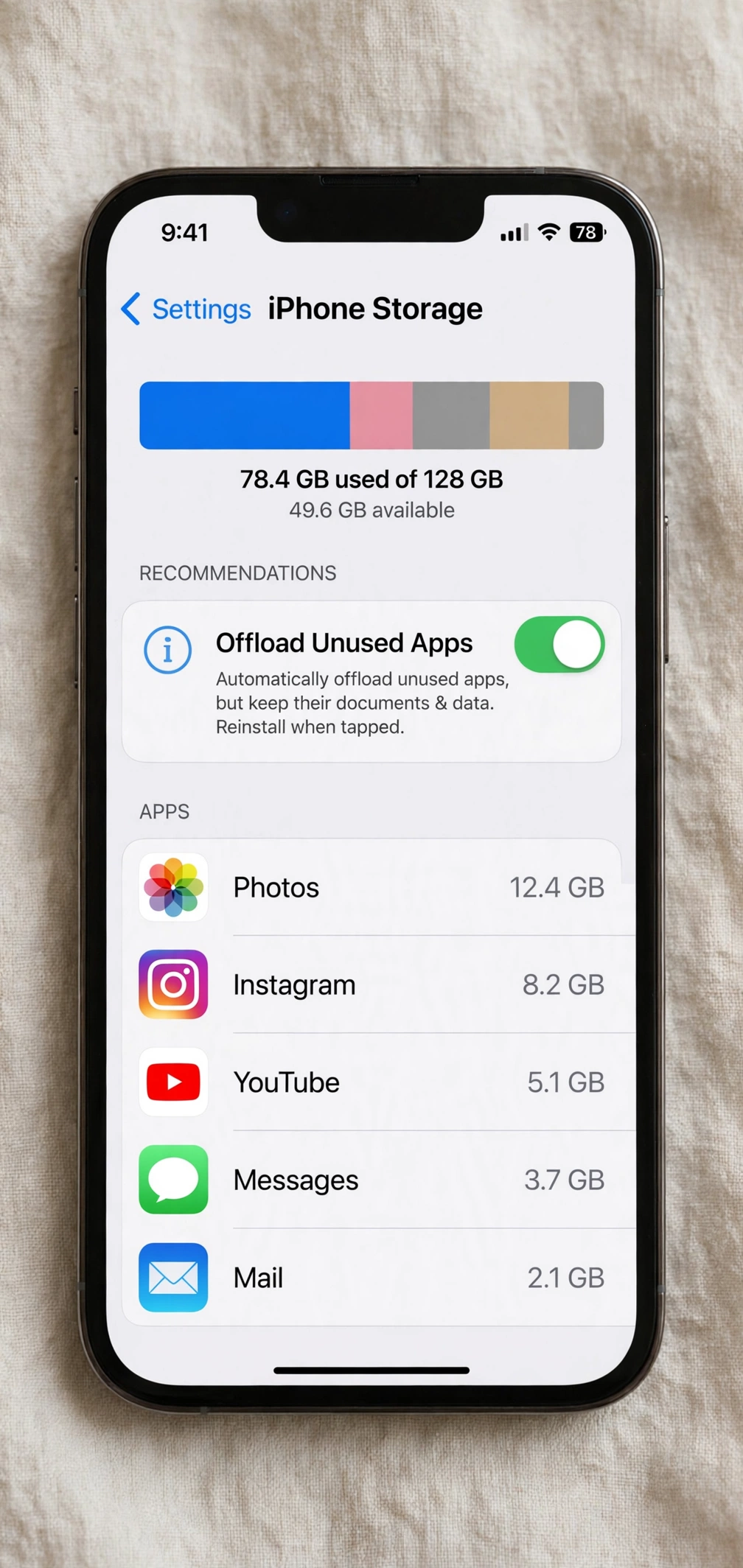
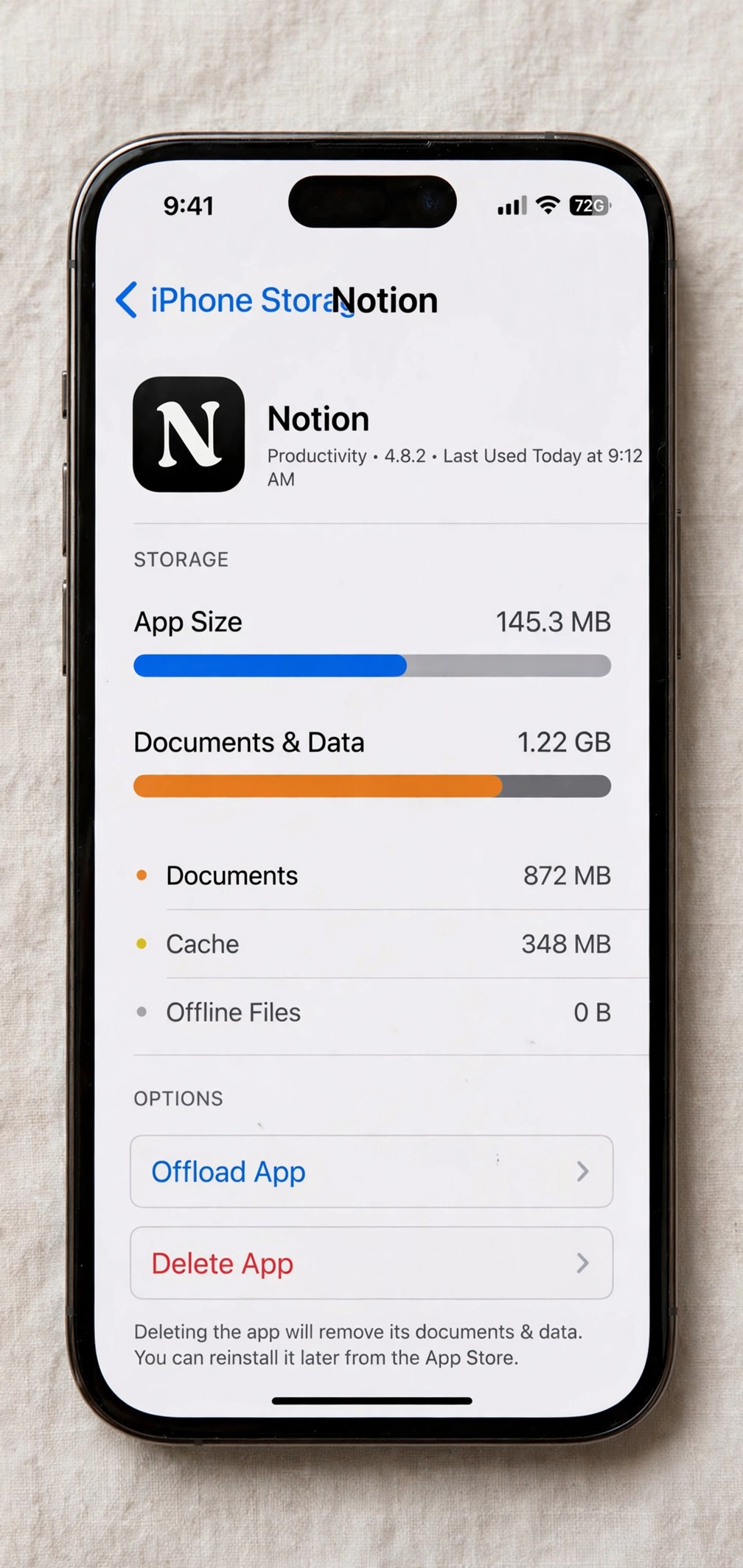
- Offload App: Removes the app itself but keeps its documents and data. If you reinstall the app later, everything is restored. This is the safer choice.
- Delete App: Removes the app and all of its data. Only do this for apps you no longer need.
How to do it:
- Go to Settings > General > iPhone Storage.
- Wait a few seconds while iOS calculates storage by app.
- Tap any app you rarely use.
- Choose Offload App (recommended) or Delete App.
You can also enable Offload Unused Apps automatically at the top of the iPhone Storage screen. With this on, iOS will quietly offload apps you have not opened in a while whenever storage runs low. Your data stays safe either way.
Clear Cache in Popular Apps
Many apps build up their own cache, and some let you clear it right inside the app — no reinstall needed.
TikTok:
- Open TikTok and go to your Profile.
- Tap the menu (three lines) at the top right, then Settings and privacy.
- Scroll to Cache & Cellular, then tap Clear cache.
Instagram:
Instagram on iPhone does not have a built-in cache-clear button. The reliable workaround is to offload the app (Settings > General > iPhone Storage > Instagram > Offload App), then reinstall it from the App Store. Your account and posts are unaffected.
Other apps (Reddit, Snapchat, Telegram, etc.):
Check the app’s own settings for a “Clear cache” or “Storage” option — many apps now include one. If there is no such option, offloading and reinstalling is the safe fallback.
If you are cleaning up your phone, you may also want to read our guide on How to Delete Instagram Account Permanently if you have old accounts you no longer use.
Restart Your iPhone to Clear Temporary Files
A simple restart clears temporary system files and can fix minor slowdowns. It takes less than two minutes:
- iPhone X and later: Press and hold the Side button and either Volume button until the power-off slider appears. Drag the slider, wait 30 seconds, then press and hold the Side button until the Apple logo appears.
- iPhone 8 and earlier: Press and hold the Side (or Top) button until the slider appears, then follow the same steps.
Restarting will not delete any of your data. Think of it as a quick refresh for the system. If your iPhone offers software updates, installing the latest iOS version during the same session is a good habit — updates often include storage and performance improvements.
Frequently Asked Questions
Will clearing cache delete my photos or messages?
No. Clearing cache removes temporary files like stored website data and thumbnails. Your photos, messages, contacts, and apps stay exactly where they are. The one exception is choosing Delete App instead of Offload App — that removes the app’s data too.
How often should I clear cache on iPhone?
For most people, once every month or two is plenty. If you browse heavily or use apps like TikTok daily, clearing cache monthly keeps things running smoothly.
Why is my iPhone storage still full after clearing cache?
Cache is only one part of the picture. Photos, videos, downloaded music, and large apps usually take up far more space. Check Settings > General > iPhone Storage to see what is actually using your space, and consider moving photos to iCloud or a computer.
Does clearing Safari cache log me out of websites?
Yes. Clearing history and website data signs you out of sites in Safari. If you want to stay logged in, use Settings > Safari > Advanced > Website Data and remove data for individual sites instead.
Is there an app that clears iPhone cache automatically?
Apple does not allow third-party “cleaner” apps to clear system cache on iPhone the way they can on some other phones. Be cautious of apps that claim to do this — the built-in methods in this guide are the safe, official way.
Conclusion
Clearing cache on iPhone is not a one-tap job, but it is simple once you know where to look: clear Safari and Chrome data, offload unused apps from iPhone Storage, use in-app cache options where available, and restart your phone now and then. Do this every month or two and your iPhone will stay fast and roomy.
If your phone still feels sluggish after freeing up space, the problem might be your connection rather than your storage — check out Why Is My WiFi So Slow? 9 Fixes That Work next.