How to Delete Instagram Account Permanently (2026 Guide)
How to Delete Instagram Account Permanently (2026 Guide)
To delete your Instagram account permanently, open the Instagram app, go to Settings and privacy > Accounts Center > Personal details > Account ownership and control > Deactivation or deletion, select your profile, choose Delete account, and confirm with your password. Instagram then holds your account in a 30-day grace period before wiping it for good. Log back in during those 30 days to cancel; after that, everything is gone.
The tricky part is that Instagram keeps moving this option. It used to live inside the app’s own settings, then Meta shifted it into the unified Accounts Center, and the wording changed along the way. Many older tutorials are now out of date, which is why so many people give up halfway through. This guide walks you through the current path on both phone and browser, explains exactly what happens to your photos and DMs, and shows you how to back up your data first. (Note: menu names can shift slightly with app updates, but the Accounts Center path below is current as of 2026.)
Deactivate vs. Delete: What’s the Difference?
Before you start, decide which one you actually want. They sound similar but do very different things.
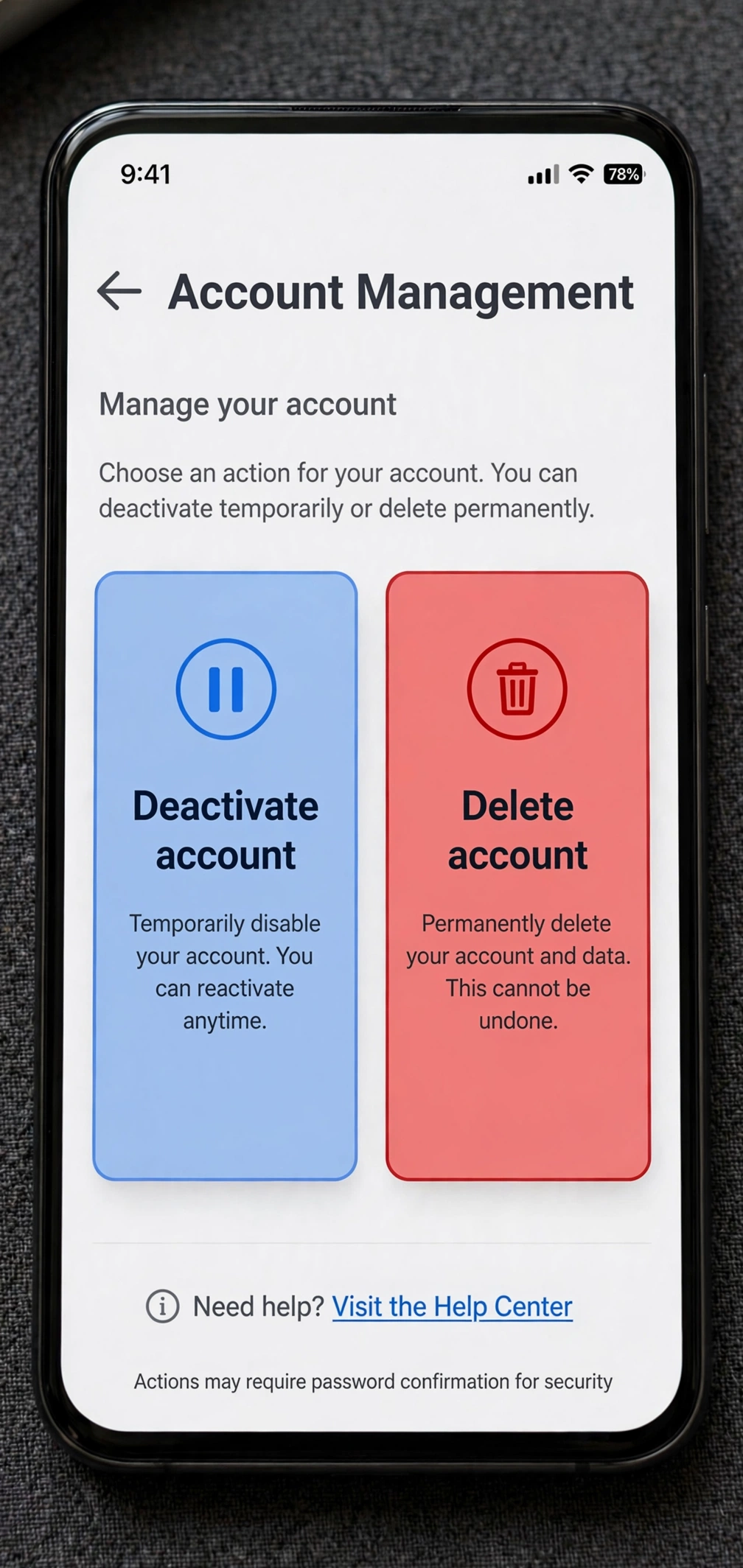
Deactivating your account is temporary. Your profile, photos, comments, and likes become invisible to everyone else, but Instagram keeps all of it on its servers. When you log back in, everything reappears exactly as you left it. Think of it as putting your account to sleep. You can deactivate once per week.
Deleting your account is permanent. After the 30-day grace period ends, your profile, photos, videos, comments, likes, and followers are permanently removed. You cannot get them back. Your username also stays reserved and typically cannot be claimed by you or anyone else for a long time afterward.
If you only need a break — from doomscrolling, from a rough patch, from the algorithm — deactivation is the safer choice. Choose deletion only when you are sure you never want the account back.
Before You Delete: Download Your Data
Once the account is gone, your photos and videos are gone too. Before you start the deletion process, take a few minutes to download a copy of everything.
- Open the Instagram app and tap your profile icon (bottom right).
- Tap the menu (three horizontal lines, top right).
- Go to Accounts Center.
- Tap Your information and permissions, then Download your information.
- Choose Download or transfer information, select your Instagram profile, and tap Next.
- Pick Some of your information (to choose only photos and videos) or All available information.
- Select a date range and format (HTML is easiest to read), then tap Create files.
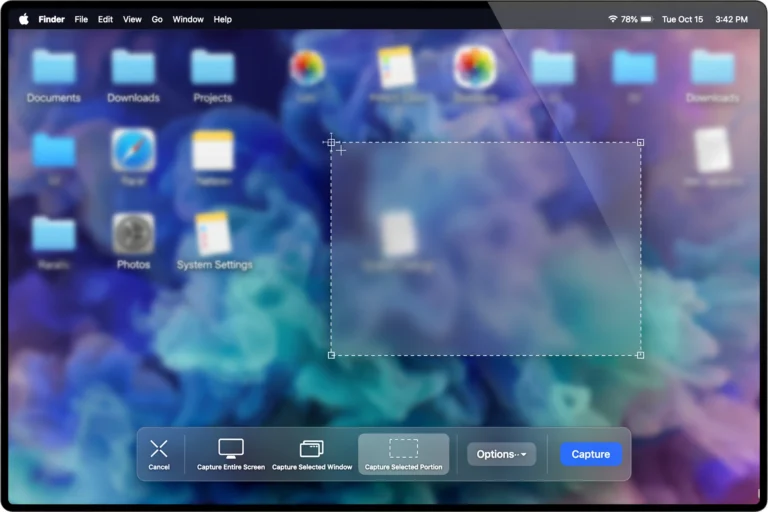
Instagram will email you a download link when your files are ready. This can take anywhere from a few minutes to a couple of days depending on how much content you have. If you also want to keep copies of specific posts on your computer, our guide on how to take screenshots on Mac covers the fastest ways to grab them.
How to Delete Your Instagram Account on Phone (iPhone & Android)
The steps are the same on iPhone and Android, since both go through the Accounts Center.

- Open the Instagram app and make sure you are logged in to the account you want to delete. If you manage multiple accounts, switch to the right one first.
- Tap your profile icon in the bottom-right corner.
- Tap the menu icon (three horizontal lines) in the top-right corner.
- Tap Accounts Center at the top of the Settings screen.
- Tap Personal details.
- Tap Account ownership and control.
- Tap Deactivation or deletion.
- Select the Instagram profile you want to delete.
- Choose Delete account (not “Deactivate account”) and tap Continue.
- Select a reason for leaving. Instagram will show you alternatives, such as deactivation — tap Continue to proceed with deletion.
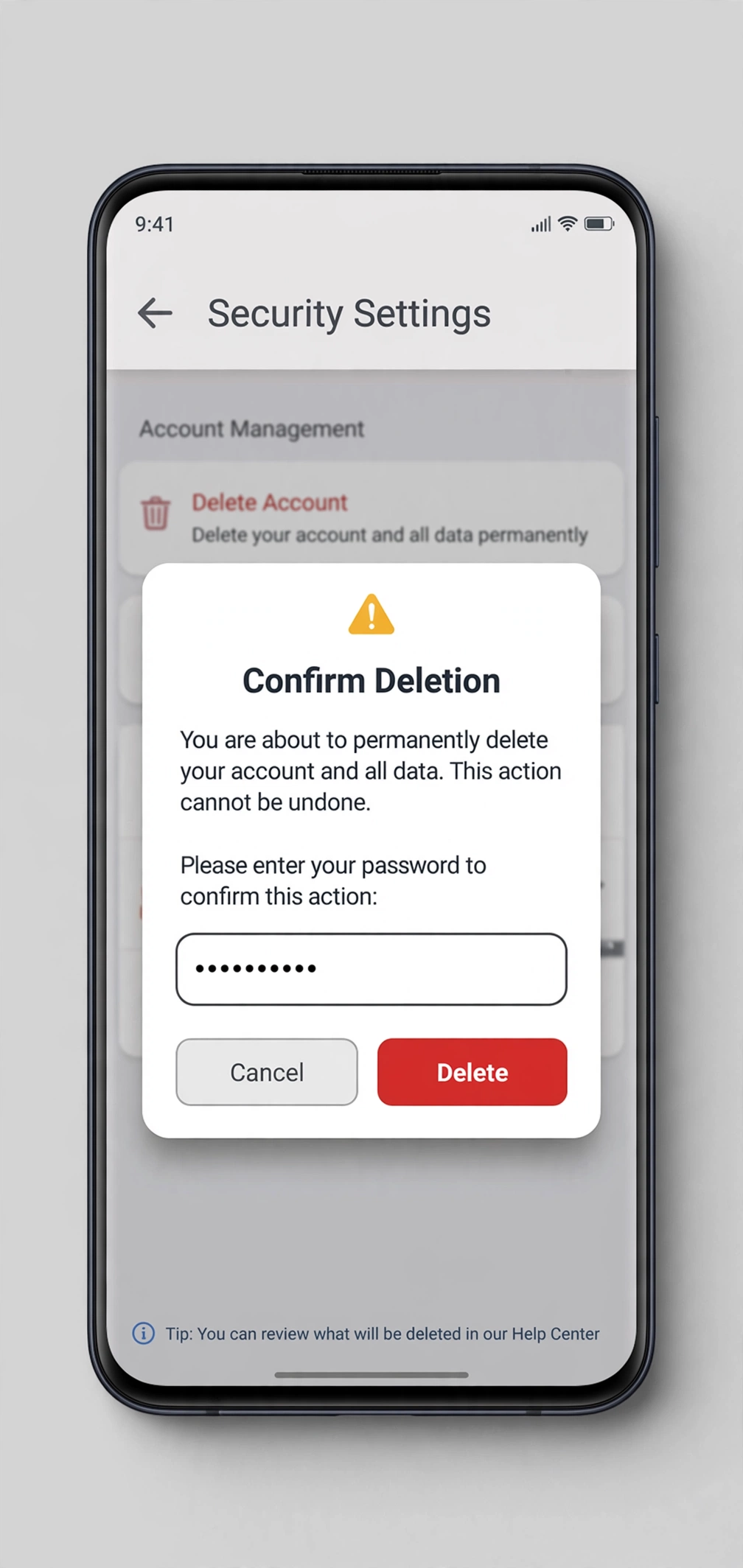
- Re-enter your password when prompted, then tap Delete [username] to confirm.
You will be logged out immediately, and your profile will no longer be visible to others. The 30-day grace period starts now.
How to Delete Your Instagram Account on a Browser
Prefer a bigger screen? You can do the same thing from a desktop or mobile browser.
- Go to instagram.com and log in to the account you want to delete.
- Click your profile picture (top right) and choose Settings (the gear icon).
- In the left sidebar, click Accounts Center.
- Click Personal details, then Account ownership and control.
- Click Deactivation or deletion.
- Select your Instagram profile from the list.
- Choose Delete account and click Continue.
- Pick a reason for deleting, then click Continue.
- Enter your password and click Delete [username] to confirm.
The result is identical to the in-app method: your account disappears from public view and the 30-day grace period begins.
What Happens After You Request Deletion
Here is exactly what happens to your stuff once you confirm:
- Profile, photos, and videos: Hidden immediately. Permanently wiped after the 30-day grace period ends. Instagram notes that full removal from backup systems can take additional time, but the content is no longer recoverable by you.
- Followers and following: Your follower list is deleted along with the account.
- Comments and likes: Removed permanently after the grace period.
- Direct messages (DMs): This is the part that surprises people. Messages you already sent remain visible in the other person’s inbox. Deleting your account removes your profile from the chat, but it does not unsend messages on the recipient’s side.
- Username: Your username is not released right away. In most cases it stays reserved for a long time, so do not count on re-registering it soon — or on someone else grabbing it.
- Linked Facebook account: If your Instagram was linked to Facebook through Accounts Center, the Facebook account is not affected. Only the Instagram profile you selected is deleted.
One more thing worth knowing: simply clearing the app’s cache or reinstalling the app does nothing to your account — your profile stays exactly as it was. (If the app itself is acting up, see our guide on how to clear the cache on iPhone instead.)
How to Cancel the Deletion During the Grace Period
Changed your mind? You have 30 days to undo it.
- Open the Instagram app or go to instagram.com.
- Log in with the username and password of the account you asked to delete.
- Instagram will show a message saying your account is scheduled for deletion, with the date.
- Tap or click Keep Account (wording may vary slightly) to cancel the deletion.
Your profile, photos, followers, and everything else will be restored exactly as they were. After the 30-day window closes, cancellation is no longer possible — the deletion is final.
FAQs
Can I recover a deleted Instagram account after 30 days?
No. Once the 30-day grace period ends, the account and all its content are permanently deleted. Instagram cannot restore it, even if you contact support.
How long does Instagram account deletion take?
Your profile disappears immediately after you confirm, but the data is held for a 30-day grace period in case you change your mind. Full, permanent removal happens after those 30 days.
Will my DMs disappear when I delete my account?
No. Messages you sent stay visible in the recipients’ inboxes. Only your profile name and photo are removed from the conversation view.
Can I delete my Instagram account without the password?
No. Instagram requires your password to confirm deletion. If you forgot it, reset it first through the “Forgot password?” link on the login screen, then follow the deletion steps.
Can someone else take my username after I delete my account?
Not right away. Instagram keeps deleted usernames reserved, and in practice they often remain unavailable for a long time. Do not delete an account expecting to immediately re-register the same handle.
Conclusion
Deleting your Instagram account permanently comes down to one path: Settings and privacy > Accounts Center > Personal details > Account ownership and control > Deactivation or deletion. Remember the two things that matter most: download your data before you start, and know that you have 30 days to change your mind by simply logging back in.
If you are on the fence, deactivate first. You can always come back and delete later — but you can never undo a deletion once the grace period ends.