How to Speed Up Laptop on Windows 11: 10 Proven Tips (2026)
How to Speed Up Laptop on Windows 11: 10 Proven Tips (2026)
If you want to know how to speed up a laptop on Windows 11, start with these quick wins: disable unnecessary startup programs, uninstall apps you never use, turn off transparency effects, run Storage Sense, and switch your power mode to Best Performance. These five changes alone can make a sluggish laptop feel noticeably faster in under 15 minutes. Below, we walk through all 10 proven tips step by step.
Windows 11 is a modern operating system, but over time any laptop can slow down. Background apps pile up, storage fills with temporary files, and pre-installed bloatware eats resources. The good news is that most slowdowns are caused by software — which means you can fix them yourself, for free, without buying a new laptop.
1. Disable Unnecessary Startup Programs
Every app that launches at startup adds seconds to your boot time and keeps running in the background. This is the single most effective free fix.
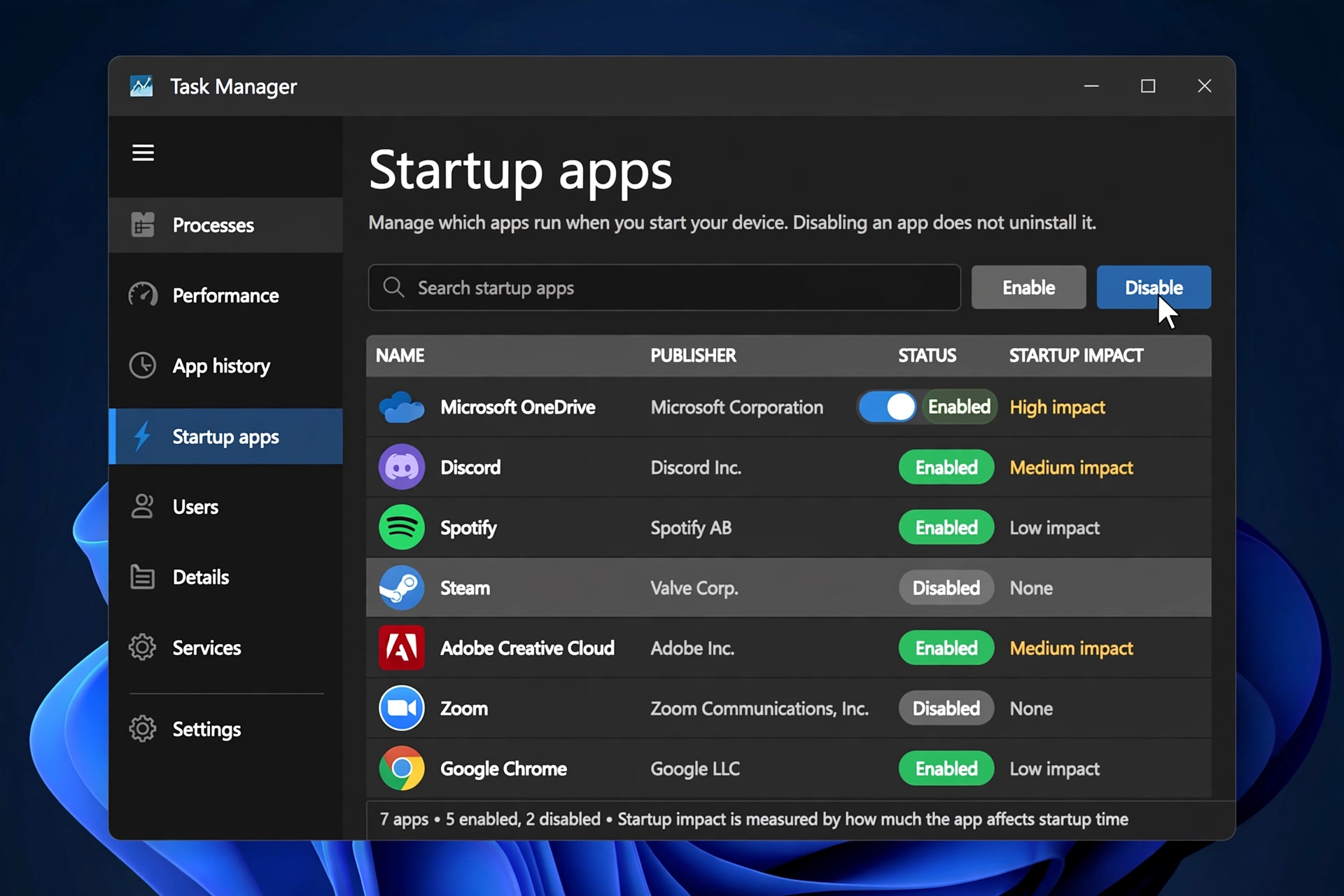
- Press Ctrl + Shift + Esc to open Task Manager.
- Click the Startup apps tab on the left sidebar.
- Look at the Status and Startup impact columns.
- Right-click any app you don’t need immediately (like Spotify, Discord, or Adobe updaters) and choose Disable.
Alternative path: Settings > Apps > Startup — toggle off anything non-essential. Leave your antivirus and system utilities enabled.
2. Uninstall Bloatware and Unused Apps
New laptops often ship with trial software and apps you’ll never open. Each one takes up disk space and some run background processes.

- Go to Settings > Apps > Installed apps.
- Sort by size or scroll through the list.
- Click the three dots next to an app you don’t need and select Uninstall.
Be careful not to remove anything with “Microsoft,” “Intel,” “Realtek,” or your laptop manufacturer’s name unless you’re sure what it does. When in doubt, search the app name first.
3. Turn Off Visual Effects and Transparency
Windows 11’s animations and transparency look nice but cost CPU and GPU resources — especially on older laptops with integrated graphics.
- Go to Settings > Accessibility > Visual effects.
- Turn off Transparency effects and Animation effects.
For even more control, search for “Adjust the appearance and performance of Windows” in the Start menu, open it, and select Adjust for best performance (or manually uncheck effects you don’t care about). The interface will look a bit plainer, but everything will feel snappier.
4. Run Storage Sense and Disk Cleanup
A nearly full drive slows Windows down because the system has less room for temporary files and virtual memory. Aim to keep at least 15–20% of your drive free.
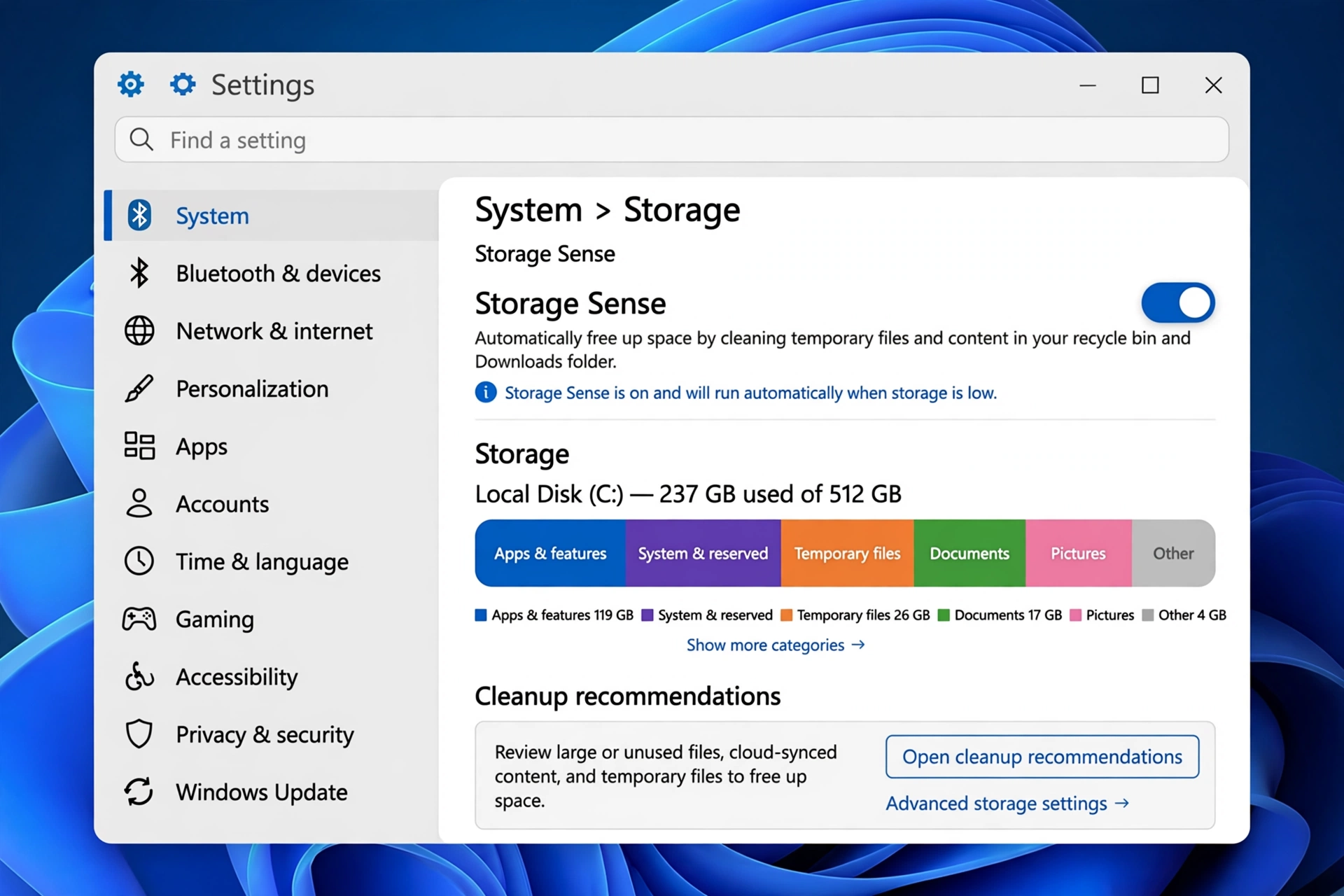
- Go to Settings > System > Storage.
- Turn on Storage Sense — Windows will automatically delete temporary files, empty the recycle bin on a schedule, and clean up old downloads.
- Click Temporary files, check the boxes for items you don’t need, and click Remove files.
Run this check once a month. If your drive is still nearly full after cleanup, consider moving large files (videos, installers) to an external drive or cloud storage.
5. Install the Latest Windows Updates
Microsoft regularly ships performance improvements and bug fixes through Windows Update. Running an outdated version can mean missing out on these.
- Go to Settings > Windows Update.
- Click Check for updates and install everything available.
- Restart your laptop when prompted — don’t keep postponing it.
Also check Advanced options > Optional updates for driver updates, which can fix hardware-related slowdowns.
6. Scan for Malware
Malware and unwanted background miners can quietly consume your CPU. Even if you browse carefully, a quick scan is worth it.
- Open Windows Security from the Start menu.
- Go to Virus & threat protection.
- Click Quick scan. If anything is found, follow the prompts to remove it.
Windows’ built-in protection is solid for most users. Avoid installing multiple antivirus programs — they can conflict with each other and slow your system more than they help.
7. Disable Background Apps You Don’t Need
Many apps keep running in the background to send notifications or sync data, using RAM and CPU even when you never open them.
- Go to Settings > Apps > Installed apps.
- Click the three dots next to an app, then Advanced options.
- Under Background apps permissions, set it to Never for apps that don’t need to run behind the scenes.
Focus on shopping apps, games, and social apps. Keep background access on for things like email or messaging apps you actually rely on.
8. Switch Power Mode to Best Performance
Windows 11 may throttle your CPU to save battery. If you’re plugged in (or don’t mind shorter battery life), switch to maximum performance.
- Go to Settings > System > Power & battery.
- Under Power mode, select Best performance from the dropdown.
Tip: Create a habit — use Best performance when plugged in at your desk, and switch back to Balanced or Best power efficiency when running on battery.
9. Consider a Hardware Upgrade: SSD and RAM
If your laptop still uses a traditional hard drive (HDD), upgrading to an SSD is the biggest speed boost money can buy — boot times often drop from minutes to seconds. Similarly, if you have only 4 GB of RAM, upgrading to 8 GB or 16 GB makes multitasking dramatically smoother.
- Check your specs: Settings > System > About, and Task Manager > Performance tab.
- Many laptops allow RAM and storage upgrades, but some thin ultrabooks have soldered components. Check your model’s manual or manufacturer support page before buying parts.
- If you’re not comfortable opening your laptop, a local repair shop can usually do an SSD/RAM upgrade in under an hour.
10. Restart Regularly and Keep Drivers Updated
It sounds basic, but many people just close the lid for weeks. A full restart clears memory leaks and stuck processes.
- Restart (not just shut down) your laptop at least once a week.
- Update drivers through Settings > Windows Update > Advanced options > Optional updates.
- For graphics drivers, you can also use your GPU maker’s tool (NVIDIA GeForce Experience or AMD Software) for the latest versions.
FAQ
Why is my brand-new laptop so slow on Windows 11?
New laptops often come loaded with pre-installed trial software (bloatware) that runs at startup. Uninstall what you don’t need (Tip 2), disable startup programs (Tip 1), and run Windows Update — most new laptops feel much faster after this initial cleanup.
Will resetting Windows 11 speed up my laptop?
Yes, a reset usually helps because it removes accumulated clutter, broken registry entries, and unwanted programs. Go to Settings > System > Recovery > Reset this PC. Choose “Keep my files” to preserve personal data, but back up important files first anyway. Try the tips above first — a reset is the last resort, not the first step.
How much RAM do I need for Windows 11 to run smoothly?
Microsoft’s minimum is 4 GB, but in practice 8 GB is the realistic minimum for smooth everyday use in 2026, and 16 GB is ideal if you multitask with many browser tabs or heavier apps. If Task Manager’s Performance tab shows memory constantly above 85%, an upgrade will help.
Does antivirus software slow down Windows 11?
Windows Security (built in) has minimal impact on modern hardware. Problems usually come from running two antivirus programs at once or from heavy third-party suites with lots of extra features. Stick with Windows Security unless you have a specific reason to switch.
Is it safe to disable all startup apps?
Not all of them. Disable third-party apps like chat clients, game launchers, and updaters — but leave your antivirus, audio drivers, and anything from your laptop manufacturer enabled unless you know what it does. If something breaks, you can always re-enable it in Task Manager.
Conclusion
Learning how to speed up a laptop on Windows 11 comes down to removing what you don’t need and letting the system use its resources efficiently. Start with the free software fixes — disabling startup programs, uninstalling bloatware, cleaning storage, and switching to Best Performance mode — and most laptops will feel like new again. Only consider hardware upgrades like an SSD or more RAM if the software cleanup isn’t enough.
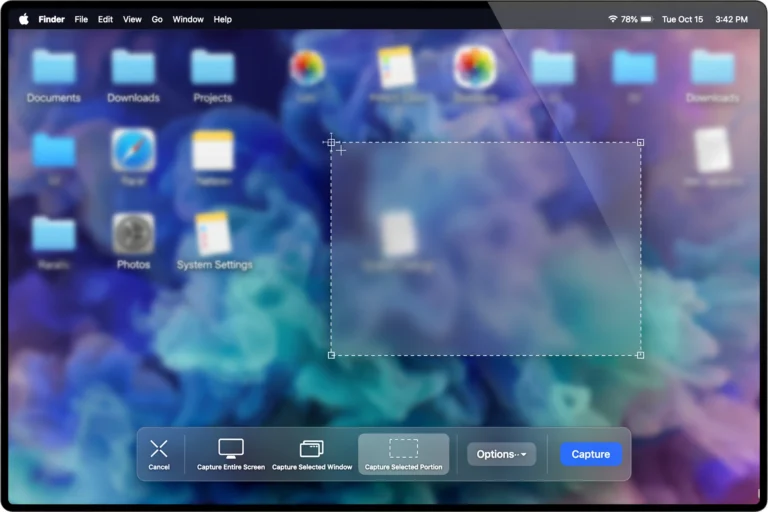
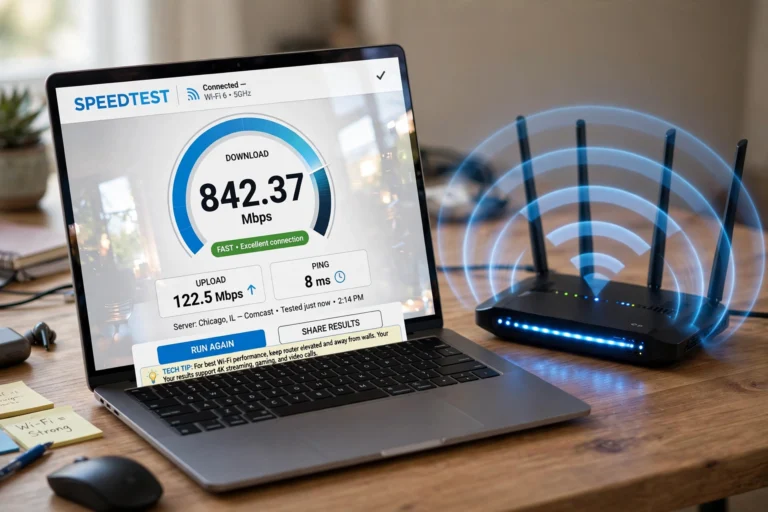
If your laptop is still slow after trying everything here, it may also be worth checking your internet speed — a laggy connection can feel like a slow computer. Our guide on Why Is My WiFi So Slow? 9 Fixes That Work covers that side of things. And if you ever need to document your newly fast setup, here’s How to Screenshot on Mac: 4 Easy Methods for your Apple devices.