How to Use ChatGPT for Beginners: Step-by-Step (2026)
How to use ChatGPT for beginners is simple: go to chatgpt.com, create a free account with your email, type a question or request into the message box at the bottom of the screen, and press Enter. ChatGPT replies in seconds. The better your prompt — the instructions you type — the better the answer you get. There is no software to install and the free plan is enough to learn everything in this guide.
This guide takes you from zero to confident in about ten minutes: setup, the interface, writing prompts, and the beginner mistakes to avoid.
What Is ChatGPT, Exactly?
ChatGPT is an AI chatbot made by OpenAI. You type a message — called a prompt — and it responds with text that reads like it was written by a knowledgeable human. It can answer questions, write emails, explain difficult topics, help with homework, draft social media posts, translate languages, brainstorm ideas, and much more.
Think of it as a very fast research assistant that never sleeps. It does not browse the web on the free plan by default the way a search engine does — instead, it generates answers from patterns it learned during training. That means it is brilliant at writing, explaining, and brainstorming, but you should always double-check facts, numbers, and dates it gives you, because it can occasionally make mistakes with total confidence.
The free version uses a capable model that handles everyday tasks well. Paid plans unlock smarter models and extra features, which we break down in our guide to Is ChatGPT Free? Plans Explained.
Step 1: Create Your Free ChatGPT Account
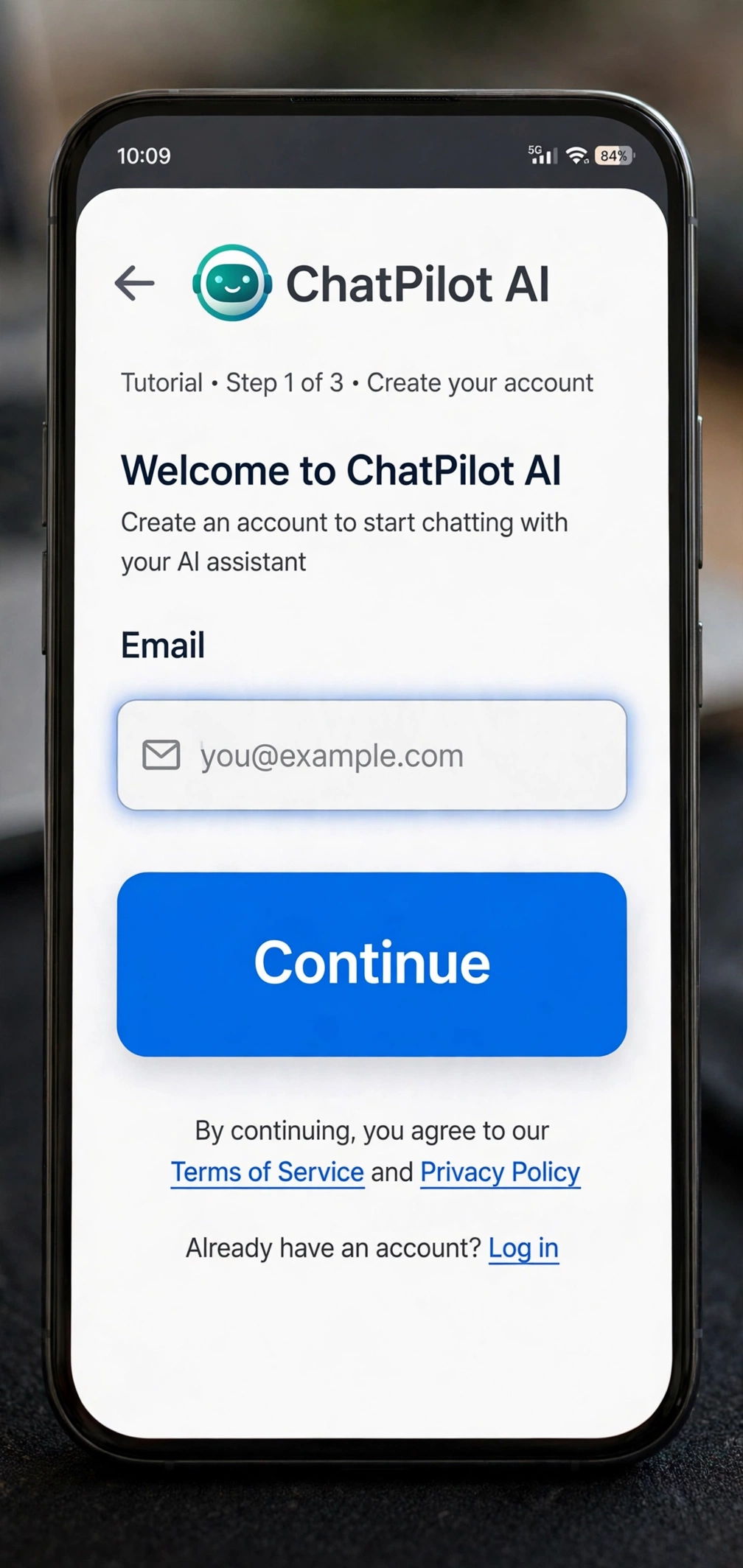
You need an account before you can start chatting. The whole process takes about two minutes.
Steps:
- Go to chatgpt.com in your browser (it works on phones, tablets, and computers).
- Click Sign up in the top-right corner.
- Enter your email address and create a password, or sign up faster with your Google, Microsoft, or Apple account.
- Check your inbox for a verification email and click the link inside.
- Enter your name and birthday when asked — this is required to finish setup.
- You land on the ChatGPT home screen. You are ready to go.
Tip: If you ever get stuck on a step involving your phone or browser, our device guides can help — for example, How to Clear Cache on iPhone if a page is not loading properly.
Step 2: Get to Know the Interface
The ChatGPT screen looks simple on purpose. Here is what each part does:
- Message box (bottom center): where you type your prompts.
- Sidebar (left): your saved past conversations. Click New chat to start fresh.
- Model picker (top): chooses which AI model answers. Leave it on the default.
- Plus/attach button: uploads images or files on supported plans.
- Microphone icon: dictate your prompt by voice instead of typing.
Everything important happens in the message box. You do not need to learn the rest right away — the sidebar and settings can wait until you are comfortable chatting.
Step 3: Write Your First Prompt
A prompt is just the message you send to ChatGPT. There is no special format to learn. Start with something simple to see how it responds.
Steps:
- Click inside the message box at the bottom of the screen.
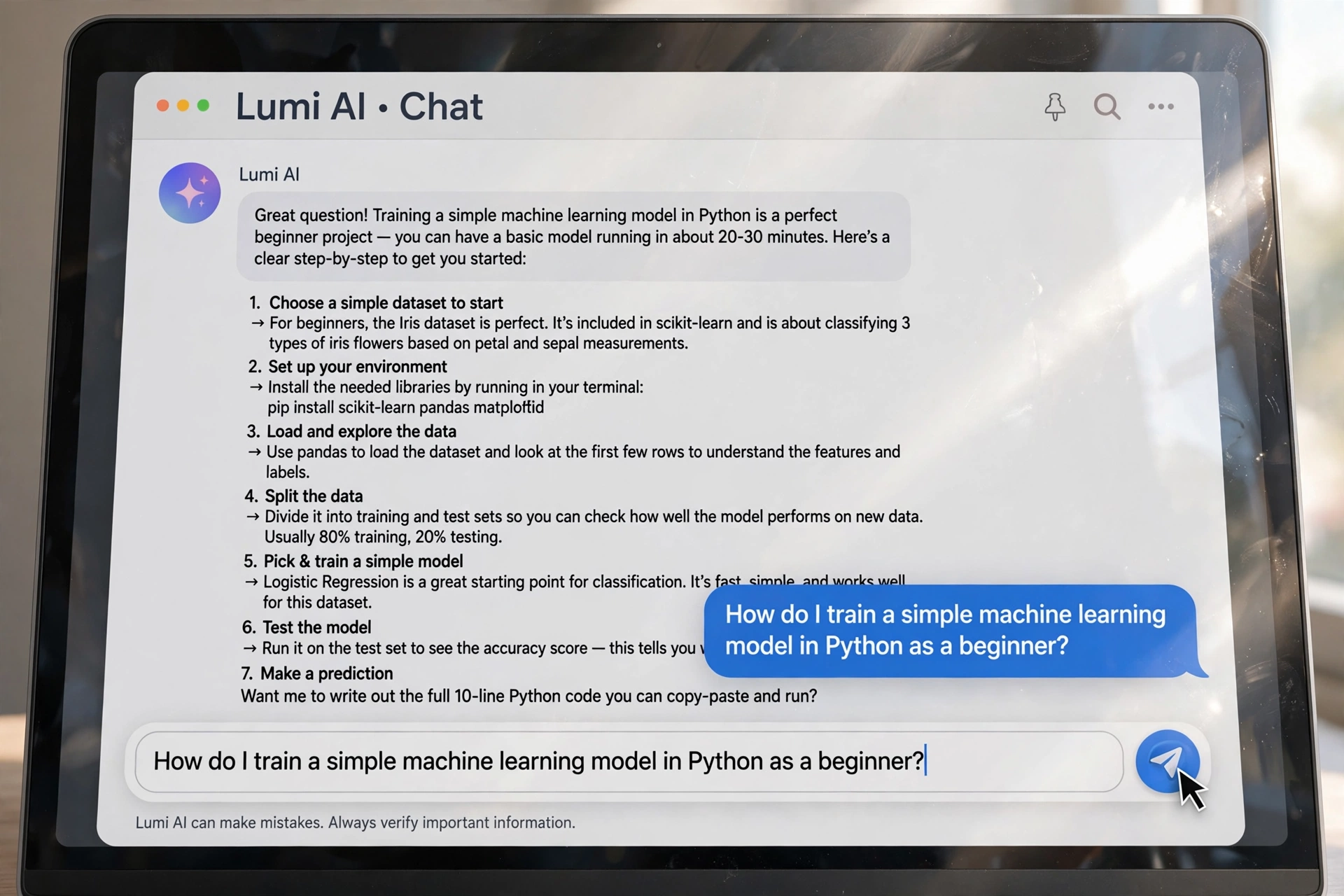
- Type a clear request. Try: “Explain how WiFi works in simple terms, like I’m ten years old.”
- Press Enter (or click the arrow/send button).
- Watch ChatGPT generate its answer in real time, word by word.
Try a few more to get a feel for it:
- “Write a polite email asking my boss for Friday off.”
- “Give me 5 healthy breakfast ideas that take under 10 minutes.”
- “What is the difference between a debit card and a credit card?”
Notice how ChatGPT adapts to each request — explaining, writing, listing. The key beginner insight is this: you can talk to it like a person. Full sentences work better than single keywords.
Step 4: Improve Answers with Follow-Up Questions
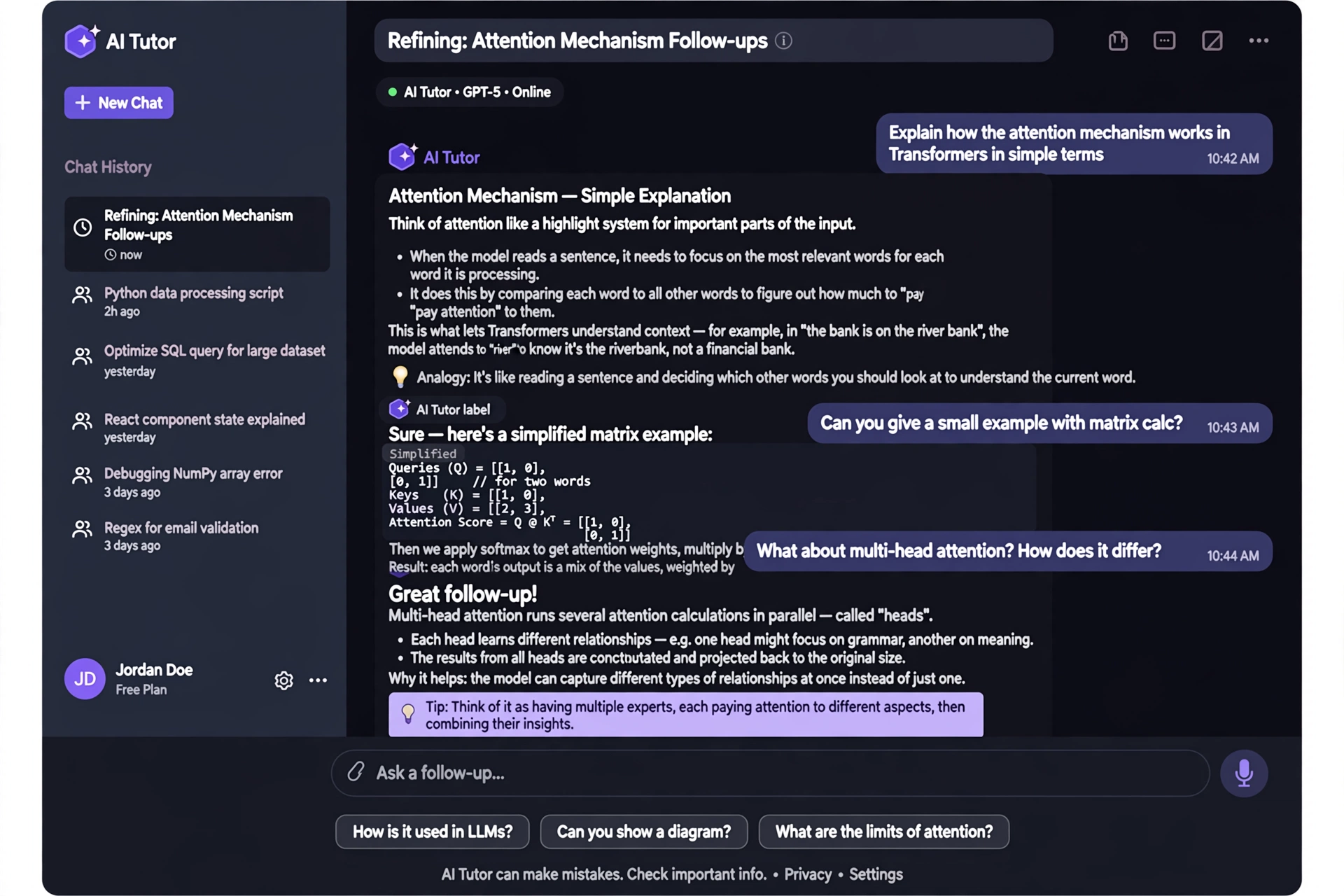
Your first answer is rarely the final answer. ChatGPT remembers the conversation, so you can refine results just by replying — exactly like texting a friend.
Examples of follow-ups that work:
- “Make it shorter.”
- “Explain that again but with an example.”
- “Now turn that into a bullet list.”
- “Make it sound more professional.”
- “Give me 3 more ideas like the second one.”
This back-and-forth is where ChatGPT really shines. Instead of starting over with a new chat, keep the conversation going and shape the answer until it is exactly what you need. Most beginners quit after one try — the people who get the best results treat it as a conversation.
7 Beginner Tips That Make a Big Difference
These seven habits separate frustrating results from great ones:
- Be specific. “Write about dogs” gives generic text. “Write a 100-word funny paragraph about why golden retrievers are the best family dogs” gives you something usable.
- Give context. Tell it who the answer is for: a beginner, a child, a professional audience. Context changes everything.
- Ask for a format. Say “as a table,” “as bullet points,” or “in under 50 words” to get answers shaped the way you need them.
- One task per prompt. Long prompts with five different requests confuse the AI. Split complex jobs into steps.
- Use examples. Show it what you want: “Write product descriptions in this style: [paste example].”
- Regenerate when stuck. If an answer is off, click the regenerate button (the circular arrow under the response) for a fresh try.
- Verify important facts. ChatGPT can “hallucinate” — state wrong facts confidently. Always double-check dates, statistics, medical advice, and legal information from a trusted source.
What Can You Use ChatGPT For?
Beginners are often surprised by how many everyday tasks ChatGPT handles. Try these this week: writing (emails, cover letters, captions), learning (difficult topics explained at any level), planning (trips, meals, budgets), work (summaries, brainstorming, proofreading), job hunting — see our 15 ChatGPT Prompts for Resume Writing — coding (explaining errors, simple scripts), languages (translations, grammar), creative projects (story ideas, business names), and studying (flashcards, quizzes, summaries).
Important Limitations Every Beginner Should Know
ChatGPT is powerful, but it is not magic. Knowing its limits keeps you safe:
- It can be wrong. Always verify critical information — health, legal, and financial advice — with authoritative sources.
- Its training has a cutoff. The free model may not know about very recent events. For breaking news, use a search engine.
- Vague prompts get vague answers. Specificity is your superpower.
- Privacy matters. Do not paste passwords, bank details, or sensitive personal information into the chat.
- Free plans have usage limits. During busy times you may hit message caps. Our Is ChatGPT Free? guide explains the limits.
If you are curious how ChatGPT compares to Google’s chatbot, read our Gemini vs ChatGPT: Which Is Better in 2026? breakdown.
FAQ
Is ChatGPT really free for beginners?
Yes. The free plan lets you chat with a capable AI model at no cost — no credit card required. You only need to pay if you want the smarter models, higher limits, and extra features of the paid plans. We cover every plan in Is ChatGPT Free? Plans Explained.
Do I need to download an app to use ChatGPT?
No. ChatGPT works fully in any web browser at chatgpt.com. There are also official mobile apps for iPhone and Android if you prefer chatting on your phone, but the browser version does everything a beginner needs.
Can ChatGPT make mistakes?
Yes — this is the most important thing for beginners to understand. ChatGPT sometimes generates confident-sounding but incorrect information, a problem called “hallucination.” Treat it as a helpful starting point, not a final authority, and verify facts that matter.
How do I start a new conversation in ChatGPT?
Click New chat in the left sidebar (or the pencil/square icon on mobile). Starting fresh is useful when you switch topics, because ChatGPT uses the conversation history as context — old context can confuse new questions.
Is my ChatGPT data private?
Your conversations may be used to improve the model unless you turn this off in Settings under Data controls. Avoid sharing sensitive personal information, and use the Temporary chat option for conversations you do not want saved.
Conclusion
Learning how to use ChatGPT for beginners comes down to three things: sign up free at chatgpt.com, type clear and specific prompts, and refine answers through follow-up conversation. Start simple, experiment daily, and within a week you will wonder how you managed without it.
Once you are comfortable with the basics, level up with our next guides: Is ChatGPT Free? Plans Explained to understand the plans, 15 ChatGPT Prompts for Resume Writing for a practical project, and 7 Free AI Headshot Generators to create a professional profile photo for your new resume.