Why Is My WiFi So Slow? 9 Fixes That Work (2026)
Why Is My WiFi So Slow? 9 Fixes That Work (2026)
If you keep asking “why is my WiFi so slow,” you are not alone. In most cases, the cause is one of a handful of common problems: your router is in a bad spot, too many devices are connected, you are on the slower 2.4GHz band, your router needs a restart, or your internet provider is having issues. The good news is that most WiFi slowness can be fixed in under 15 minutes without buying anything new.
This guide walks you through how to find the real cause and apply the fix, step by step. Work through the list in order — most people solve it by fix number 3 or 4.
How to Test Your WiFi Speed
Before fixing anything, measure your speed so you know whether the fixes are working. Testing takes less than a minute:
- Go to speedtest.net on your phone or laptop.
- Make sure you are connected to your home WiFi (not mobile data).
- Tap or click Go and wait for the test to finish.
You will see three numbers:
- Download speed (Mbps): The most important number — how fast videos load and files download.
- Upload speed (Mbps): Matters for video calls and uploading files.
- Ping (ms): The delay. Lower is better — under 50 ms is fine for most uses.
Now compare your download speed with the plan you pay for (check your bill or your provider’s app). If you pay for 200 Mbps but only get 20 Mbps next to the router, something is wrong. If speed is fine next to the router but terrible in your bedroom, the problem is WiFi coverage, not your internet connection.
Quick tip: Run the test twice — once next to the router and once where WiFi feels slow. The difference tells you whether the problem is your internet line or your WiFi signal.
9 Proven Fixes
Fix 1: Restart Your Router and Modem
This classic fix genuinely works. Routers run for weeks without a break, and their memory fills up with temporary data that slows everything down.

- Unplug the power cable from both your modem and your router.
- Wait a full 30 seconds.
- Plug the modem back in first and wait for its lights to stabilize (about 1–2 minutes).
- Then plug the router back in and wait another minute.
Test your speed again — for many people, this single step restores normal speeds.
Fix 2: Move Your Router to a Central, Open Location
Where your router sits matters more than almost anything else. WiFi signals spread outward and weaken as they pass through walls, floors, and furniture.
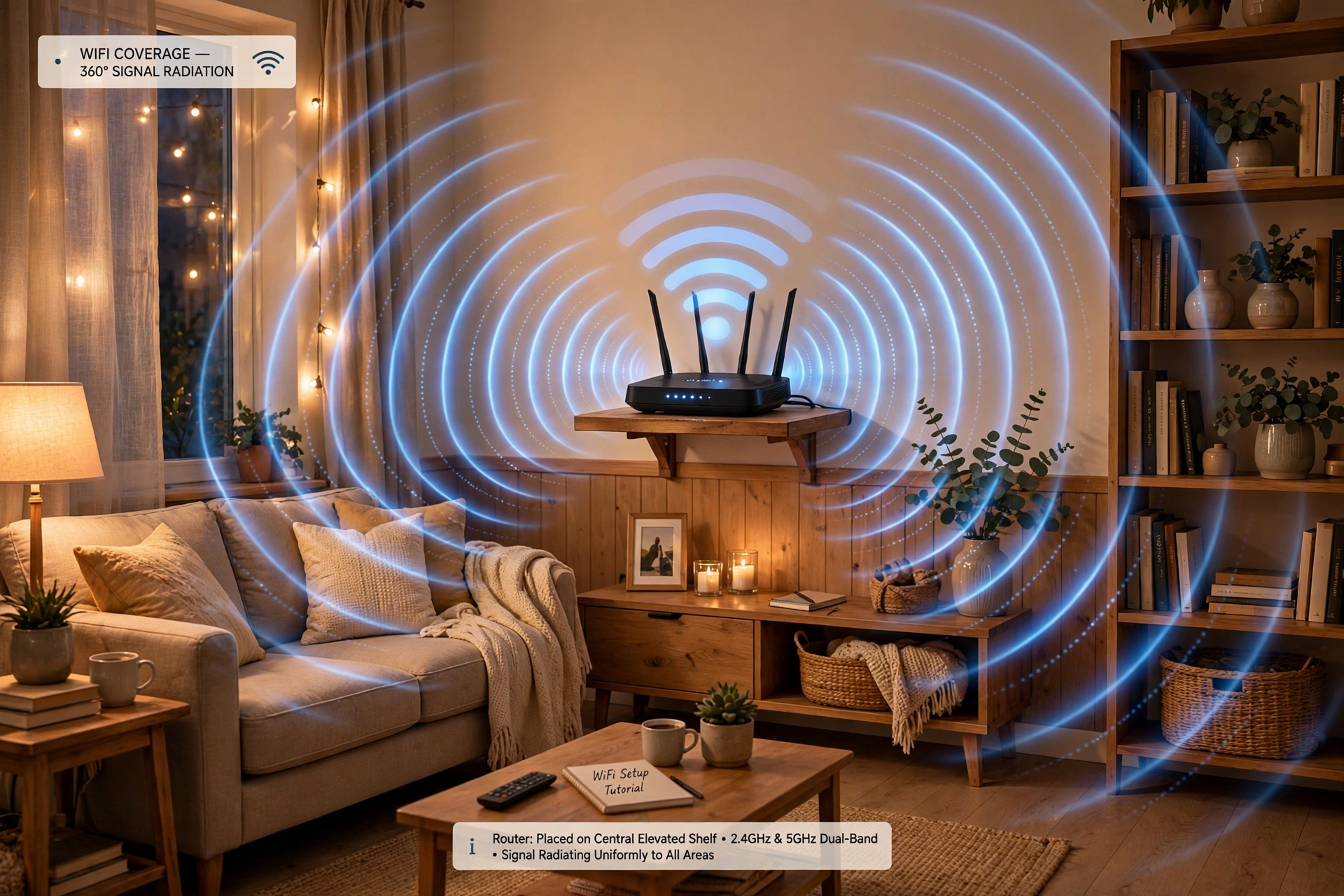
Ideal router placement:
- Central in your home, not in a corner or the basement.
- Elevated — on a shelf or table, not on the floor.
- Out in the open — not inside a cabinet, closet, or behind the TV.
If your router is hidden behind furniture or sitting in a far corner, moving it to a central open spot can dramatically improve speeds in every room.
Fix 3: Switch to the 5GHz Band
Most modern routers broadcast two WiFi networks: 2.4GHz and 5GHz. The 2.4GHz band travels farther but is much slower and more crowded. The 5GHz band is faster but has shorter range.

Check your WiFi network list — you may see two versions of your network name, like “HomeWiFi” and “HomeWiFi_5G”. If you are on the 2.4GHz version, switch to the 5GHz one, especially near the router.
Use 5GHz for video calls, streaming, and gaming. Use 2.4GHz for smart home devices and when far from the router. This one change can double or triple your real-world speed.
Fix 4: Update Your Router’s Firmware
Router manufacturers release firmware updates that fix bugs and improve performance. Many people never update theirs.
- Open a browser and type your router’s admin address (usually 192.168.1.1 or 192.168.0.1).
- Log in (default credentials are often on a sticker on the router — change them if you haven’t).
- Look for a Firmware Update section and check for updates.
Some newer routers update automatically — check your router’s app to confirm auto-updates are on.
Fix 5: Limit Connected Devices and Use QoS
Every device on your WiFi — phones, laptops, TVs, game consoles, smart speakers, security cameras — shares the same connection. A house with 20+ connected devices will feel slower than one with 5, especially if several are streaming video at once.
What you can do:
- Disconnect devices you are not using, especially old phones and tablets sitting idle.
- Pause cloud backups and large downloads during video calls or streaming.
- Enable QoS (Quality of Service) in your router settings to prioritize important traffic — for example, your work laptop’s video calls — over background downloads. Look for QoS under “Advanced” in your router admin panel.
Fix 6: Change Your WiFi Channel
In apartment buildings, everyone’s routers compete on the same WiFi channels, causing interference.
- Download a free WiFi analyzer app on your phone.
- Scan to see which channels nearby networks are using.
- In your router’s admin panel, switch to a less crowded channel. For 2.4GHz, channels 1, 6, or 11 are usually best because they don’t overlap.
This is especially effective if your WiFi slows down in the evenings when neighbors are online.
Fix 7: Check for an ISP Outage or Throttling
Sometimes the problem is not in your home at all — your provider may have an outage or be slowing certain traffic.
- Check your provider’s status page or app for outage alerts in your area.
- If your speed drops at the same time every day, throttling is possible. Try a VPN — if speeds improve with it on, your provider may be slowing specific traffic.
Fix 8: Move the Router Away From Interference
Certain household items interfere with WiFi signals, especially on the 2.4GHz band:
- Microwaves — a running microwave can seriously disrupt 2.4GHz WiFi.
- Baby monitors and cordless phones — these often use the same frequencies.
- Thick walls, metal objects, mirrors, and fish tanks — these block or reflect WiFi signals.
Keep your router a few feet away from these items. If your router sits next to the microwave in the kitchen, that alone could explain your speed problems.
Fix 9: Contact Your ISP or Consider a Plan Upgrade
If you have tried everything above and your speed is still far below what you pay for — even when standing next to the router with a wired connection — it is time to call your provider.
Before you call, gather evidence: speed test results from different times of day, and note whether the problem affects all devices or just one. Also try a wired test — plug a laptop directly into the router with an Ethernet cable. If wired speeds are fine but WiFi is slow, the problem is your WiFi setup. If wired speeds are bad too, the problem is your internet line.
Also, be honest about your needs: if your household now has four people streaming, gaming, and working from home on a 50 Mbps plan from five years ago, you may simply have outgrown your plan.
FAQ
Why is my WiFi slow on my phone but fast on my laptop?
Your phone is probably on the slower 2.4GHz band while your laptop uses 5GHz. In your phone’s WiFi settings, forget the network and reconnect to the 5GHz version of your network name.
Does having too many devices slow down WiFi?
Yes. Every connected device shares your router’s capacity. Disconnect idle devices and use QoS settings (Fix 5) to prioritize what matters most.
Why is my WiFi slow at night but fast in the morning?
Evening slowdowns usually come from channel congestion as neighbors go online (try Fix 6) or peak-hour congestion on your ISP’s network. If it happens every night at the same time, contact your provider.
Will a new router fix slow WiFi?
It can, if your router is more than 4–5 years old. But try the free fixes first — placement, band selection, and channel changes solve the problem for most people without spending anything.
Is slow WiFi the same as slow internet?
Not exactly. “Internet speed” is what comes into your home from your provider; “WiFi speed” is how well your router distributes it wirelessly. The wired test in Fix 9 tells you which one is the problem.
Conclusion
Slow WiFi is frustrating, but it is rarely a mystery. Start by testing your speed, then work through the fixes: restart your equipment, improve your router’s placement, switch to 5GHz, and reduce interference. These free steps resolve the vast majority of slow-WiFi complaints.
If problems persist after all nine fixes, the issue is likely your internet line or an outdated plan — that is a conversation with your provider, armed with the speed test evidence you have gathered.
For more easy tech fixes, check out How to Speed Up Laptop on Windows 11 — a slow computer can feel like slow WiFi — and How to Clear Cache on iPhone if your phone feels sluggish. You might also like How to Screenshot on Mac: 4 Easy Methods for sharing those speed test results.