How to Check WiFi Speed on Phone (2026)
Wondering how to check WiFi speed on phone? It takes less than a minute, and you don’t even need to install an app. Whether your videos keep buffering or you just want to know if you’re getting the speed you pay for, running a quick speed test on your phone is the fastest way to get an answer.
This guide covers every method — browser tests, built-in phone tools, and the best free apps for iPhone and Android — plus what the numbers actually mean.

Illustration for guide purposes.
Why Check WiFi Speed on Your Phone
Your phone is usually the device you notice slow internet on first. But “the internet feels slow” is vague — a speed test turns that feeling into real numbers you can act on. Here are the most common reasons to run one:
- Troubleshooting slow WiFi: If videos buffer or pages load slowly, a test tells you whether the problem is your connection or just one app.
- Checking you’re getting what you pay for: Compare your measured speed with your internet plan. If there’s a big gap, that’s evidence for a call to your provider.
- Finding dead spots: Run tests in different rooms to map where your WiFi signal is strong and where it drops.
- Choosing a WiFi band: A test on your 2.4GHz network versus your 5GHz network shows you which one is actually faster in each spot.
Method 1: Use a Browser Speed Test (No App Needed)
The easiest way to check WiFi speed on your phone is a free browser-based test — no downloads, no sign-up, just open a website and tap one button.
Step-by-step
- Connect your phone to your home WiFi (turn off mobile data first, or at least make sure WiFi is the active connection).
- Open your phone’s browser — Safari on iPhone, Chrome on Android.
- Go to speedtest.net and tap the big Go button in the center of the screen.
- Wait 20–30 seconds while it measures your connection.
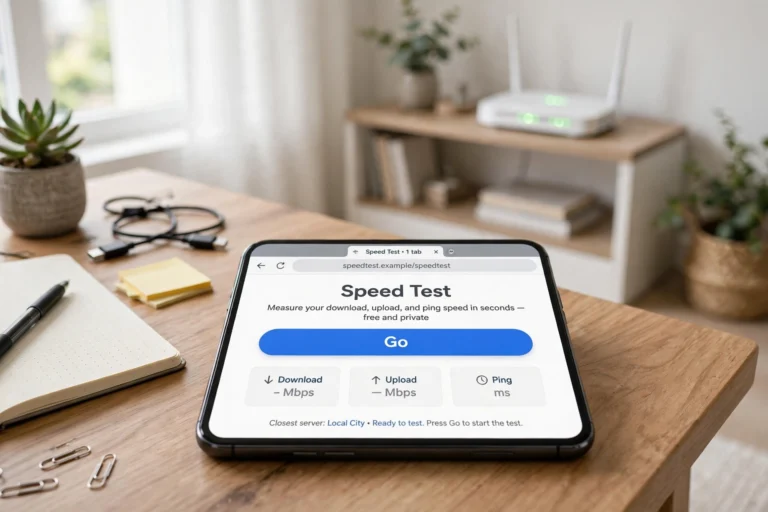
Illustration for guide purposes.
Other reliable browser tests
- Fast.com — run by Netflix. The test starts automatically the moment the page loads; great for a quick download-speed check.
- Your ISP’s own test — many providers have one on their website; useful when reporting a problem to them.
Quick tip: Close other apps before testing — background downloads, cloud photo backups, and streaming on the same network can drag your result down.
Method 2: Check WiFi Speed on iPhone
iPhone users have a few extra options beyond the browser tests above.
Use the Speedtest app
The free Ookla Speedtest app (App Store) is the most popular choice. It gives a nice big gauge, saves your test history, and can even run tests automatically on a schedule so you can track your speed over time.
Check your WiFi signal strength
iPhones don’t show an exact speed number in Settings, but you can check signal strength:
- Go to Settings → WiFi.
- Tap the (i) icon next to your connected network.
- Look at the connection details — a strong signal (three bars) means your phone is well connected to the router; fewer bars means you’re too far or blocked by walls.
Note: signal bars show connection quality, not speed. Use a speed test alongside this for the full picture.
Method 3: Check WiFi Speed on Android
Android gives you a little more flexibility, with several built-in and app-based options.
Check signal strength in Settings
- Go to Settings → Network & Internet → WiFi.
- Tap your connected network.
- You’ll see the link speed — the maximum speed your phone’s WiFi radio can reach with this router. (This is your phone’s hardware limit, not your actual internet speed.)
Use Google’s speed test
On an Android phone, open Chrome and search “internet speed test.” Google shows a built-in speed test card right at the top of the results — tap Run Speed Test and you’re done in seconds. No website visit needed.
Try a free app
The Ookla Speedtest app (Google Play) works great on Android too. Some phone makers — like Samsung — also include a connection-check tool in their device care or settings apps.
Best Free WiFi Speed Test Apps for Phone
If you test regularly, an app is more convenient than a browser. All of these are free:
- Speedtest by Ookla (iPhone & Android) — the standard. Clean results, test history, and a VPN check feature.
- Fast Speed Test by Netflix (iPhone & Android) — bare-bones and fast; measures download speed only.
- OpenSignal (iPhone & Android) — also maps cell and WiFi coverage in your area.
- Analiti Speed Test (Android) — more technical detail, including per-band analysis and channel info.
Understanding Your Speed Test Results
A speed test gives you three main numbers. Here’s what each one means:
- Download speed (Mbps): The big one. How fast your phone can pull data — streaming video, loading pages, downloading files. For HD streaming, you want at least 10–25 Mbps; for 4K, aim for 25–50+ Mbps.
- Upload speed (Mbps): How fast you can send data — video calls, uploading photos, livestreaming. Most home plans have much slower upload than download, which is normal.
- Ping / latency (ms): The reaction time of your connection. Under 50 ms is fine for most uses; under 20 ms is excellent. High ping causes lag in video calls and online games, even if your speed looks good.
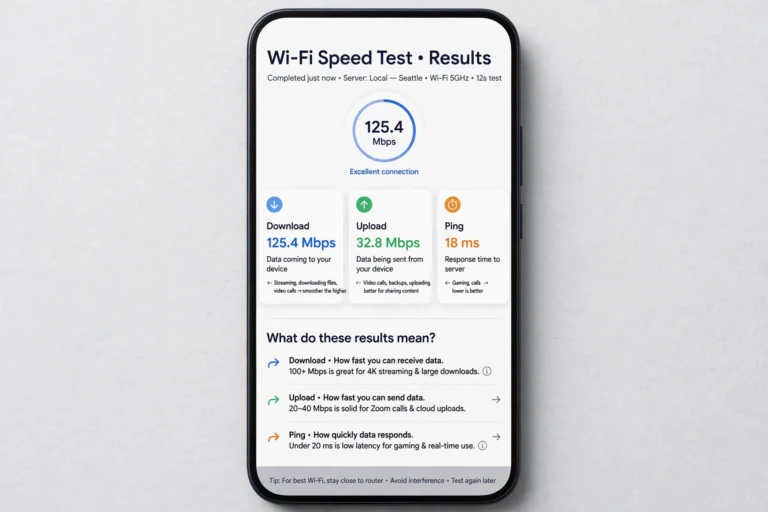
Illustration for guide purposes.
Some tests also show jitter (how much your ping varies — lower is better) and packet loss (data that never arrives — should be near 0%). High values mean an unstable connection, which feels like random freezes on calls.
How to Get Accurate Speed Test Results on Your Phone
Speed tests are only useful if the conditions are right. Follow these tips for results you can trust:
- Stand near your router for the baseline test. This shows the maximum speed your internet can deliver. Then test in the room where you have problems — the difference shows how much your WiFi loses between rooms.
- Turn off mobile data during the test so your phone can’t silently switch networks.
- Stop streaming and downloads on other devices. If someone is watching 4K TV in the next room, your result will be lower.
- Run the test 2–3 times and take the average. One test can be a fluke; three give you a reliable number.
- Test at different times of day. Evening speeds can be lower because your provider’s network is busier — if your speed drops every night, that’s useful information.
- Check which band you’re on. If your router has separate 2.4GHz and 5GHz networks, test both. The 5GHz band is usually much faster near the router.
What to Do If Your WiFi Speed Is Slow on Your Phone
Got your numbers and they’re disappointing? Don’t panic — low results on a phone test are extremely common and often easy to fix:
- Restart your phone and router — the classic fix clears up most temporary glitches.
- Move closer to the router or into the same room — if speed is fine nearby but bad elsewhere, it’s a coverage problem.
- Switch to the 5GHz band — in your phone’s WiFi settings, reconnect to the 5GHz version of your network name.
- Forget and rejoin the network — this clears stale connection settings on your phone.
- Compare with another device — if your laptop is fast but your phone is slow on the same network, the problem is your phone’s WiFi, not your internet.
If speeds are still far below your plan even right next to the router, the issue is likely your internet line or plan — call your provider armed with your test results. For a deeper dive, read our guide on why your WiFi is slow and 9 fixes that work.
FAQ
Can I check WiFi speed on my phone without an app?
Yes. Open your browser and visit speedtest.net or fast.com, or search “internet speed test” in Google on Android for a built-in test card. No installation needed.
What is a good WiFi speed on a phone?
For smooth everyday use: 25–100 Mbps download is plenty for HD/4K streaming and fast browsing. What matters most is consistency — a stable 30 Mbps beats a flaky 200 Mbps.
Why is my WiFi speed slow on my phone but fast on my laptop?
Your phone may be on the slower 2.4GHz band while your laptop uses 5GHz. In your phone’s WiFi settings, reconnect to the 5GHz network if available.
Does a speed test use a lot of mobile data?
One test uses roughly 30–100 MB. That’s fine on WiFi, but if you’re accidentally on mobile data it can eat your plan — confirm you’re on WiFi first.
Why does my speed test show different results each time?
WiFi speed naturally fluctuates with distance, interference, network congestion, and what other devices are doing. Run the test 2–3 times and average the results for a trustworthy number.
Conclusion
Checking your WiFi speed on your phone is one of the simplest tech skills you can learn — open a browser, tap one button, and you have real numbers in 30 seconds. Bookmark speedtest.net or install a free app so you can test whenever something feels off.
Remember the key habit: test near the router first for your baseline, then test where you actually use your phone. The gap between those two numbers tells you almost everything — whether it’s your internet plan, your WiFi coverage, or your phone itself.