How to Back Up iPhone to iCloud (2026)
Learning how to back up iPhone to iCloud is one of the most important things you can do as an iPhone owner. A single backup protects your photos, messages, app data, and settings — so if your phone is lost, stolen, or damaged, you can restore everything onto a new device in minutes. In this guide, you will learn how to turn on automatic iCloud backups, run a manual backup, manage your storage, and restore from a backup when you need to.
There are two ways to back up an iPhone to iCloud: automatic backups, which happen overnight while your phone is charging and connected to WiFi, and manual backups, which you start yourself whenever you want. Setting up the automatic option takes less than a minute, and it is the best protection against losing your data.
Before You Back Up: What iCloud Backup Includes
An iCloud backup saves most of the important data on your iPhone:
- Photos and videos (if iCloud Photos is not already syncing them separately).
- Messages — iMessages, SMS, and MMS conversations.
- App data — settings, documents, and progress for most apps.
- Device settings — your wallpaper, ringtones, and preferences.
- Health and HomeKit data (requires the backup to be encrypted, which iCloud backups are by default).
- Apple Watch backups, if a watch is paired with the iPhone.
Things that are not included: content already stored in iCloud (like iCloud Photos, iCloud Drive files, contacts, calendars, and notes that sync separately), apps themselves (they are re-downloaded from the App Store when you restore), and music or movies purchased from other stores.
Storage check: Apple gives you 5GB of free iCloud storage. A backup with a large photo library can easily exceed that. Before your first backup, check how much free space you have: go to Settings > [Your Name] > iCloud > Storage. If you are short on space, clear some cache and junk from your iPhone first — it frees space on the device and keeps the backup smaller.
How to Turn On Automatic iCloud Backup
Automatic backup is the option Apple recommends, because it protects you without you having to think about it. Here is how to enable it:
- Open Settings on your iPhone.
- Tap [Your Name] at the very top of the screen.
- Tap iCloud.
- Tap iCloud Backup.
- Turn on Back Up This iPhone.
Once enabled, your iPhone will back up automatically whenever it is connected to WiFi, plugged into power, and locked — which for most people means every night. You can also back up over cellular data if your carrier plan supports it: on the iCloud Backup screen, look for the cellular option under automatic backups.
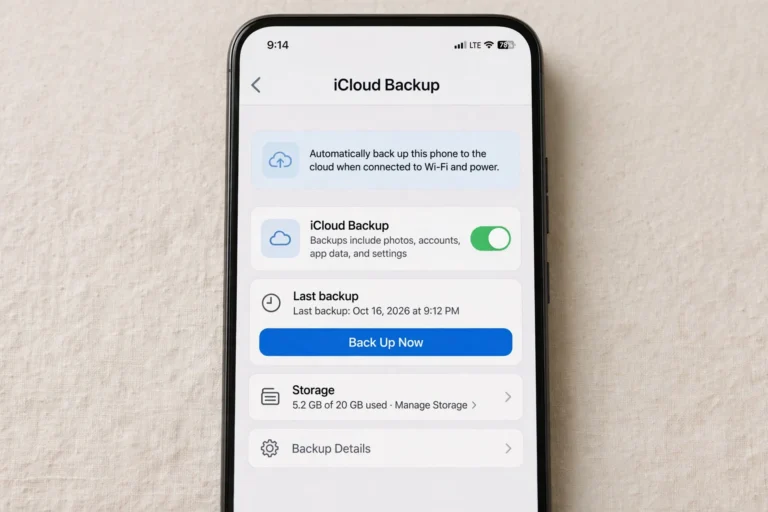
Illustration for guide purposes.
How to Manually Back Up iPhone to iCloud
Manual backups are useful before you update iOS, get a new phone, or make any big change. To run one right now:
- Make sure your iPhone is connected to WiFi.
- Go to Settings > [Your Name] > iCloud > iCloud Backup.
- Tap Back Up Now.
- Keep the phone connected to WiFi until the backup finishes.
The backup time depends on how much data you have and your WiFi speed. A first backup with lots of photos can take 30 minutes or more; later backups are incremental (only changed data is uploaded) and finish much faster.
How to Manage iCloud Storage for Backups
The 5GB free tier is enough for contacts, settings, and app data — but not for a full photo library. If your backup fails with a “not enough storage” message, you have three options.
Option 1: Reduce What the Backup Includes
You can exclude specific apps or data from future backups to shrink their size:
- Go to Settings > [Your Name] > iCloud > Manage Account Storage > Backups.
- Tap your iPhone’s name in the backup list.
- Under Choose Data to Back Up, toggle off apps whose data you do not need (large games and media-heavy apps are usually the biggest offenders).
Option 2: Delete Old Backups
If you have backups from phones you no longer use, delete them to free space instantly:
- Go to Settings > [Your Name] > iCloud > Manage Account Storage > Backups.
- Tap the old device’s backup and select Delete Backup.
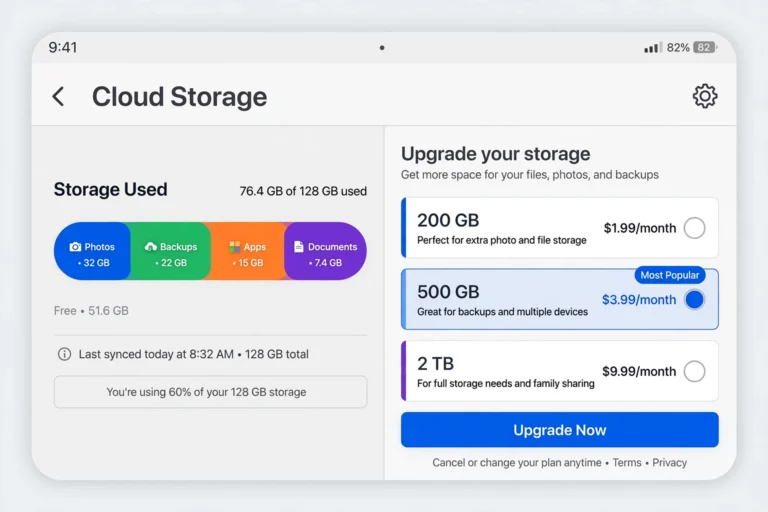
Illustration for guide purposes.
Option 3: Upgrade to iCloud+
If 5GB is not enough, iCloud+ plans start with 50GB and go up to 12TB, with family sharing and extra privacy features. For most people with a decent photo library, the 50GB tier is the sweet spot. You can upgrade at Settings > [Your Name] > iCloud > Manage Account Storage > Change Storage Plan.
How to Check Your Last Backup
It is a good habit to verify your backups are actually happening:
- Go to Settings > [Your Name] > iCloud > iCloud Backup.
- Look under the Back Up Now button — you will see the date and time of the last successful backup.
- If it has been a while, make sure your phone is charging and on WiFi overnight, or tap Back Up Now manually.
If the date never updates, the most common causes are: no WiFi connection overnight, not enough iCloud storage, or the phone not being plugged in and locked.
How to Restore iPhone From an iCloud Backup
When you get a new iPhone or reset your current one, restoring from a backup brings everything back. During setup:
- Turn on the new (or reset) iPhone and follow the on-screen setup steps.
- On the Transfer Your Apps & Data screen, choose From iCloud Backup.
- Sign in with your Apple Account.
- Choose the backup you want to restore (pick the most recent one).
- Keep the phone connected to WiFi and power until the restore finishes.
Your apps, photos, and settings download in the background, so you can start using the phone while the rest finishes. This is the moment your backups pay for themselves — a full restore takes you from a blank device back to your normal life.
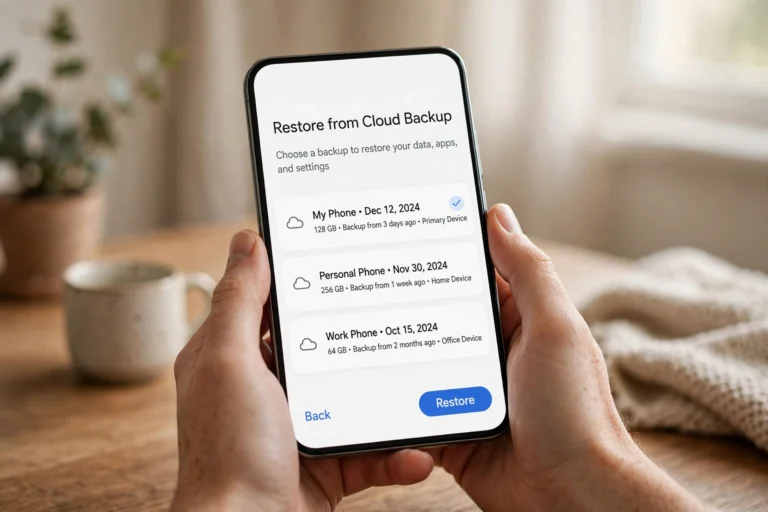
Illustration for guide purposes.
FAQ
Does iCloud backup include my photos?
Yes — if iCloud Photos is off, your camera roll is included in the backup. If iCloud Photos is on, your photos sync to iCloud separately and are not duplicated in the backup, which makes the backup much smaller.
How long does an iPhone iCloud backup take?
The first backup can take 30 minutes to several hours depending on how much data you have. Later backups are incremental and usually finish in a few minutes, as long as you are on WiFi.
Can I back up my iPhone to iCloud over cellular data?
Yes, on recent iOS versions. Go to Settings > [Your Name] > iCloud > iCloud Backup and enable backup over cellular. Watch your data plan — full backups can use several gigabytes.
What happens if I run out of iCloud storage?
Backups stop until you free space or upgrade. Either delete old backups, exclude data from the backup, or upgrade to an iCloud+ plan with more storage.
Is iCloud backup safe and encrypted?
Yes. iCloud backups are encrypted both in transit and on Apple’s servers, and sensitive data like Health and HomeKit information uses end-to-end encryption.
Conclusion
Knowing how to back up iPhone to iCloud takes five minutes and can save you from losing years of photos and messages. Turn on Back Up This iPhone so it happens automatically every night, run a manual backup before iOS updates or switching devices, and check the last-backup date every few weeks. Keep your storage under control — or grab an iCloud+ plan — and your data will always be safe.