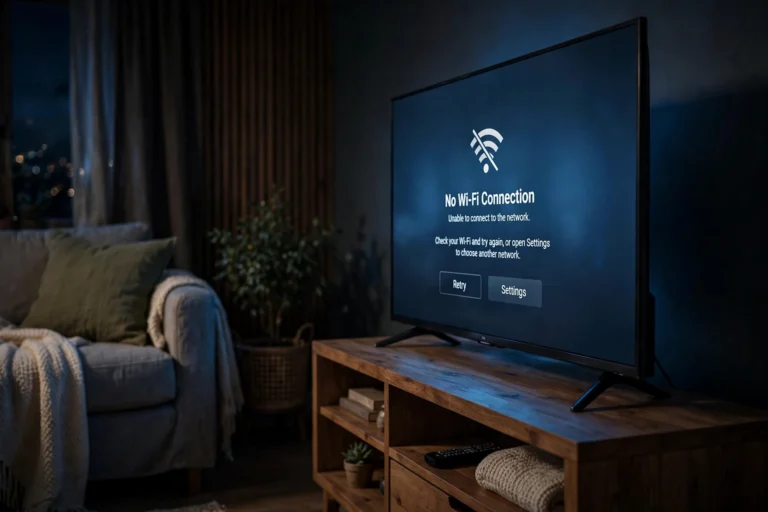
How to Fix Bluetooth Not Connecting (2026)
Wondering how to fix Bluetooth not connecting on your phone, laptop, or earbuds? It is one of the most common tech frustrations: everything worked yesterday, and today your earbuds will not pair, your speaker shows up in the list but refuses to connect, or your car stereo just ignores your phone. The good news is that most Bluetooth connection problems have simple causes — and simple fixes.
This guide walks you through 8 proven fixes, in order, for Android, iPhone, Windows, and Mac. Most people get their Bluetooth working again by fix number 3.
Why Is My Bluetooth Not Connecting?
Before jumping into fixes, it helps to know what usually goes wrong. Bluetooth is a short-range wireless connection between two devices, and the pairing process is picky. The most common causes of failed connections are:
- The accessory is not in pairing mode. Most earbuds, speakers, and wearables only stay discoverable for a few minutes after being turned on.
- A stale pairing record. Your phone remembers an old connection and tries to use it, but the accessory has moved on. This causes more failures than any hardware problem.
- Too much distance or interference. Bluetooth works best within about 10 meters (33 feet). Walls, microwaves, and busy WiFi networks can interfere, since both Bluetooth and 2.4GHz WiFi share the same frequency.
- Low battery. Many accessories disable Bluetooth or drop connections when the battery gets low.
- Outdated software. Phone OS updates, laptop Bluetooth drivers, and accessory firmware updates all fix known pairing bugs.
- Conflicting connections. Some accessories can only stay paired to one device at a time. If your earbuds are still connected to your laptop, your phone cannot grab them.
Quick Fixes to Try First
These take less than a minute each, and they solve a surprising number of problems on their own:
- Toggle Bluetooth off and on. On your phone or laptop, turn Bluetooth off, wait 10 seconds, and turn it back on. This clears stuck connection states.
- Turn on airplane mode for 30 seconds, then turn it off. This resets all your device’s radios, including Bluetooth.
- Move closer. Bring the accessory within a meter or two of your phone or laptop while pairing.
- Check the battery of the accessory. If it is below 20%, charge it first.
- Disconnect other devices that might be grabbing the connection — turn off Bluetooth on your other gadgets temporarily.
If none of those worked, move on to the full fixes below.
Fix 1: Restart Both Devices
A full restart clears temporary software glitches on both ends. Turn your phone or laptop off completely (not just the screen), and power off the Bluetooth accessory too. Wait 30 seconds, power both back on, and try pairing again.
Fix 2: Forget the Device and Pair Again
If the devices were previously paired, the saved connection profile may be corrupted. Forgetting the device and starting fresh fixes most stubborn pairing failures.
On Android:
- Open Settings > Connected devices (or Bluetooth).
- Tap the gear icon next to the problem device, then tap Forget (or Unpair).
- Put the accessory back into pairing mode, wait for it to appear under Available devices, and tap it to pair.
On iPhone:
- Open Settings > Bluetooth.
- Tap the i icon next to the problem device, then tap Forget This Device.
- Put the accessory in pairing mode and tap its name when it appears in the device list.
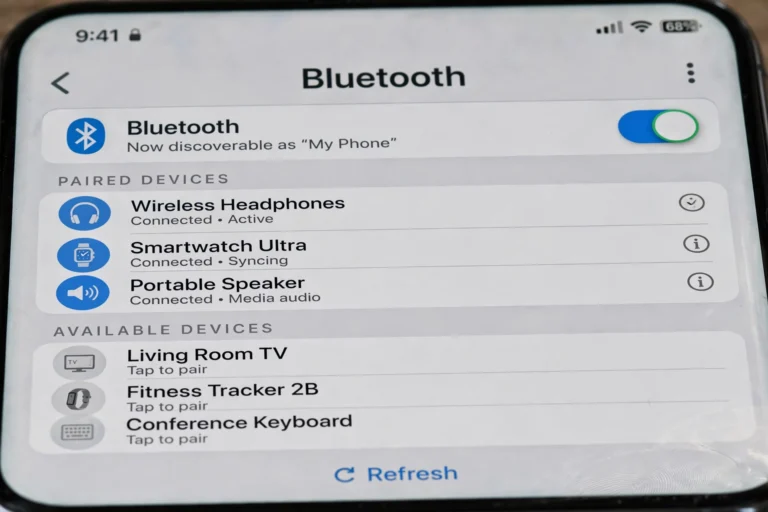
On Windows: Go to Settings > Bluetooth & devices, click the three dots next to the device, choose Remove device, then click Add device and re-pair.
On Mac: Open System Settings > Bluetooth, hover over the device, click the i or x, choose Forget This Device, and pair again.
Tip: Always put the accessory into pairing mode before opening your phone’s Bluetooth menu. Most earbuds enter pairing mode by holding a button for 3–5 seconds or opening the case lid — check your manual if you are unsure.
Fix 3: Clear the Bluetooth Cache (Android) or Reset Network Settings
On Android, the Bluetooth service stores cached data that can become corrupted over time. Clearing it forces a clean slate:
- Go to Settings > Apps > See all apps and show system apps.
- Find Bluetooth in the list, tap Storage & cache, then tap Clear cache.
- Restart your phone and try pairing again.
On iPhone there is no separate Bluetooth cache. Instead, reset network settings — but note this also erases saved WiFi networks and VPN passwords, so save those first:
- Go to Settings > General > Transfer or Reset iPhone > Reset, then tap Reset Network Settings.
- Reconnect to WiFi, then pair your Bluetooth accessory again.
Fix 4: Reduce Interference and Get Closer
Bluetooth runs on the 2.4GHz band, the same crowded frequency used by most WiFi routers, microwaves, baby monitors, and cordless phones. Heavy traffic on this band can block pairing or cause audio dropouts.
- Move away from the microwave, router, and USB 3 hubs while pairing.
- Stay within 1–2 meters during pairing, even though the advertised range is 10 meters.
- Remove thick cases from your phone temporarily — metal cases in particular can weaken the signal.
- If your earbuds connect but the audio keeps cutting out, turn off WiFi on your phone briefly to test whether WiFi interference is the cause. If so, see our guide on why WiFi gets so slow for fixes that reduce 2.4GHz congestion.
Fix 5: Check Battery and Wake the Accessory
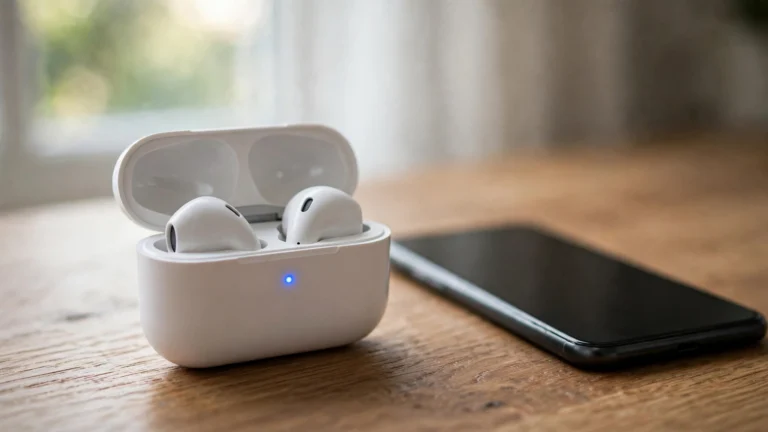
Many Bluetooth accessories behave strangely at low battery: they appear in the device list but refuse to connect, or they connect and immediately drop. Charge the accessory to at least 50% and try again.
Also check that the accessory is actually powered on and awake. Some speakers and headphones go into deep sleep after sitting idle — press the power button firmly. Confirm it says it is in pairing mode, not just powered on.
Fix 6: Update Software, Drivers, and Firmware
Pairing bugs are frequently fixed by updates on either side of the connection:
- Phone or computer OS: Install the latest updates — Android, iOS, Windows, and macOS all ship Bluetooth stack fixes in regular updates.
- Bluetooth drivers (Windows): Open Device Manager, expand Bluetooth, right-click your Bluetooth adapter, and choose Update driver. If Bluetooth is missing entirely, the driver may need reinstalling from your PC manufacturer’s website.
- Accessory firmware: Many earbuds and speakers update through a companion app (for example, your earbud brand’s app). Open the app and check for a firmware update.
Fix 7: Reset the Bluetooth Module (Mac) or Troubleshoot (Windows)
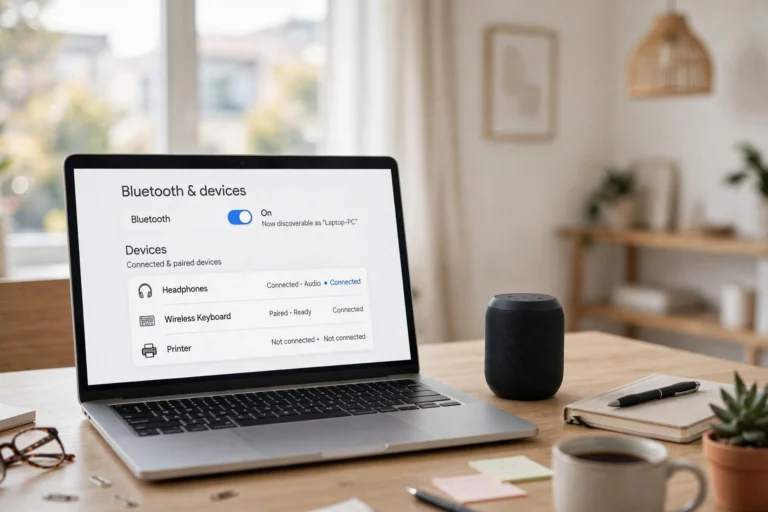
On Mac: Hold Shift + Option and click the Bluetooth menu bar icon. From the hidden debug menu, choose Reset the Bluetooth module, then restart your Mac.
On Windows: Go to Settings > System > Troubleshoot > Other troubleshooters and run the Bluetooth troubleshooter. If Bluetooth has disappeared entirely, press Win + R, type services.msc, find Bluetooth Support Service, and set its startup type to Automatic.
Fix 8: Disconnect Competing Devices
Some accessories — especially earbuds and Bluetooth speakers — can only maintain one active connection. If your earbuds auto-connect to your laptop the moment you turn them on, your phone has no chance.
- Turn off Bluetooth on every device except the one you want to pair with.
- Some earbuds support multipoint (two simultaneous connections). Check your model’s manual — multipoint often needs to be enabled in the companion app.
- If your accessory supports it, do a factory reset (usually holding the power and volume buttons together for 10 seconds) to wipe all old pairings, then pair fresh with your chosen device.
Tip: A Bluetooth printer that refuses to connect is a special case — many printers need WiFi setup instead. If that is your problem, see our guide on how to connect a printer to WiFi.
When Nothing Works: Hardware Checks
If every fix above has failed:
- Test with another device. If the accessory pairs with a different phone, the problem is your original device. If it fails everywhere, the accessory is likely faulty.
- Check for damage. Water damage or a damaged charging case can silently kill Bluetooth on earbuds.
- Use the warranty. If the accessory is new and never paired, return or exchange it — a small percentage of Bluetooth hardware is defective out of the box.
FAQ
Why does my Bluetooth connect and then immediately disconnect?
Charge the accessory fully, forget the device on your phone, and pair fresh — that fixes most instant-disconnect problems.
Why can’t my phone find my Bluetooth device at all?
The accessory is probably not in pairing mode. Most stay discoverable for only 1–3 minutes after being turned on. Put it back into pairing mode, then refresh your phone’s Bluetooth device list.
Does Bluetooth interfere with WiFi?
Yes, both use the 2.4GHz band. A crowded 2.4GHz environment can cause pairing failures and audio stutter — moving closer and reducing nearby interference usually solves it.
Conclusion
Learning how to fix Bluetooth not connecting usually comes down to one thing: giving the pairing process a truly fresh start. Forget the old pairing, make sure the accessory is charged and in pairing mode, get close, and reduce interference. Those four steps resolve the vast majority of connection failures on Android, iPhone, Windows, and Mac.
If problems persist across every device you own, the accessory itself may be the issue — test it against a second phone before buying a replacement. And if your Bluetooth headache is really a printer that refuses to connect, the WiFi setup guide linked above will get you further than Bluetooth troubleshooting ever could.