How to Record Screen on Android (2026)
If you are wondering how to record screen on Android, the good news is that most phones already have this feature built in. You can capture gameplay, save a tutorial, record a video call (with permission), or show someone exactly what is happening on your screen — all without installing anything. On older phones that lack the feature, a few free apps fill the gap.
This guide covers every reliable method: the built-in screen recorder on Android 11 and newer, Samsung’s own recorder, Google Pixel’s tools, and the best third-party apps for older devices. You will also learn how to record with sound, where your videos are saved, and how to get better-quality recordings.
What You Need Before You Start
Before you hit record, check two quick things:
- Android 11 or newer: The built-in screen recorder is standard from Android 11 onward. To check, go to Settings > About phone and look at the Android version. On Android 10 or older, skip ahead to the third-party app method.
- Free storage space: Screen recordings are video files, and they add up fast. A one-minute recording at 1080p can use 20–50 MB. Free up a few hundred megabytes if your storage is nearly full — go to Settings > Storage to check.
Method 1: Use the Built-In Android Screen Recorder
Every phone running Android 11 or later has a screen recorder tucked into the Quick Settings panel. This is the easiest method and works on Pixel, Motorola, OnePlus, Xiaomi, and most other brands.
Step 1: Open Quick Settings
Swipe down from the top of your screen twice to fully expand the Quick Settings panel. You will see tiles for WiFi, Bluetooth, flashlight, and more.
Step 2: Find the Screen Record Tile
Look for a tile called Screen record or Screen recorder — it usually has a camera or video icon. If you do not see it, tap the pencil/edit icon (or the three dots menu) to add it to your panel, then drag it into place.
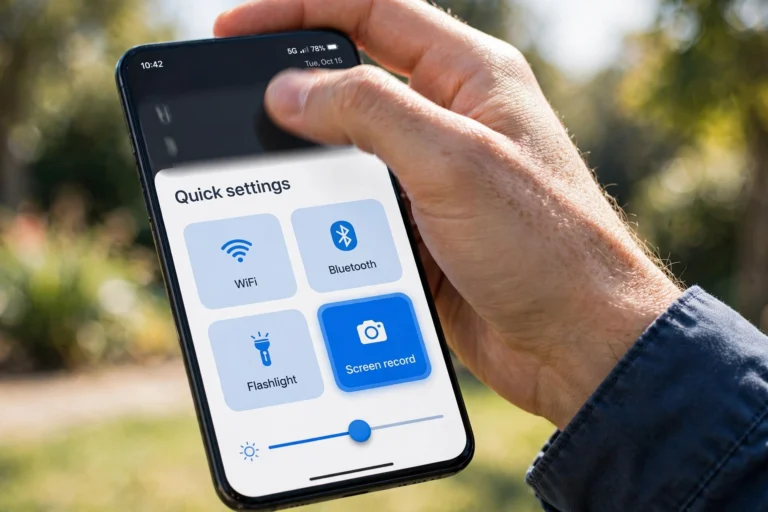
Illustration for guide purposes.
Step 3: Choose Your Recording Options
Tap the tile and a setup dialog appears. Most phones let you choose:
- Record audio: Device audio only, microphone only, or both. Use device audio for gameplay and tutorials; add the microphone if you want to narrate.
- Show touches on screen: Displays a small dot wherever you tap. Very useful for tutorials — turn it on when showing someone how to do something.
Step 4: Start Recording
Tap Start. A short countdown (usually 3 seconds) gives you time to get ready. A small red dot or notification in the status bar confirms you are recording.
Step 5: Stop Recording
To stop, swipe down to open the notification shade and tap the Stop button on the screen recording notification. On many phones, a small floating toolbar with pause and stop buttons appears while recording.
That is it — your video is saved automatically. This whole process takes under 30 seconds once you know where the tile is.
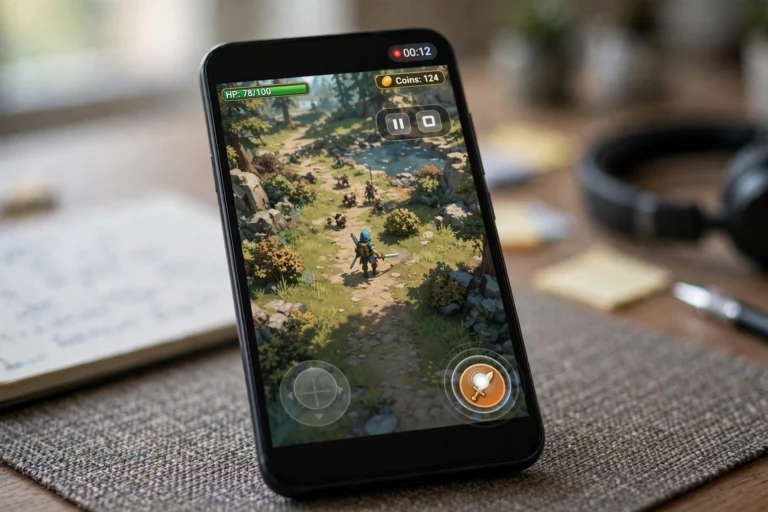
Illustration for guide purposes.
Method 2: Record on Samsung Galaxy Phones
Samsung phones have a built-in recorder that works slightly differently from stock Android. Samsung’s version also adds handy extras like drawing on the screen while recording.
- Swipe down twice from the top of the screen and tap Screen recorder in Quick Settings.
- Choose your sound setting: No sound, Media sounds, or Media sounds and mic.
- Tap Start recording. A floating toolbar appears with icons to draw, record a selfie-style video bubble, pause, and stop.
- You can also long-press the Screen recorder tile to open its settings and change video quality (FHD 1080p is the default).
Samsung also lets you record gameplay through Game Launcher: open it, tap More, then Screen recorder.
Method 3: Record on Google Pixel Phones
Pixel phones use the stock Android recorder described in Method 1, but with a couple of Pixel-specific touches:
- The screen recorder on Pixels can record internal audio only cleanly — great for app demos and games.
- To access it fast, add the Screen record tile to your first row of Quick Settings tiles so one swipe is all it takes.
Method 4: Record on Older Android Phones (Third-Party Apps)
If your phone runs Android 10 or older and has no built-in recorder, free apps from the Play Store work well. Two reliable options:
AZ Screen Recorder
The long-standing favorite. It records with no watermark on the free version, supports 1080p, lets you overlay your face camera in a corner bubble, and includes a built-in video editor for trimming. It works over other apps via a floating control button.
XRecorder
A lighter alternative with a simple interface: start, pause, and stop from a floating toolbar, choose resolution and frame rate, and record internal audio on supported devices. Also free with optional upgrades.
A word of caution: Stick to well-known apps with millions of downloads and recent updates. Avoid random screen recorder apps with few reviews — they often show intrusive ads or ask for unnecessary permissions. A screen recorder only needs storage and microphone access; deny anything else.
Where Are Screen Recordings Saved?
Built-in recordings go to your phone’s Photos or Gallery app, usually in a folder called Screen recordings or Movies. To find one quickly:
- Open Google Photos (or your gallery app) and check the Library tab for a “Screen recordings” folder.
- Videos are named with the date and time, like “Screen recording 2026-10-19”.
- From there you can play, trim, share, or upload the video like any other file.
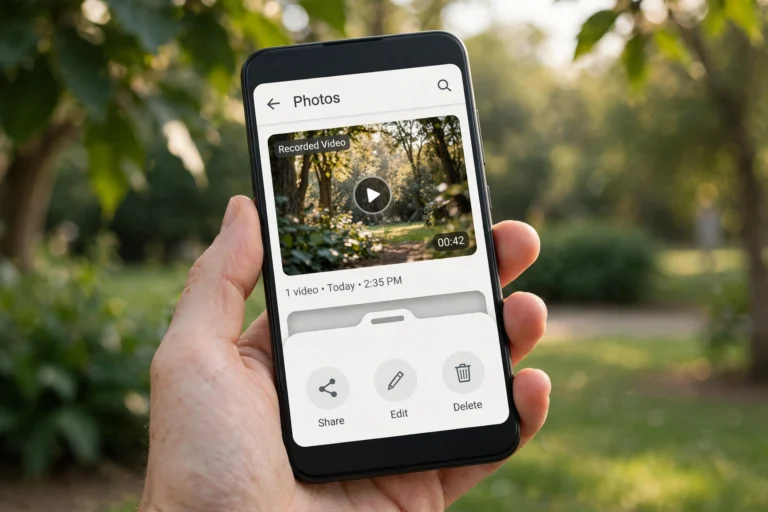
Illustration for guide purposes.
8 Tips for Better Screen Recordings
- Turn on Do Not Disturb. Nothing ruins a tutorial like a message notification popping up mid-recording. Enable Do Not Disturb before you start.
- Lock screen rotation. Decide on portrait or landscape first, then lock it — a video that rotates halfway through looks unprofessional.
- Close unnecessary apps. Background apps slow your phone and eat RAM. A recording session on a struggling phone will drop frames.
- Clean up your screen. Tidy your home screen and hide personal notifications if you plan to share the recording publicly.
- Use the highest resolution you need. 1080p is plenty for tutorials and sharing. Higher resolutions create much bigger files and can stutter on older phones.
- Test the audio first. Do a 10-second test recording before the real one. If the microphone is too quiet or picks up background noise, adjust in the recorder’s settings.
- Charge your battery. Screen recording keeps the display, processor, and encoder running hard. Start with at least 30% battery for longer sessions.
- Trim the ends. Your gallery’s built-in editor can cut the fumble at the start and the notification swipe at the end in seconds.
How to Record Screen With Sound
Audio options depend on your phone:
- Internal (device) audio: Records the sounds your phone makes — game audio, app sounds, video playback. This works on Android 10+; on older versions, internal audio recording may be blocked and you will need to use the speaker and microphone instead.
- Microphone audio: Records your voice for narration. Note that this also picks up room noise, so record somewhere quiet.
- Both: Combines game or app audio with your commentary — the best choice for gameplay videos and walkthroughs.
If you only need still images of your screen instead of video, see How to Screenshot on Mac for capturing screens on your computer — the same “still vs. video” thinking applies when you choose what to capture.
FAQ
Why can’t I find the screen record button on my Android?
It is usually in Quick Settings but may be hidden. Swipe down twice, tap the edit (pencil) icon, and add the Screen record tile to your panel. If the tile is not there at all, your phone may run Android 10 or older — use one of the third-party apps in Method 4 instead.
How long can I record my screen on Android?
There is no hard time limit — you are limited by free storage space. Expect roughly 1–3 GB per hour at 1080p, so a phone with a few gigabytes free can record for over an hour. Keep an eye on battery for long sessions.
Can screen recordings capture protected content like Netflix?
Mostly no. Apps like Netflix, Amazon Prime Video, and banking apps use digital rights protection (DRM) that shows a black screen in recordings. This is intentional and cannot be bypassed with a normal screen recorder.
Do screen recordings have a watermark?
The built-in Android, Samsung, and Pixel recorders do not add watermarks. Most reputable third-party apps, like AZ Screen Recorder, also record watermark-free on their free tiers.
Why is my screen recording laggy?
Lag usually comes from an overloaded phone: too many background apps, low storage, or a resolution too high for the hardware. Close background apps, free up storage, and try 720p instead of 1080p.
Conclusion
Learning how to record screen on Android takes about a minute: swipe down twice, tap the Screen record tile, choose your audio settings, and start. Samsung and Pixel phones add their own small twists, and older phones are covered by free apps like AZ Screen Recorder. Turn on Do Not Disturb, test your audio first, and trim the ends — and your recordings will look professional from the first try.
A laggy phone makes laggy videos, so keep some free storage and close background apps before long sessions.