How to Use AirDrop: Complete Guide (2026)
Learning how to use AirDrop is one of the fastest ways to move photos, videos, and files between Apple devices. Instead of emailing files to yourself or uploading them online, AirDrop sends them wirelessly in seconds — no cables, no apps, no waiting. Once you know where the button is, you will use it constantly.
This guide covers everything: turning AirDrop on for iPhone, iPad, and Mac, sending and receiving files, choosing the right privacy setting, and fixing the most common problems.
What Is AirDrop and How Does It Work?
AirDrop is Apple’s built-in wireless sharing feature. It uses a combination of Bluetooth and Wi-Fi to discover nearby Apple devices and transfer files directly between them at high speed — even very large files like 4K videos or whole photo albums arrive in seconds.
The clever part is that the transfer happens over a direct Wi-Fi connection between the two devices, not through the internet. That means you can use AirDrop even when you are offline or on a plane. It works with photos, videos, PDFs, documents, contacts, and web links — if you can tap the share button on it, you can usually AirDrop it.
What You Need to Use AirDrop
Before you start, make sure both devices meet these requirements:
- An Apple device: iPhone, iPad, or Mac. AirDrop does not work with Android or Windows devices.
- Wi-Fi and Bluetooth turned on on both devices — you do not need to be connected to the same Wi-Fi network, just have the radios switched on.
- Personal Hotspot turned off on the sending and receiving iPhones, since AirDrop cannot run while a hotspot is active.
- The devices within about 30 feet (10 meters) of each other.
- Both devices signed in with an Apple Account (formerly Apple ID) for the “Contacts Only” option to work reliably.
AirDrop requires iOS 7 or later on iPhone and OS X Yosemite or later on Mac — every modern device qualifies.

How to Turn On AirDrop on iPhone and iPad
Here’s how to turn it on:
- Open Settings on your iPhone or iPad.
- Go to General, then tap AirDrop.
- Choose who can send you files: Receiving Off, Contacts Only, or Everyone for 10 Minutes.
- Make sure Wi-Fi and Bluetooth are switched on.
There is also a faster shortcut: open Control Center, press and hold the network settings box, tap AirDrop, and pick your visibility setting.
How to Turn On AirDrop on Mac
On a Mac, AirDrop is built into Finder, so there is nothing to install:
- Open Finder and click AirDrop in the left sidebar (or choose Go > AirDrop from the menu bar).
- Make sure Wi-Fi and Bluetooth are on — toggle them from the Control Center icon in the menu bar.
- At the bottom of the AirDrop window, click “Allow me to be discovered by” and choose Contacts Only or Everyone.
Once this is set, your Mac appears as a target whenever a nearby iPhone user taps the AirDrop icon, and received files land in your Downloads folder.
How to Send Files with AirDrop on iPhone and iPad
The process is the same whether you are sharing one photo or twenty documents:
- Open the file you want to share — a photo in Photos, a document in Files, a link in Safari, or anything else with a share button.
- Tap the Share icon (the square with an arrow pointing up).
- In the share sheet, tap the AirDrop icon at the top.
- Your iPhone will scan for nearby devices. Tap the name or device icon of the person or Mac you want to send to.
A progress ring appears, and the file lands on the other device in seconds. If the recipient’s device is signed in with the same Apple Account (for example, sending from your own iPhone to your own Mac), the file transfers automatically without an accept prompt.

Sharing multiple files: In the Photos app, tap Select, choose the photos or videos you want, tap the share icon, and send them all in one AirDrop transfer — far faster than messaging apps, which usually compress your files.
How to Send Files with AirDrop on Mac
From a Mac, open Finder, click AirDrop in the sidebar, and drag the file onto the recipient’s icon — or right-click any file and choose Share > AirDrop. Pick the receiving device, and the transfer starts as soon as they tap Accept.
How to Receive Files with AirDrop
Receiving only works if your device is discoverable:
- Make sure AirDrop is set to Contacts Only or Everyone for 10 Minutes (see the iPhone or Mac setup steps above).
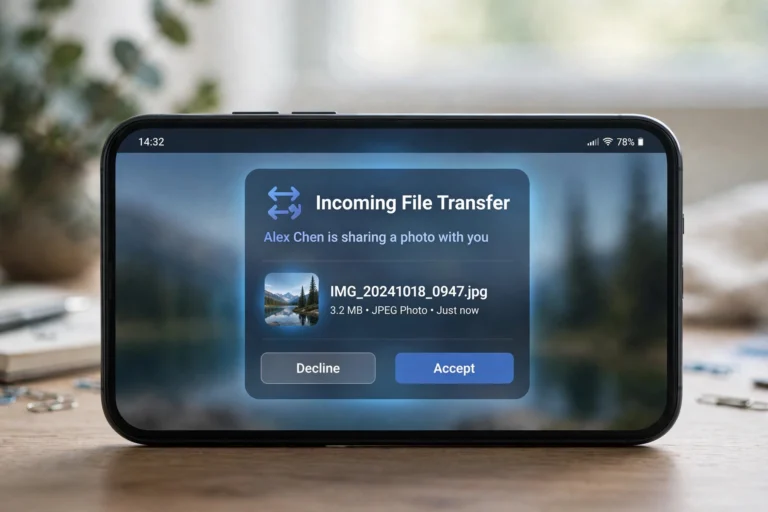
- When someone sends you a file, a preview notification appears on your screen showing what they are sending and who it is from.
- Tap Accept to save it, or Decline to refuse it.
Accepted photos and videos go straight into the Photos app on iPhone and iPad. Everything else opens in the app that handles it, or lands in Files. On a Mac, accepted files always land in the Downloads folder.
Safety note: Only accept files from people you know — strangers in public places sometimes send unwanted images via AirDrop. When in a crowd, switch your setting to Receiving Off or Contacts Only.
How to Use AirDrop Between iPhone and Mac
Moving files between your own iPhone and Mac is one of the most useful workflows — for example, taking a photo on your phone and editing it on your computer. When both devices use the same Apple Account, transfers are instant and silent:
- On your iPhone, select the photo or file and tap Share > AirDrop.
- Your Mac appears at the top of the AirDrop list — tap it. No accept prompt appears; the file is already in your Mac’s Downloads folder.
It also works in reverse: drag a file from your Mac’s Finder onto your iPhone’s icon in the AirDrop window, and it appears in the matching app on your phone. For moving Mac screenshots, see how to screenshot on Mac — AirDrop transfers them effortlessly.
AirDrop Settings Explained: Everyone vs. Contacts Only
Your discovery setting controls who can see your device and send you files:
- Receiving Off: Nobody can discover you. Use this as your default in public places.
- Contacts Only: Only people in your contacts can send you files — the best everyday setting. The sender’s number or email must be saved in your contacts and linked to their Apple Account.
- Everyone for 10 Minutes: Any nearby Apple device can send you files, then the setting locks back to Contacts Only automatically. Perfect for sharing with someone not in your contacts — a coworker, classmate, or client.
Troubleshooting: Why Is AirDrop Not Working?
When AirDrop doesn’t work, the cause is almost always one of these. Run through them in order:
- Toggle Wi-Fi and Bluetooth off and back on on both devices. This alone fixes the majority of AirDrop issues.
- Check the discovery setting on the receiving device — it should be Contacts Only or Everyone for 10 Minutes, not Receiving Off.
- Turn off Personal Hotspot on both iPhones. AirDrop and hotspots cannot run at the same time.
- Move the devices closer together — within a few feet is ideal for the initial discovery.
- Restart both devices if toggling the radios did not help.
- Check software updates: Settings > General > Software Update on iPhone/iPad, and System Settings > General > Software Update on Mac. Old software versions sometimes have AirDrop bugs that updates fix.
AirDrop Tips and Tricks
- NameDrop: On iPhone 15 and later running iOS 17+, hold two iPhones near each other to share contact information through AirDrop — no menus needed.
- Large files keep full quality: Unlike WhatsApp or email, AirDrop does not compress your files. A 4K video arrives at full resolution.
- Share passwords and Wi-Fi: You can AirDrop a Wi-Fi network’s password to a guest, or share login details securely from the Passwords app.
- Continue in the background: On newer iOS versions, if you walk out of range mid-transfer, AirDrop finishes the transfer over the internet using your Apple Account.
FAQ
Does AirDrop work with Android phones?
No. AirDrop is exclusive to Apple devices. To share files between an iPhone and an Android phone, use a cross-platform option like a shared Google Drive link or a messaging app instead.
Does using AirDrop use mobile data?
No. AirDrop transfers happen over a direct device-to-device Wi-Fi connection and do not use your mobile data or count against your data plan. It even works in airplane mode as long as Wi-Fi and Bluetooth are enabled.
How far does AirDrop reach?
Roughly 30 feet (10 meters), similar to Bluetooth range. For the most reliable transfers, keep the devices in the same room.
Where do AirDropped files go on iPhone?
Photos and videos open in the Photos app. Everything else opens in the app that handles it or lands in the Files app.
Conclusion
Now you know exactly how to use AirDrop: turn it on in Settings or Control Center, tap Share on any file, pick the nearby device, and accept incoming transfers when they arrive. Set your discovery to Contacts Only for daily use, switch to Everyone for 10 Minutes when sharing with someone new, and run through the troubleshooting list if a transfer ever fails.
Once AirDrop becomes a habit, moving files between your iPhone, iPad, and Mac feels effortless — no cables, no uploads, no waiting.