Does Closing Background Apps on Android Actually Save Battery? (2026)
does closing background apps on android actually save battery? Short answer: no — and in many cases, aggressively swiping apps away does the opposite. It is one of the most persistent phone myths out there, right up there with “you must fully drain your battery before charging.” Android is designed to manage background apps on its own, and fighting it usually costs you more battery than it saves.
That does not mean background apps never drain your battery — a few genuinely do. This guide explains why the recent-apps swipe habit is mostly useless, when force-closing actually helps, what really drains your battery, and the five settings that save far more power than any amount of app-swiping.
The Short Answer: No, Closing Background Apps Does Not Save Battery
To understand why, you need to know what “background” really means on Android. When you switch away from an app, Android does not leave it running at full power. It suspends the app and keeps it in RAM — your phone’s short-term memory — in a frozen, cached state. A cached app uses essentially zero CPU and zero battery. It is just sitting there, like a book with a bookmark in it, ready to reopen instantly.
Here is where the myth backfires:
- Reopening costs more than resuming. Launching an app from scratch — loading it from storage, rebuilding its interface, reconnecting to the network — uses significantly more CPU and battery than simply waking a cached copy. Every time you swipe an app away and reopen it later, you pay that full relaunch cost.
- Android already kills what it needs to. When RAM runs low, Android automatically closes the least-recently-used cached apps. It is better at this triage than you are, because it knows exactly how much memory each app uses.
- Some apps restart themselves anyway. Messaging, email, and music apps are designed to wake back up for notifications and sync. Swiping them away just triggers another relaunch cycle — burning battery for zero benefit.

Google’s own engineers have said as much for years: manually closing apps to save battery is unnecessary on modern Android. The operating system freezes background apps so efficiently that the recent-apps list is really just a history of what you opened, not a list of things draining your phone.
When Force-Closing Background Apps Actually Helps
The rule has exceptions. Swiping away is pointless for well-behaved apps, but genuinely useful in a few specific situations:
- A rogue app is draining battery. Check Settings > Battery > Battery usage. If one app shows a wildly disproportionate share — say, a game you have not opened in hours sitting at 25 percent — force-stop it. That is a bug, not normal behavior.
- An app is frozen or glitching. A stuck app can spin its wheels and burn CPU. Swiping it away (or force-stopping it) is the correct fix.
- Location is stuck on. Occasionally a maps or delivery app keeps the GPS active after you are done. If the location icon will not go away, closing the app stops the drain.
- You are done for the day. Closing everything before bed is harmless — the phone will idle either way, and cached apps get cleared overnight by the system regardless.
“Think of cached apps like books on a shelf. They cost nothing to store — but pulling one down and putting it back repeatedly is what wears you out.”
The pattern to remember: do not close apps preemptively, but do close the specific app that is misbehaving. Targeted force-stops fix real problems; ritual swiping creates them.
What Actually Drains Your Android Battery
If background apps are not the villain, what is? On virtually every Android phone, the battery pie chart is dominated by the same few culprits:
- The screen. By far the biggest drain. High brightness plus a 120Hz refresh rate can account for half or more of total usage. This dwarfs anything background apps do.
- 5G and weak signal. Your phone’s radio works hardest when the signal is poor, constantly shouting to stay connected. A phone struggling on one bar in a basement drains far faster than one on strong Wi-Fi.
- Location services. GPS is power-hungry. Apps that poll your location in the background — weather widgets, shopping apps, social media — add up.
- Background sync and notifications. Email set to push every few minutes, social apps refreshing constantly, and cloud photo backups all sip power around the clock.
- An aging battery. After two to three years, a lithium battery holds noticeably less charge. No settings change fixes chemistry — if your phone dies by dinner no matter what you do, the battery itself is the problem.
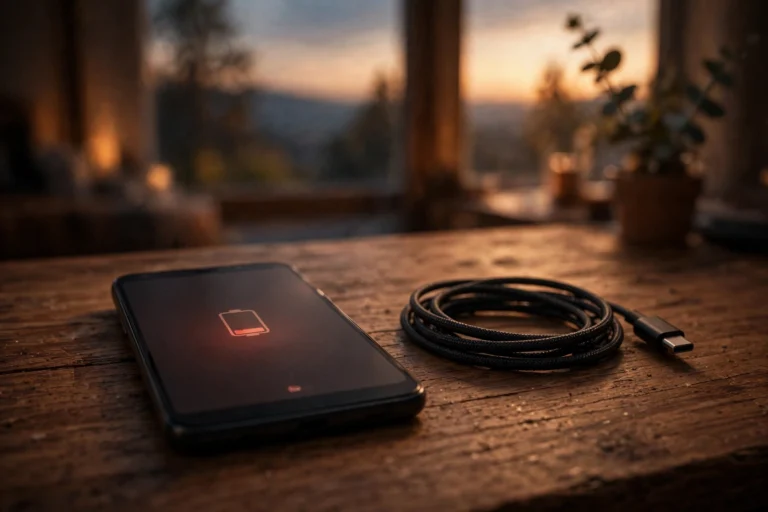
Notice that “apps sitting in the recent-apps list” does not appear anywhere on that list. The habits that move the needle are all about the screen, the radios, and the handful of apps with genuine background privileges.
5 Settings That Save More Battery Than Closing Apps
Instead of playing whack-a-mole with the recent-apps button, spend two minutes on these settings. Each one saves measurably more power than a lifetime of app-swiping:
- Turn on Adaptive Battery. Go to Settings > Battery > Adaptive Battery. Android learns which apps you rarely use and restricts their background activity automatically — the smart version of what you were doing manually.
- Restrict the real offenders per app. In Settings > Battery > Battery usage, tap any app with suspicious background time, then set its background activity to Restricted. This targets actual drainers instead of innocent cached apps.
- Tame the screen. Lower brightness to a comfortable level, shorten the screen timeout to 30 seconds (Settings > Display > Screen timeout), and consider dropping the refresh rate from 120Hz to 60Hz if your phone allows it.
- Use Wi-Fi and limit 5G. On Wi-Fi whenever possible, and if your carrier and phone allow it, prefer LTE/4G over 5G in Settings > Network — 5G’s extra speed costs extra power you rarely need.
- Enable Battery Saver on a schedule. Settings > Battery > Battery Saver can kick in automatically at 20 or 15 percent, throttling background activity across the board when it matters most.
The Right Way to Handle a Misbehaving App
When Battery usage shows an app genuinely draining power in the background, here is the proper escalation — no ritual swiping required:
- Step 1: Force-stop it once. Long-press the app icon, tap App info, then Force stop. This kills the misbehaving process completely.
- Step 2: Restrict its background activity. In the same App info screen, tap Battery and choose Restricted. The app will still work when you open it, but it cannot run wild in the background.
- Step 3: Check its permissions. In App info > Permissions, revoke background location access for any app that does not truly need to know where you are around the clock.
- Step 4: Update or replace it. Battery-draining bugs get fixed in updates. If an app keeps misbehaving across updates, look for an alternative — life is too short for a podcast app that eats 30 percent overnight.

FAQ
Do iPhone users need to close background apps either?
No — iOS works the same way. Apple suspends background apps aggressively, and force-closing them only slows down reopening while using more battery. This myth is platform-independent.
Will a task-killer app save my battery?
No, and it may make things worse. Task killers fight the operating system’s own memory management, triggering constant kill-and-relaunch cycles. Android’s built-in Adaptive Battery does the job better without the side effects.
Why does my phone feel faster after I close all apps?
That is mostly placebo, or you closed one specific misbehaving app that was the real problem. A phone with healthy cached apps feels just as fast — the cache is precisely what makes reopening instant.
Does closing apps free up RAM and help performance?
Free RAM is wasted RAM on Android — the system is designed to keep memory full of cached apps for fast switching, and it reclaims space automatically when needed. Manually emptying RAM does not speed up a healthy phone.
What about apps I have not used in weeks sitting in the list?
Android’s Adaptive Battery already deprioritizes apps you rarely open, and the system clears old cached apps on its own. You can also uninstall apps you never use — that saves storage, which is the resource they are actually consuming.
Conclusion
So does closing background apps on android actually save battery? No — it is a myth that survives because it feels productive. Android freezes background apps into a cached state that uses virtually no power, and force-closing them just forces expensive relaunches later. The occasional rogue app is the exception, and Battery usage settings will point you straight at it.
Put the swipe-away habit to rest and spend that energy where it counts: adaptive battery, screen brightness, background restrictions for the real offenders, and Wi-Fi over weak 5G. Those five minutes of settings will save more power in a week than a lifetime of closing apps ever could.