How to Change DNS to Stop ISP Tracking (2026)
Learning how to change dns to stop isp tracking is one of the simplest privacy upgrades you can make at home — it takes about five minutes, costs nothing, and closes the easiest window your internet provider has into your browsing. Every time you type a website address, your computer asks a DNS server to translate it into a number. By default, that question goes to your ISP’s own DNS server, which means your provider keeps a log of every domain you look up.
Switching to an encrypted, third-party DNS service hides those lookups. Your ISP still sees that you are online, but no longer which sites you visit. This guide walks you through it step by step: choosing a private DNS provider, enabling encrypted DNS on your devices, setting it on your router for whole-house coverage, and verifying the change worked.
What Your ISP Can Actually See (And What Changing DNS Hides)
Before you change anything, it helps to know exactly what you are hiding. DNS — the Domain Name System — works like a phone book for the internet. Your devices constantly ask “what is the address of this website?” and the answers come back as IP addresses. With traditional DNS, these questions travel across the network in plain text, like postcards anyone along the route can read.
- Your ISP sees every domain you look up. In the US, providers can legally log this data and sell anonymized versions to advertisers.
- It sees when you are active. Query patterns reveal sleep schedules, work hours, and routines.
- Encrypted DNS seals the postcard into a letter. With DNS-over-HTTPS or DNS-over-TLS, your ISP sees scrambled traffic to a DNS provider — not the questions inside.
- It does not hide everything. Your ISP still sees IP addresses you connect to and traffic volume. Changing DNS is a meaningful layer of privacy, not a magic cloak.
One expectation to set: for most HTTPS websites (nearly all of them today), your ISP could never see the exact pages you read — just the domain. Changing DNS removes even that domain-level visibility. It is the highest-leverage, lowest-effort privacy step a home user can take.
Step 1: Pick a Private, Encrypted DNS Provider
Not all third-party DNS services protect your privacy equally. Some log queries for advertising; others delete them quickly and support modern encryption. These are the solid, beginner-friendly choices in 2026:
- Cloudflare (1.1.1.1). Fast worldwide, supports DNS-over-HTTPS and DNS-over-TLS, and commits to deleting logs within 24 hours. The best default pick for most people.
- Quad9 (9.9.9.9). A nonprofit service that blocks known malicious domains automatically and keeps minimal logs. Slightly slower than Cloudflare in some regions, but the built-in malware blocking is a genuine bonus.
- NextDNS. Lets you create a free custom profile with ad blocking, tracker blocking, and parental controls built into DNS itself. The free tier covers 300,000 queries a month — plenty for a household.
“Encrypted DNS turns your browsing history from a readable log into scrambled noise — your ISP sees the envelope, but never the letter.”
For stopping ISP tracking specifically, pick Cloudflare or Quad9 if you want simple and fast, or NextDNS if you want privacy plus ad blocking at the DNS level. Write down the provider’s IPv4 addresses — you will need them in the next steps.
Step 2: Enable Encrypted DNS on Your Phone and Computer
Modern operating systems support encrypted DNS directly. If you only change DNS on one device, do your phone — it generates most of your browsing traffic.
- iPhone (iOS). Go to Settings, then Wi-Fi, and tap the “i” next to your network. Switch DNS from Automatic to Manual and add your provider’s addresses. For system-wide encrypted DNS, install the free 1.1.1.1 app from Cloudflare.
- Android. Open Settings, then Network and Internet, then Private DNS. Choose “Private DNS provider hostname” and enter one.one.one.one (Cloudflare) or dns.quad9.net (Quad9). This encrypts DNS for every app on the phone — no extra app needed.
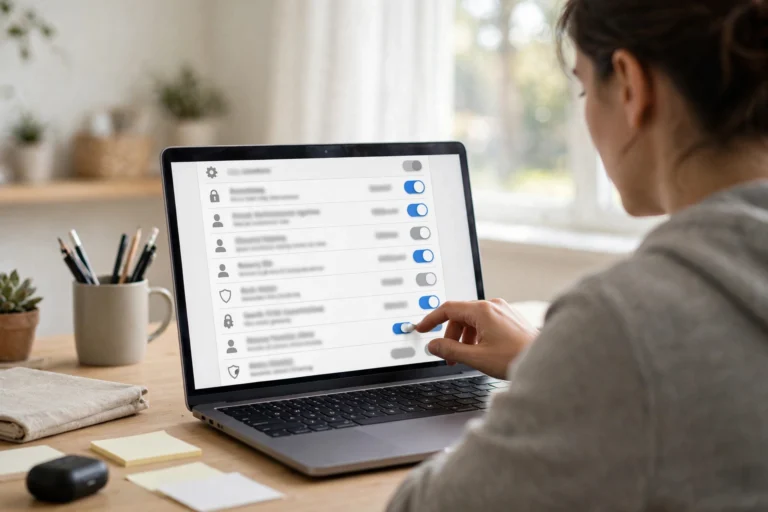
- Windows 11. Go to Settings, then Network and Internet, then your active connection. Under DNS server assignment, click Edit, set it to Manual, and enter the provider’s IPv4 addresses. Scroll down to DNS over HTTPS and set it to On (Automatic template) — this is the step that actually encrypts the queries.
- Mac. Open System Settings, then Wi-Fi, click Details on your network, then DNS, and add your provider’s addresses. macOS does not encrypt DNS by default — for encryption, use the NextDNS or Cloudflare app.

Device-level changes are ideal when you want different settings per person. But to cover the whole household at once, the router is the better move.
Step 3: Change DNS on Your Router to Stop ISP Tracking on Every Device
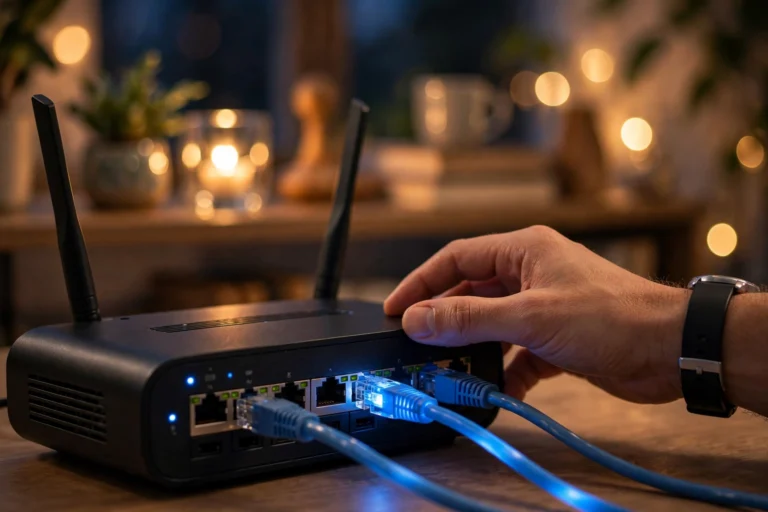
Changing DNS on your router applies your choice to every device that joins your Wi-Fi — phones, laptops, smart TVs, game consoles, and smart-home gadgets that have no DNS settings of their own. This is the single most effective step in this guide.
- Log in to your router. Open a browser and go to your router’s address — usually 192.168.1.1 or 192.168.0.1. The admin username and password are printed on the sticker on the router itself.
- Find the DNS settings. Look under a tab called Internet, WAN, or DHCP. You will see fields labeled Primary DNS and Secondary DNS (sometimes DNS Server 1 and 2).
- Enter your provider’s addresses. Type in the two IPv4 addresses from Step 1 — for example, 1.1.1.1 and 1.0.0.1 for Cloudflare. Save and let the router restart if it asks.
- Reconnect your devices. Phones and laptops pick up the new DNS the next time they join the network. Toggle Wi-Fi off and on, or simply wait a few minutes.
One caveat: most ISP-supplied routers do not support encrypted DNS themselves — they forward plain DNS to your new provider. That still stops your ISP from logging domains on their servers, but for full encryption keep encrypted DNS on your devices too, or use router firmware like AsusWRT or OpenWrt that supports DNS-over-TLS.
Step 4: Verify Your New DNS Settings Block ISP Tracking
Never assume a settings change took effect — check it. Two quick tests confirm everything:
- Confirm the provider. Visit dnsleaktest.com and run the standard test. The results should show your new provider (Cloudflare, Quad9, NextDNS) — not your ISP’s name. If your ISP still appears, a device is overriding the router setting, or the change has not propagated yet.
- Confirm the encryption. Visit cloudflare’s 1.1.1.1/help page, which reports whether your connection uses DNS-over-HTTPS or DNS-over-TLS. If it says no, go back to your device settings and make sure the encrypted-DNS toggle from Step 2 is actually on.
- Check for leaks on mobile. Turn Wi-Fi off and run the leak test again on cellular data. Many people secure their home network and forget that their phone falls back to the carrier’s DNS the moment they leave the house.
What Changing DNS Cannot Stop (Stay Realistic)
DNS privacy is powerful but not total:
- Your ISP still sees IP addresses and traffic volume. It knows you connected to a server and how much data moved — just not which domain you asked for.
- Websites still track you. Cookies, browser fingerprinting, and logged-in accounts follow you regardless of your DNS settings.
- Your DNS provider sees your queries instead. You are shifting trust from your ISP to your DNS provider — which is why a strong no-logging policy matters.
- Some apps ignore your settings. A few apps and smart TVs hardcode their own DNS servers. NextDNS and advanced router firmware can force these to comply.
If you need to hide your traffic itself — not just the lookups — that is what a VPN is for. Encrypted DNS stops passive logging; a VPN hides destinations entirely.
FAQ
Will changing DNS make my internet faster?
Sometimes, slightly. Providers like Cloudflare often answer faster than ISP DNS, shaving a fraction of a second off each site’s first load. The privacy gain is the real prize.
Is changing DNS legal?
Yes, completely. DNS is an open protocol and you are free to choose any resolver. In the US, UK, Canada, and Australia, switching is entirely legal.
Will my ISP know I changed my DNS?
They can see encrypted traffic going to a DNS provider’s IP address, but not the queries inside it.
Do I need to change DNS on every device or just the router?
The router covers every device on your Wi-Fi. Add device-level encrypted DNS on phones and laptops too if you want encryption — not just a provider switch — and protection away from home.
Can I still use parental controls after changing DNS?
Yes — in fact DNS is one of the best places to enforce them. Services like NextDNS, CleanBrowsing, and Cloudflare for Families let you block adult content, gambling, and malware at the DNS level for the whole house.
Conclusion
Knowing how to change dns to stop isp tracking gives you a genuine privacy win for five minutes of effort: pick a private provider like Cloudflare or Quad9, turn on encrypted DNS on your devices, set it on your router for whole-house coverage, and verify with a leak test. Your ISP goes from seeing every domain you visit to seeing only encrypted noise.
Keep expectations honest — DNS changes hide lookups, not traffic itself. Privacy is built in layers, and encrypted DNS is one of the easiest layers you will ever add.