How to Move WordPress Site to New Host Without Downtime (2026)
Learning how to move wordpress site to new host without downtime matters the moment your traffic or revenue is on the line — a botched migration means broken pages and visitors hitting error screens. The good news: a careful migration moves your entire site — files, database, themes, plugins, settings — with visitors noticing nothing.
The secret is simple: build the complete site on the new host first, test it privately, and only then point your domain at the new server. This guide walks you through it: preparing and backing up, copying your site, testing on a temporary address, updating DNS, and verifying after the switch.
Before You Start: The No-Downtime Migration Checklist
A migration without downtime is really a migration without surprises. Run through this preparation before touching anything:
- Lower your DNS TTL. In your domain’s DNS settings, reduce the TTL on your A record to 300 seconds at least 24–48 hours before the move, so visitors pick up the new server within minutes when you switch.
- Check PHP and MySQL versions. Ask your new host which PHP version it runs (8.1 or higher is ideal in 2026) and confirm your theme and plugins are compatible. A version mismatch is the most common cause of a site breaking on the new server.
- Put the site in maintenance mode — briefly. Only during the final data copy, so no new comments or orders land on the old site after you have copied it. For most sites this window is under 30 minutes.
- Note your email setup. If your email runs through your hosting account, plan where it moves. Many site owners keep email with Google Workspace or their domain registrar so hosting changes never touch it.
Step 1: Create a Complete Backup of the Old Site
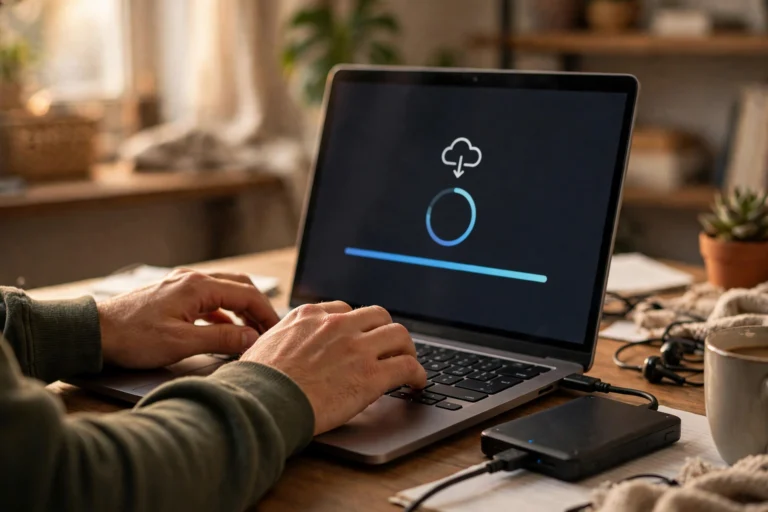
Never migrate without a full backup you could restore from if anything goes wrong. You need two things: all of your files, and your database.
- Use a migration plugin (easiest). Install Duplicator, All-in-One WP Migration, or UpdraftPlus on the old site and generate a full backup package. Duplicator is purpose-built for migrations and handles the URL and path changes on the new server automatically.
- Or back up manually via cPanel. In cPanel, go to Backup and download a full account backup, or use File Manager to compress your public_html folder and phpMyAdmin to export the database. Manual backups give you maximum control and work on any host.
- Download the backup to your own computer. Do not leave your only copy on the server you are leaving. Keep one local copy and, if the file is large, one in cloud storage.
- Note your database credentials. From the old site’s wp-config.php, record the database name, username, and password — you may need them during setup on the new host.
Step 2: Set Up the New Hosting Account
Prepare the destination before the site arrives. On your new host:
- Create the hosting account and domain entry. Add your domain as an addon domain (or the primary domain) in the new host’s cPanel. Do not change your DNS yet — the domain still points to the old server.
- Create a fresh database. In cPanel, go to MySQL Databases, create a new database and user, and grant the user all privileges. Save the credentials.
- Install a temporary SSL certificate. Most hosts offer free AutoSSL or Let’s Encrypt. Enable it now so the migrated site loads over HTTPS during testing.
- Check PHP settings. In cPanel’s Select PHP Version or MultiPHP Manager, set the PHP version to match (or slightly exceed) what the old site ran.
“Migrate the site first, move the traffic second. The order of those two steps is the entire difference between zero downtime and a broken afternoon.”
Step 3: Copy the Site to the New Host Without Downtime
With both ends ready, move the actual site. If you used Duplicator: upload the installer.php and archive files to the new host’s public_html via File Manager or FTP, then visit your temporary URL with /installer.php appended and follow the wizard — it unpacks everything and rewrites URLs and paths automatically.
- Plugin method (recommended). Duplicator’s installer handles the database import, URL replacement, and wp-config.php updates in one guided flow. All-in-One WP Migration works similarly with a drag-and-drop import on the new site.
- Manual method. Upload your files to public_html, create and import the database via phpMyAdmin, then edit wp-config.php with the new database credentials. Finally, run a search-and-replace (the Better Search Replace plugin works well) to update any old temporary URLs.
- Do not delete the old site yet. Leave the original running untouched until the migration is fully verified — it is your live site and your safety net at the same time.

Step 4: Test the New Site on a Temporary Address
This is the step most people skip — and the reason most migrations break. Before pointing your domain at the new host, verify the copy works:
- Use the host’s temporary URL. Your new host provides a temporary address (or edit your computer’s hosts file to map your domain to the new server’s IP). Browse the site as a visitor would.
- Check the homepage, key pages, and checkout. Click through your most important pages. Submit a test contact form. If you run a store, place a test order.
- Look for mixed content warnings. Open the browser console (F12) and watch for “mixed content” errors — these mean some images or scripts still load over HTTP and need their URLs updated.
- Confirm SSL works. The padlock should appear with no warnings on the temporary address before you switch DNS.
Step 5: Point Your DNS at the New Host
Only now — with a tested, working copy on the new server — do you move the traffic. This is the moment downtime would happen if you had skipped testing; since you did not, it is uneventful.
- Update your A record. At your domain registrar (or wherever your DNS is managed), change the A record for your domain to the new host’s IP address. If your host asked you to change nameservers instead, update those — but an A-record change propagates faster and is easier to reverse.
- Keep the TTL low for 48 hours. Leave the 300-second TTL in place for two days after the switch, then raise it back to a normal value (like 14400) for efficiency.
- Watch propagation. Use a tool like whatsmydns.net to watch the new IP spread across the globe. With a low TTL, most visitors move over within 5–15 minutes; full propagation can take up to 24 hours in rare cases.
- Visitors during propagation see one working site or the other. Because both servers host a complete, working copy, nobody sees an error — this is exactly why the method produces zero downtime.
Step 6: Verify the Move Worked With Zero Downtime
Once propagation looks complete, confirm the new server is serving your traffic and clean up:
- Confirm you are on the new server. Check that new test content (publish a draft post) appears — if it does, you are hitting the new host. Some hosts also let you check the server IP in cPanel.
- Re-check SSL. Make sure the certificate is valid for your real domain now, not just the temporary address, and that there are no mixed-content warnings.
- Test email. Send and receive a test message to confirm mail still flows after the move.
- Keep the old hosting for 7 days. Do not cancel immediately. Wait a week, confirm analytics, forms, and orders all behave normally, then cancel the old account.

FAQ
How long does a WordPress migration take?
The hands-on work takes 30 minutes to 2 hours depending on site size. DNS propagation adds up to 24 hours in the background, but visitors see a working site the entire time because both servers stay live.
Will I lose my Google rankings when I move hosts?
No — if the migration is clean. Google cares about uptime and speed, and a zero-downtime migration preserves both. Keep URLs identical and rankings stay intact.
Should I use a plugin or migrate manually?
Use a plugin like Duplicator unless you are comfortable with phpMyAdmin and FTP. Plugins handle the error-prone steps — database import, URL replacement, path updates — automatically. Manual migration gives more control for very large or unusual sites.
What if my site is too large for a migration plugin?
Large sites (several gigabytes) can exceed plugin limits. Split the job: move the wp-content/uploads folder via FTP separately, then migrate everything else with the plugin. Or ask your new host — many offer free professional migrations for exactly this situation.
Do I need to put my site in maintenance mode?
Only briefly during the final copy, and only if your site takes comments, orders, or form submissions. For a static-content blog, you can skip it entirely — nothing changes on the old site between backup and DNS switch.
Conclusion
Knowing how to move wordpress site to new host without downtime comes down to one principle: never move traffic to a server you have not tested. Back up the old site, build the full copy on the new host, verify it on a temporary address, and only then update your DNS — with a low TTL so the switch happens in minutes.
Follow this order and your visitors never see a broken page, your rankings stay intact, and the old host remains as a safety net until you are confident.