How to Set Up a Second DNS Server at Home (2026)
Learning how to set up a second dns server at home is the step that turns a fun home-network project into a genuinely resilient one. A single DNS server — even a good one like Pi-hole — is a single point of failure: when it goes down for an update, a reboot, or a hardware hiccup, every device in your house suddenly cannot resolve a single website, and your internet looks broken even though the connection is fine.
A second DNS server fixes that by giving your network a backup resolver. Devices automatically fail over to it when the primary is unreachable, so updates and reboots happen without anyone noticing. This guide walks you through the practical setup: what hardware you need, how to install and configure the secondary server, how to keep the two in sync, and how to point your router at both.
Why Two DNS Servers Beat One
DNS is one of those services you never think about until it stops working. When it does, the symptoms are confusing — “the Wi-Fi is connected but nothing loads” — because devices can reach the router but cannot translate any domain names. Running a second resolver eliminates this entire class of outage.
- Zero-downtime updates. Update or reboot one server while the other keeps answering queries. No more scheduling Pi-hole updates for 2 AM.
- Hardware failures stop mattering. If a Raspberry Pi’s SD card dies (the most common failure), the network keeps working while you rebuild.
- Load distribution. Two servers share the query load, and each caches responses independently, which can slightly speed up repeat lookups.
- It is how real networks work. Every professional network runs at least two DNS servers. Your home network deserves the same resilience.

What You Need Before You Start
The hardware requirements are modest — this is one of the cheapest reliability upgrades in home networking:
- Two always-on devices. Two Raspberry Pis (any model 3 or newer) are the classic choice, but any combination works: a Pi plus an old laptop, a mini PC, a NAS running containers, or a virtual machine on an existing home server.
- Static IP addresses for both. Reserve two addresses on your LAN (for example, 192.168.1.2 for the primary and 192.168.1.3 for the secondary) in your router’s DHCP reservation settings, so the addresses never change.
- One DNS software choice, installed twice. Pi-hole, AdGuard Home, Technitium, or plain Unbound/Bind — pick one and run the same software on both for simplicity. AdGuard Home is the friendliest for beginners; Pi-hole has the largest community.
- About an hour. The first server takes most of the time; cloning the setup to the second is fast.
Step 1: Build and Configure the Primary Server
Set up the first server exactly as you would a standalone DNS server — the secondary will mirror it.
- Install the OS and software. Flash Raspberry Pi OS (or your preferred Linux) to the first device, then install your DNS software. For AdGuard Home, download the release and run the setup wizard at the device’s IP on port 3000.
- Set the static IP. Confirm the device holds 192.168.1.2 (your chosen primary address) via your router’s DHCP reservation.
- Configure upstream DNS. Point the server at a private, encrypted upstream — Cloudflare (1.1.1.1), Quad9 (9.9.9.9), or your preferred provider. Enable DNS-over-HTTPS or DNS-over-TLS if the software supports it.
- Add your blocklists and custom rules. If you use ad blocking, load your blocklists now and add any local DNS rewrites (like pointing nas.home to your NAS). Test that browsing works with only this server active.
Step 2: Build the Secondary Server as a Mirror
The secondary should behave identically to the primary so failover is invisible. The easiest approach is to replicate the configuration rather than starting from scratch.
- Install the same software on the second device. Use the identical version to avoid subtle behavior differences.
- Copy the configuration. AdGuard Home and Pi-hole both store settings in files you can copy over (AdGuardHome.yaml for AdGuard Home; Pi-hole’s settings via its Teleporter export). Adjust only the device-specific bits like the IP address.
- Use the same upstreams and blocklists. The secondary should query the same upstream providers and enforce the same blocking rules, so the browsing experience is identical whichever server answers.
- Keep custom local DNS entries in sync. If you add a new local hostname later, add it to both servers. A small checklist or a shared notes file prevents drift.
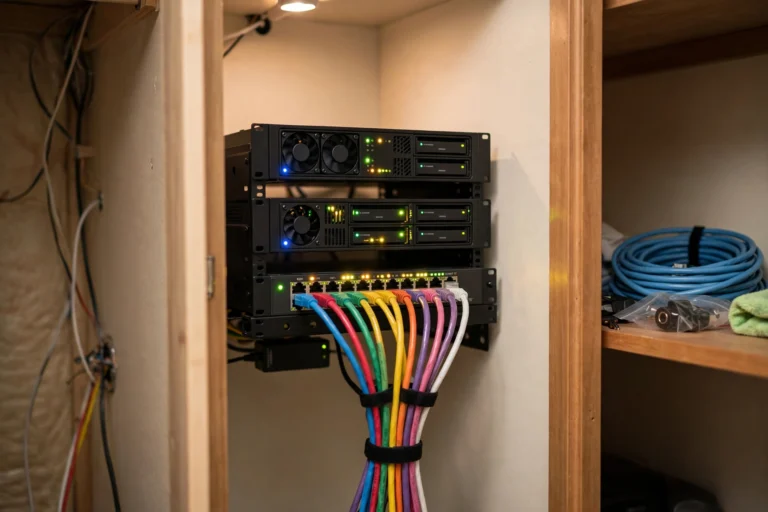
“A backup DNS server you never test is just a decoration. Fail over to it on purpose — once a month — and confirm the house stays online.”
Step 3: Point Your Router at Both DNS Servers for Automatic Failover
With two working resolvers, tell your network to use them. This is a one-time router change:
- Log in to your router (usually at 192.168.1.1) and find the DNS settings under Internet, WAN, or DHCP — the same place you would set a custom DNS provider.
- Enter both addresses. Put the primary (192.168.1.2) in the Primary DNS field and the secondary (192.168.1.3) in the Secondary DNS field. Save and let the router apply the change.
- Renew DHCP leases. Devices pick up both DNS addresses the next time they renew. Toggle Wi-Fi off and on, or reboot the router to push it through immediately.
- Understand how clients use them. Most devices query the primary first and fall back to the secondary if it does not answer quickly. Some devices alternate between the two. Either way, one server being down is invisible to users.
Step 4: Test That Your Second DNS Server Takes Over
An untested backup is a hope, not a plan. Verify the failover actually works:
- Unplug the primary. Literally pull its power or network cable. Browse the web from a phone and a laptop — pages should load normally.
- Check which server answered. Your DNS software’s query log on the secondary should show fresh queries arriving. If it stays empty, clients are not failing over and you need to recheck the router’s DNS settings.
- Plug the primary back in and repeat in reverse. Confirm the primary resumes answering and the secondary idles back down.
- Schedule a monthly check. Put a recurring reminder on your calendar. Configuration drift — a blocklist updated on one server but not the other — is the silent killer of DNS redundancy.

Keeping the Two Servers in Sync Long-Term
The ongoing work of running two DNS servers is small but real. These habits keep them identical:
- Update both on the same day. When a new Pi-hole or AdGuard Home release comes out, update the secondary first, verify the network still works, then update the primary. You get zero-downtime updates as a side effect.
- Use Teleporter-style exports as backups. Both Pi-hole and AdGuard Home can export their full configuration. Keep a recent export of the primary somewhere safe — it is also your disaster-recovery plan.
- Consider automated sync. Advanced users can sync configs with a scheduled rsync or a tool like Gravity Sync (built for Pi-hole pairs). For most homes, manual sync after each change is fine.
- Monitor both. Free tools like Uptime Kuma running on one of the devices can ping both DNS servers and alert you if either stops responding.
FAQ
Do I really need a second DNS server at home?
Need is strong — want is accurate. If you run network-wide ad blocking or DNS filtering, a single server is a single point of failure for the whole house. A second one costs very little and removes an entire category of “the internet is broken” complaints.
Can I use my router as the secondary DNS server?
You can list the router as secondary, but it usually just forwards to your ISP’s DNS, which defeats the purpose if you run Pi-hole or AdGuard Home for blocking. A real second instance of your DNS software is the correct approach.
Will two DNS servers slow down my browsing?
No. DNS queries are tiny, and clients only contact the secondary when the primary is slow or down. If anything, two caches can make repeat lookups marginally faster.
What is the best software for a home DNS pair?
AdGuard Home is the easiest for beginners and includes encrypted upstreams out of the box. Pi-hole has the biggest community and the most guides. Either works beautifully as a mirrored pair — pick one and run it on both.
Can the two servers run on different hardware?
Absolutely. A Raspberry Pi plus an old laptop, a NAS container plus a VM — any combination works as long as both stay powered on and reachable on your LAN with static IPs.
Conclusion
Figuring out how to set up a second dns server at home pays off the first time your primary needs an update or its SD card gives up: instead of a house full of “the Wi-Fi is broken,” nobody notices anything. Build the primary, mirror it to a second always-on device, point your router at both addresses, and — most importantly — test the failover by unplugging each server in turn.
Keep the pair in sync with same-day updates and a monthly failover check, and your home DNS becomes as boring and reliable as the power grid: something you never have to think about again.