How to Back Up WordPress Site Before Updating (2026)
Learning how to back up wordpress site before updating is the habit that separates a five-minute recovery from a five-hour disaster. WordPress core, theme, and plugin updates are safe the vast majority of the time — but “most of the time” is cold comfort when your checkout page goes blank ten minutes before a sale. A complete backup taken right before you click Update gives you an undo button for your entire website.
This guide shows you exactly what to back up, how to do it with a free plugin and manually through cPanel, how to verify the backup actually works, and the safe order for running updates. Follow it once and it becomes a two-minute routine you will never skip again.
What a Complete WordPress Backup Includes
A WordPress site is two things glued together, and a real backup captures both. If either half is missing, the backup is useless.
- Your files. Everything in public_html: WordPress core, themes, plugins, and — most importantly — the wp-content/uploads folder with all your images and media. This is usually the large part of the backup.
- Your database. All your posts, pages, comments, settings, and user accounts live in the MySQL database. It is small (often just a few megabytes) but irreplaceable — without it, your files are an empty shell.
- Both, taken at the same moment. A backup where the files are from Tuesday and the database is from Friday can produce subtle mismatches. Always capture both halves together.
- What does not need backing up: WordPress core itself can always be re-downloaded from wordpress.org, but including it costs nothing and keeps restores simple.
Method 1: Back Up Your WordPress Site With a Free Plugin (Easiest)
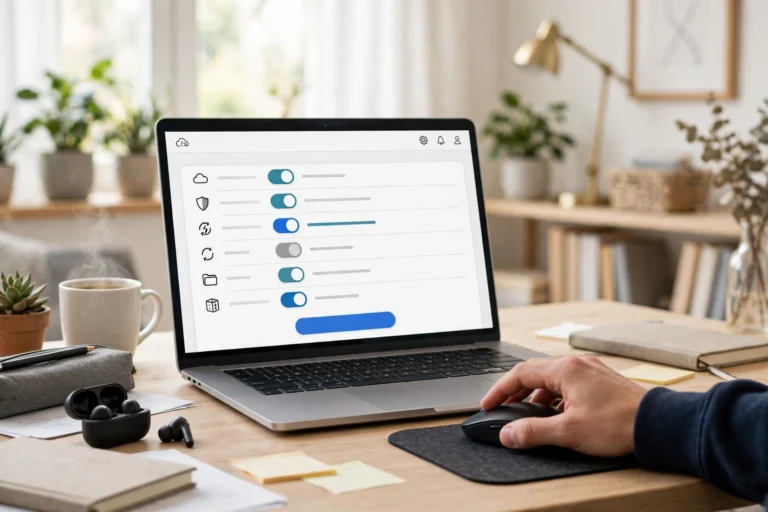
For most site owners, a backup plugin is the right tool — it handles both halves of the backup and the restore process in one place. UpdraftPlus (free version) is the most widely used; Duplicator and All-in-One WP Migration work well too.
- Install UpdraftPlus. In your WordPress dashboard, go to Plugins, then Add New, search for UpdraftPlus, install and activate it.
- Run a backup now. Go to Settings, then UpdraftPlus Backups, and click “Backup Now.” In the popup, check both boxes — “Include your database” and “Include your files” — then click Backup Now.
- Wait for it to finish. Small sites finish in under a minute; large media-heavy sites can take 10–20 minutes. Do not start updates until the backup shows as complete.
- Send a copy off-site. In UpdraftPlus settings, connect a remote storage option — Google Drive, Dropbox, or even email for small sites. A backup that lives only on the same server as your site is not a real backup.
- Set up scheduled backups while you are here. A weekly (or daily, for active sites) automatic schedule means you are protected even when you forget the manual step.
Method 2: Back Up Manually via cPanel (Most Control)
Manual backups take a few more clicks but work on any host and teach you where everything lives — valuable knowledge when a plugin-based restore ever fails.
- Back up the files. In cPanel, open File Manager, navigate to public_html, select everything, and compress it into a zip file. Download that zip to your computer — depending on your media library, it may be large.
- Back up the database. In cPanel, open phpMyAdmin, select your WordPress database in the left sidebar, click the Export tab, choose the Quick method, and click Go. Save the resulting .sql file alongside your zip.
- Label everything with the date. Name your files like site-backup-2026-10-20.zip and site-db-2026-10-20.sql. Future-you will thank present-you when sorting through old backups.
- Or use cPanel’s full backup. The Backup tool in cPanel can generate a complete account backup in one click — download it and store it off the server.

“A backup you have never restored is a theory. A backup you have tested is a guarantee.”
Step 3: Verify the Backup Before You Update WordPress
This is the step almost everyone skips — and the reason horror stories happen. A backup file that is corrupt, incomplete, or missing the database will not save you. Verification takes two minutes:
- Check the file sizes. A files backup should be roughly the size of your uploads folder plus themes and plugins. A database export should not be 0 KB or suspiciously tiny (a few KB usually means the export failed).
- Confirm both halves exist. Open the backup listing in your plugin and verify you see both a database component and a files component with today’s date.
- Test-restore once, on a staging site. Many hosts offer one-click staging. Restoring there proves the whole chain works — backup, transfer, restore — without touching your live site. Do this at least once; after that, spot-checks are enough.
- Confirm the off-site copy. Check your Google Drive or Dropbox and make sure the backup actually arrived there, not just “was scheduled.”
Step 4: Run Updates in the Safe Order
With a verified backup in place, updates themselves follow a safest-first order that minimizes the chance of conflicts:
- 1. Update plugins first, one or two at a time. Plugin conflicts cause most update breakage. Updating in small batches makes it obvious which one broke something.
- 2. Update the theme next. If you use a child theme (you should), your customizations survive parent-theme updates untouched.
- 3. Update WordPress core last. Core updates are the most tested and least likely to break things, and updating them last means plugins and themes are already on versions built for the new core.
- Check the site after each batch. Load the homepage, a post, and any critical page (checkout, contact form). If something breaks, you know exactly which update caused it.
What to Do If an Update Breaks Your Site
Even with perfect preparation, updates occasionally go wrong. Do not panic — this is exactly what the backup was for:
- Identify the culprit. If you updated in batches, deactivate the most recently updated plugin via the dashboard — or via FTP by renaming its folder in wp-content/plugins if you cannot reach the dashboard.
- Restore from backup if needed. In UpdraftPlus, go to the Backups tab and click Restore next to today’s backup. The plugin walks you through restoring files, database, or both.
- Restore the database only, if the issue is data. A broken layout is usually a files problem; missing content is usually a database problem. Restoring just the half you need is faster.
- Report the conflict. Leave a note on the plugin’s support forum describing the breakage — you will help the developer fix it and warn other users.
FAQ
How often should I back up my WordPress site?
At minimum: before every update session, plus an automatic weekly schedule for quiet sites and daily for stores, membership sites, or anything with user-generated content. Storage is cheap; lost orders are not.
Do I need a backup if my host says they back up my site?
Yes. Host backups are for the host’s disasters, not yours — they may be infrequent, hard to access, or unavailable on your exact plan. Your own backup, stored off-site, is the only one you fully control.
How long should I keep old backups?
Keep the last 2–3 full backups plus one monthly archive going back a few months. That covers both “yesterday’s update broke something” and “we just discovered a hack from six weeks ago.”
Will backups slow down my site?
The backup process itself uses server resources for a few minutes while it runs — schedule automatic backups for overnight hours. Stored backup files do not affect site speed at all, especially when kept off-site.
What is the difference between a backup and staging?
A backup is a snapshot you restore from after something breaks. Staging is a clone where you test changes before they go live. They complement each other: test on staging, back up before deploying to live.
Conclusion
Knowing how to back up wordpress site before updating turns updates from a gamble into a routine: capture files and database together with a plugin or cPanel, verify the backup is complete and stored off-site, then update in the safe order — plugins, theme, core — checking the site between batches.
The whole ritual takes minutes once it is habit, and the one time an update goes sideways, it is the difference between clicking Restore and rebuilding your site from memory. Never click Update without it.