How to Add a Contact Form in WordPress (2026)
Learning how to add a contact form in WordPress is one of the first things every site owner should do. A contact form lets visitors reach you without exposing your email address to spammers, and it takes about 15 minutes to set up — no coding required. Instead of a bare email link, you get a clean form with fields for name, email, and message, and every submission lands straight in your inbox.
This guide walks you through it step by step: install a form plugin, build your form, customize fields and notifications, and place it on any page. By the end, you will have a working, spam-protected contact form.
Why Your Website Needs a Contact Form
A contact form protects you and converts visitors into customers. Publishing your raw email address invites spam bots that scrape pages for addresses; a form keeps your address hidden while still letting anyone reach you.
- Less spam: your email address never appears in your page source.
- More inquiries: visitors contact you with one click instead of opening their email app and copying an address.
- Better organization: form submissions can be categorized, auto-replied to, and stored in your WordPress dashboard.
- Lead capture: every message is a potential customer, client, or reader you can follow up with.
What You Need Before You Start
You only need two things:
- A self-hosted WordPress site — this method works on WordPress.org sites where you can install plugins. (Not sure what you have? Read our guide on WordPress.com vs. WordPress.org.)
- Admin access — you need to be logged in as an administrator so you can install plugins.
That is it. The form plugins below are free, and everything in this tutorial uses the free versions unless noted otherwise.
Step 1: Install a Contact Form Plugin
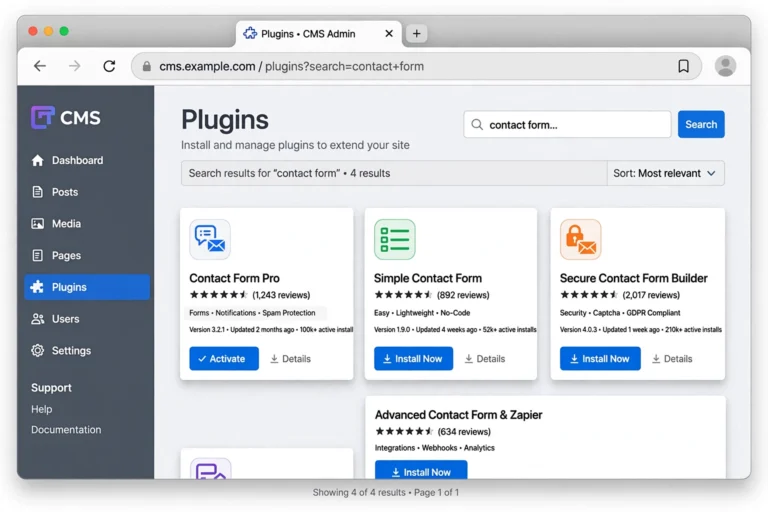
WordPress has no built-in contact form, so you install one via a plugin. The top free options are WPForms Lite, Contact Form 7, and Ninja Forms — WPForms Lite is the best pick for beginners thanks to its visual drag-and-drop builder.
- In your WordPress dashboard, go to Plugins → Add New.
- Type WPForms in the search box.
- Click Install Now on the WPForms plugin, then click Activate.
- A WPForms welcome screen appears. You can close it or follow the setup wizard — the wizard is optional.
After activation, a new WPForms menu item appears in your dashboard sidebar. That is your form-building home base.
Step 2: Create Your First Form
Now build the actual form. WPForms ships with a ready-made contact template so you rarely start from a blank page.
- Go to WPForms → Add New.
- Give your form a name, such as “Contact Form”.
- Choose the Simple Contact Form template.
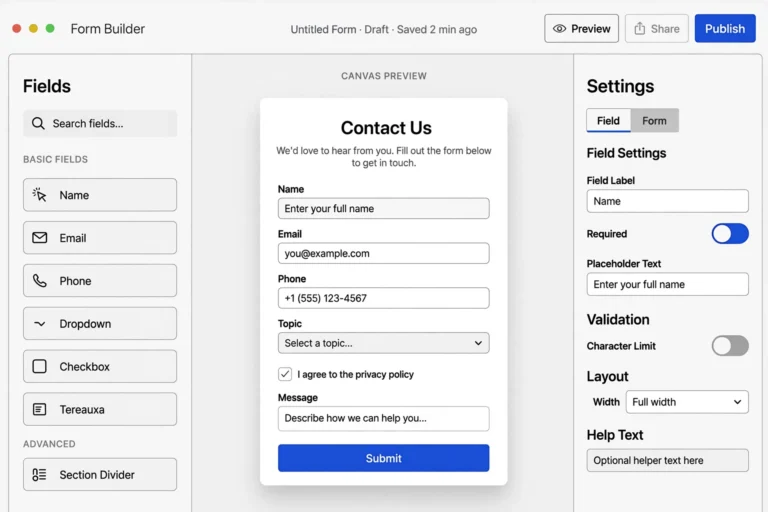
- WordPress loads the form builder: a field palette on the left and a live preview of your form on the right.
- Click Save in the top-right corner.
You now have a working form with Name, Email, and Message fields. It would already function on your site — but let us make it yours first.
Step 3: Customize the Fields and Settings
A generic form works, but small tweaks make it more useful and more professional.
Add or Rearrange Fields
Drag any field from the left palette onto the form. Useful additions for a contact page:
- Phone Number — if you want people to leave a callback number.
- Dropdown or Radio Buttons — for “Reason for contacting” (Sales, Support, Press, Other), which helps you route messages.
- Single Line Text — for a subject line, renamed to “Subject”.
- Click any field to edit its label, placeholder text, and whether it is Required. Make Name, Email, and Message required so you never get a blank submission.
Set Up Email Notifications
Every submission should email you. WPForms does this by default, but verify the settings:
- In the form builder, go to Settings → Notifications.
- Check the Send To Email Address field — set it to the address where you want submissions delivered (use
{admin_email}to use your site’s admin email automatically). - Set the Email Subject to something identifiable, for example:
New contact form submission from {field_id=”1″} — {page_title}
That way you can tell at a glance who wrote and from which page.
- Enable Save in database (under Settings → General) so every entry is also stored in WPForms → Entries — a backup if email delivery ever fails.
Write a Confirmation Message
Under Settings → Confirmations, customize the message visitors see after submitting. Something warm and specific works best: “Thanks for reaching out! We read every message and reply within one business day.” Set expectations — it cuts follow-up complaints in half.
Step 4: Add the Form to a Page
Your form is built; now place it where visitors can use it. There are two common options.
Option A: Embed on an Existing Contact Page
- Edit your Contact page (Pages → Contact, or create one if it does not exist).
- Click the + block inserter and search for WPForms, then add the WPForms block.
- Select your “Contact Form” from the dropdown in the block settings.
- Click Update or Publish.
Option B: Use a Shortcode Anywhere
Every form has a shortcode (visible in WPForms → All Forms). Paste it into any page, post, widget, or footer block to render the form there — handy for a site-wide footer form or multiple landing pages.
If you are still building your site from scratch, our guide on how to start a blog for free walks through setting up pages like Contact and About properly.

Step 5: Test Your Form (Do Not Skip This)
Forms that look perfect but never deliver messages are a silent disaster. Test before announcing your contact page:
- Open your contact page in a private/incognito browser window (so you are not logged in as admin).
- Fill out the form with a different email address than your site’s admin email.
- Submit it and check your inbox and spam folder.
- Go to WPForms → Entries and confirm the test submission was stored there.
- Reply to the test message to confirm the reply-to address works.
Not receiving emails? This is the most common WordPress form problem — WordPress sends mail through PHP’s mail() function, which many hosts throttle or block. Fix it by installing the free WP Mail SMTP plugin and routing site email through a real mail provider (Gmail, SendGrid, or your host’s SMTP).
Stop Contact Form Spam
The moment your form is public, bots will find it. Turn on protection before you need it:
- Enable anti-spam in WPForms: the plugin has a built-in honeypot and token system — turn both on under Settings → Spam Protection and Security.
- Add reCAPTCHA or Cloudflare Turnstile: a checkbox or invisible challenge that blocks nearly all bot spam. Connect it under the same Spam Protection tab with a free site key.
- Require sensible fields: required fields plus a minimum message length stop the laziest bots.
- Never disable protection on a busy site: re-enabling after a spam flood means cleaning hundreds of junk entries by hand.
FAQ
Can I add a contact form to WordPress without a plugin?
Technically yes — you can code a form with HTML, PHP, and a mail handler — but it is fragile, insecure in inexperienced hands, and offers no spam protection, storage, or notifications. A maintained plugin does all of that for free and stays updated. Unless you are a developer, use a plugin.
Which is the best free contact form plugin for WordPress?
WPForms Lite, for its drag-and-drop builder and templates. Contact Form 7 is lighter but its tag-based editing has a learning curve; Ninja Forms sits in the middle. All three handle basic contact forms well.
Why is my WordPress contact form not sending email?
Almost always because your host blocks or throttles PHP mail. Install WP Mail SMTP and configure it with a real mail provider, then re-test. Also check your spam folder and confirm the “Send To” address in the form’s notification settings is correct.
Can I put the same contact form on multiple pages?
Yes. Forms are reusable — embed the same form via its block or shortcode on as many pages as you like. Submissions from all of them land in the same inbox and entry list, with the page title included so you know where each came from.
How do I reduce spam on my contact form?
Enable the plugin’s built-in anti-spam and honeypot, add reCAPTCHA or Cloudflare Turnstile, and keep fields required. That combination stops nearly all automated spam without bothering real visitors.
Conclusion
How to add a contact form in WordPress comes down to five steps: install a form plugin like WPForms, create a form from the contact template, customize the fields and email notifications, embed it on your Contact page, and test it with a real submission. Add spam protection from day one, and if emails are not arriving, fix delivery with an SMTP plugin before anything else.
With your contact form live, keep building: if your site is brand new, see how to start a blog for free for the full setup walkthrough, and compare platforms in WordPress vs. Wix for Beginners if you are still deciding where your site should live.