How to Install an SSL Certificate on WordPress (2026)
Learning how to install an SSL certificate on WordPress is one of the most important security upgrades you can make. An SSL certificate switches your site from HTTP to HTTPS, encrypts data between your visitors and your server, and removes the “Not Secure” warning from browsers. Google also treats HTTPS as a ranking signal. The best part: most sites get SSL completely free, and the whole process takes about 15 minutes.
This guide covers two methods. Start with Method 1 — it works for the vast majority of WordPress sites.
What Is an SSL Certificate (and Why Does WordPress Need One)?
An SSL certificate is a small data file installed on your web server. It proves your site is who it claims to be and encrypts everything visitors send and receive — logins, form entries, payment info. Without it, data travels in plain text anyone on the same network can read.
Here is what SSL changes for your WordPress site:
- Padlock in the address bar: visitors see https:// and a padlock instead of a “Not Secure” warning.
- Trust and conversions: people are far less likely to fill in a form or buy from a site browsers flag as insecure.
- SEO boost: Google confirmed HTTPS is a ranking factor, and Chrome actively warns visitors away from HTTP pages.
- Required features: modern browser features like geolocation and service workers only work over HTTPS.
There are paid certificates (OV and EV, which verify your business identity) and free ones (Let’s Encrypt, AutoSSL). For blogs, portfolios, and most small business sites, a free certificate provides exactly the same encryption as a paid one — browsers show the same padlock either way.
Before You Start: Check These 3 Things
A failed SSL installation is almost always caused by one of these:
- Your domain points to your hosting. If you just registered the domain or changed nameservers, wait for DNS to propagate (up to 24–48 hours). SSL cannot be issued for a domain that does not resolve to your server.
- You have a hosting account with SSL support. Nearly all modern hosts include free SSL. If yours charges extra for basic SSL, that is a red flag — see our guide on What Is Web Hosting? Explained Simply for what a good host should include.
- Back up your site. SSL changes touch your site’s URLs. Take a full backup (files + database) with a plugin like UpdraftPlus before you begin.
Method 1: Enable Free SSL in Your Hosting Panel (Easiest)
Most hosts now offer one-click free SSL through Let’s Encrypt or AutoSSL. This is the fastest method and it is all most sites need.
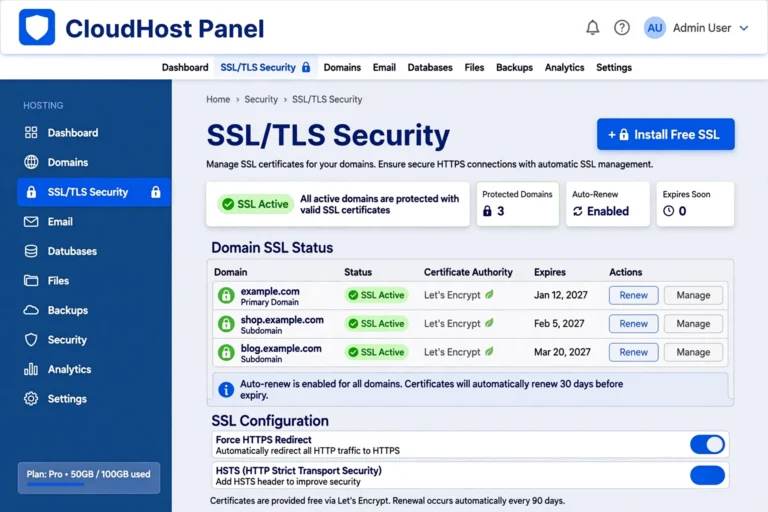
- Log in to your hosting control panel (cPanel, hPanel, or your host’s custom dashboard).
- Find the Security section and click SSL/TLS Status, SSL Certificates, or Security → SSL.
- Select your domain and click Install SSL, Enable AutoSSL, or Get Free Certificate.
- Wait a few minutes while the host verifies domain ownership and installs the certificate automatically.
- Refresh — your domain should now show SSL Active with a green padlock.
Check your site with https:// first — you may already be done.
Note for subdomains: if you use www and non-www versions, or subdomains like shop.yoursite.com, make sure each one is covered — select all of yours during installation.
Method 2: Install SSL on WordPress With a Plugin
Once the certificate exists on your server (Method 1), WordPress needs to actually use HTTPS. A plugin handles the switch cleanly: it updates your site URLs and forces all traffic to HTTPS.
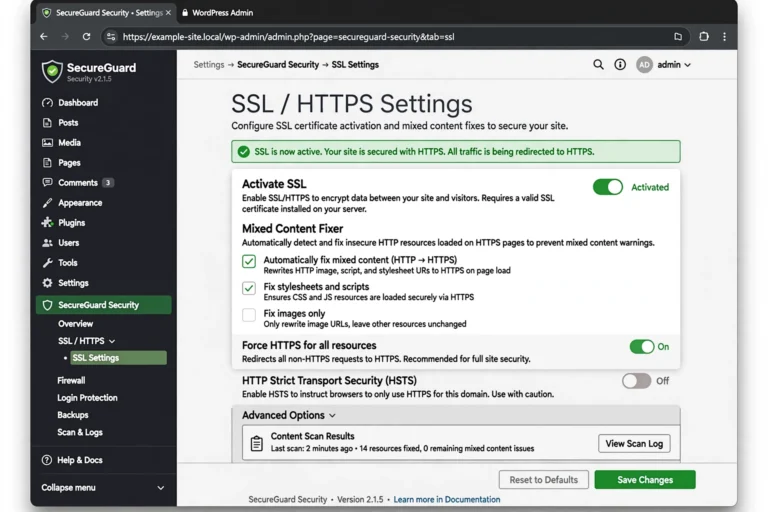
- In your WordPress dashboard, go to Plugins → Add New and search for Really Simple Security (formerly Really Simple SSL).
- Click Install Now, then Activate.
- You will see a notice: “Almost ready to migrate to SSL.” Click Go ahead, activate SSL!
- The plugin detects your certificate, updates your site address to https://, and sets up a 301 redirect so every old http:// URL forwards to https://.
- It also scans for mixed content (insecure elements loading over HTTP) and fixes most of it automatically.
Manual alternative (no plugin): go to Settings → General and change both URLs from http:// to https://, then add an HTTP-to-HTTPS redirect in your .htaccess file. The plugin method is safer for beginners because it handles the redirect and mixed content in one click.
Fixing Mixed Content Errors After Installing SSL
The most common post-installation problem is mixed content: your page loads over HTTPS, but some images, scripts, or stylesheets still load over HTTP. Browsers then show a warning instead of the padlock.
- Let the plugin fix it first. Really Simple Security’s mixed content fixer catches most cases automatically.
- Check theme and widget settings. Hardcoded http:// image URLs in theme options, widgets, or custom HTML blocks are the usual leftovers — update them to https://.
- Run a database search-and-replace. For stubborn cases, the Better Search Replace plugin can replace every http://yoursite.com with https://yoursite.com across your database. Back up first, and do a dry run before applying changes.
- Use developer tools. In Chrome, press F12, open the Console tab, and reload — mixed content warnings list the exact offending URLs.
How to Verify Your WordPress SSL Is Working
Do not assume — confirm with this checklist:
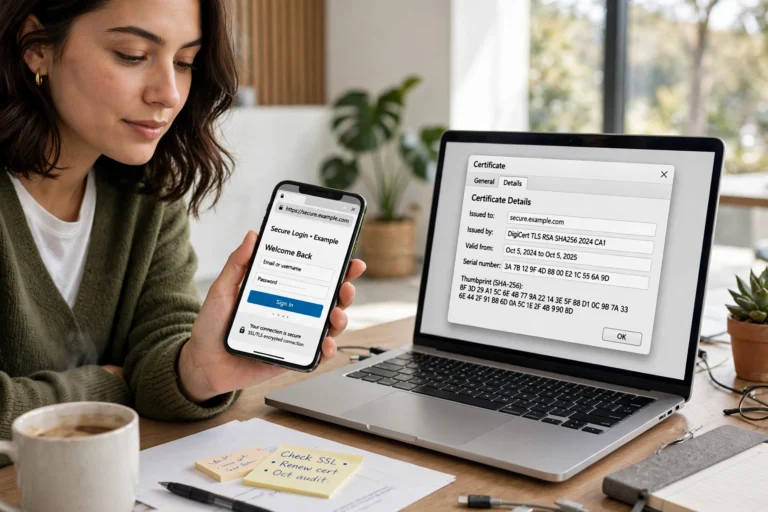
- The padlock test: visit https://yoursite.com in an incognito window. You should see a padlock with no warnings.
- The redirect test: type http://yoursite.com (without the “s”) — it should automatically redirect to the https:// version.
- The deep test: run your domain through SSL Labs’ SSL Test (ssllabs.com/ssltest). Aim for an A or A+ grade — it flags weak configurations and missing certificate chains.
- The WordPress test: check Settings → General — both URLs must start with https://. Then browse a few pages and confirm the padlock stays on every one.
- The Search Console step: add the https:// version of your site as a new property in Google Search Console — Google treats http and https as separate properties.
Troubleshooting Common SSL Problems
“Your connection is not private” (NET::ERR_CERT_COMMON_NAME_INVALID)
The certificate does not cover the domain you are visiting — usually a www vs. non-www mismatch. Reinstall the certificate including both versions, or redirect one to the other.
Too many redirects / redirect loop
Your site redirects http→https and https→http in a circle — common behind Cloudflare or load balancers, where WordPress thinks it is on HTTP. In Really Simple Security, enable the recommended server configuration, or ask your host to check the setup. If your site feels sluggish while debugging, our guide on Why Is My WordPress Site Slow? 9 Fixes covers redirect-related slowdowns too.
Padlock shows on homepage but not inner pages
Classic mixed content on specific pages. Use the browser console (F12) on the affected page to find the insecure URLs, then fix them in the page editor or with a database search-and-replace.
SSL installed but site still shows “Not Secure”
Clear your browser cache and any caching plugin cache — old HTTP pages may be served from cache. Also check that your CDN (e.g., Cloudflare) SSL mode is set to “Full” rather than “Flexible,” which causes exactly this symptom.
Certificate expired
Let’s Encrypt certificates renew automatically every 90 days on most hosts. If yours expired, auto-renewal failed — check that your domain still points to the host, then re-run the installation.
FAQ
How long does it take to install an SSL certificate on WordPress?
With one-click hosting SSL, about 5 minutes for the certificate plus 10 more to switch WordPress to HTTPS and check for mixed content. DNS propagation is the only part that can take longer — up to 24 hours if you just pointed the domain at your host.
Is a free SSL certificate safe for my WordPress site?
Yes. Free certificates from Let’s Encrypt use the same encryption as paid ones — paid certs only add business identity verification, which most blogs and small sites do not need. Browsers show the same padlock either way.
Why is the padlock not showing after I installed SSL?
Almost always mixed content — some element still loads over HTTP. Check the browser console (F12) for warnings, let your SSL plugin’s mixed content fixer run, and clear all caches.
Do I need SSL if my site has no shop or payments?
Yes. Browsers flag every HTTP page as “Not Secure,” which erodes trust even on a simple blog, and Google uses HTTPS as a ranking signal. There is no good reason to stay on HTTP in 2026.
Will switching to HTTPS hurt my SEO?
Not if you do it right. A proper 301 redirect from http to https (which Really Simple Security sets up automatically) passes your rankings to the new URLs — add the https property in Search Console and you may even see a small lift.
Conclusion
How to install an SSL certificate on WordPress comes down to a simple sequence: enable free SSL in your hosting panel, switch WordPress to HTTPS with a plugin like Really Simple Security, fix any mixed content warnings, and verify with the padlock and SSL Labs tests. Fifteen focused minutes gets you the padlock, the SEO signal, and your visitors’ trust.
SSL is one layer of a healthy site. Keep your foundation solid with What Is Web Hosting? Explained Simply, and if anything feels off after the switch, Why Is My WordPress Site Slow? 9 Fixes will help you rule out performance side effects. Your site is now encrypted, trusted, and ready to grow.