Why Is My WordPress Site Slow? 9 Fixes (2026)
Why is your WordPress site slow? In most cases, it is one of these culprits: too many or poorly coded plugins, no caching configured, oversized images, a cheap overloaded hosting plan, or an outdated PHP version. The good news: most WordPress speed problems are fixable in under an hour, and the fixes below are ordered from easiest to most involved — start at the top and test your speed after each one.
Before touching anything, measure your current speed so you can tell what actually helps. Then work through the nine fixes below.

First: Test Your Speed Properly
Do not guess — measure. Use these free tools:
- Go to PageSpeed Insights (pagespeed.web.dev) and enter your URL for mobile and desktop scores plus specific recommendations.
- Run GTmetrix for a detailed waterfall chart showing exactly which files load slowly.
- Note your Largest Contentful Paint (LCP) — the time until your main content appears. Under 2.5 seconds is good; over 4 seconds needs urgent attention.
Important: test a second time after each fix below, so you know which change made the difference. Speed work without measuring is just superstition.
Fix 1: Audit Your Plugins (The #1 Culprit)
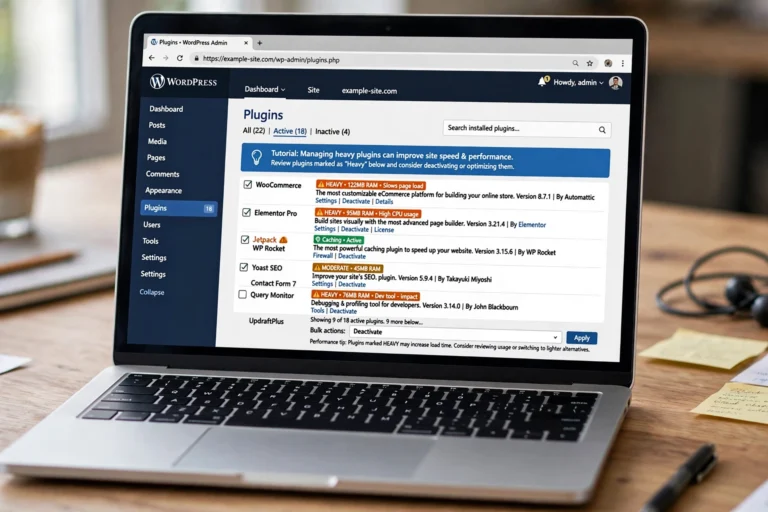
Plugins are the most common cause of slow WordPress sites. Each active plugin adds code that runs on every page load, and a single badly coded plugin can add seconds.
- Go to Plugins → Installed Plugins and deactivate anything you do not actively use. Fewer plugins is almost always faster.
- Delete deactivated plugins entirely — disabled code can still pose security risks.
- Avoid plugins that duplicate functions. You do not need three slider plugins, two contact form plugins, and four SEO plugins.
- Replace heavy multipurpose plugins with lightweight single-purpose ones where possible.
- Check for known slow offenders: page builders with excessive markup, social sharing plugins loading on every page, and outdated plugins abandoned by their developers.
Rule of thumb: it is not the count that matters most, it is the quality. Twenty well-coded plugins can outperform five bloated ones. But if you have 40+ plugins, you almost certainly have fat to trim.
Fix 2: Install a Caching Plugin
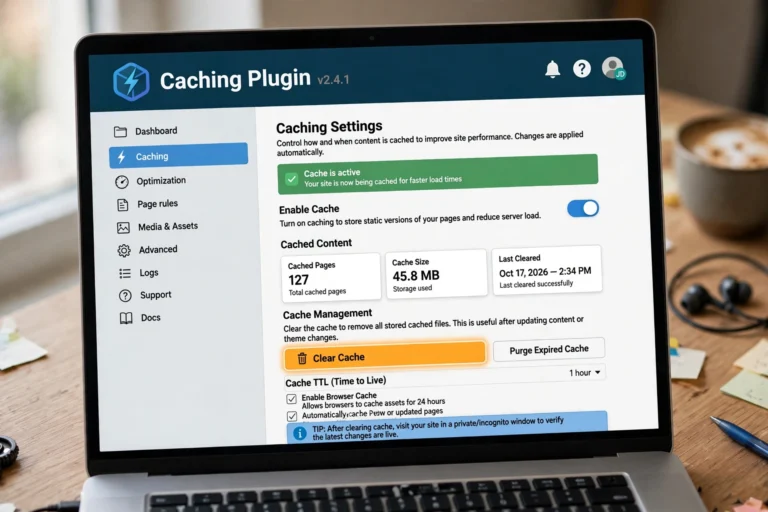
Caching is the single biggest speed win for most sites. Without it, WordPress rebuilds every page from scratch — querying the database, running PHP, assembling HTML — for every single visitor. A caching plugin saves the finished page and serves it instantly to the next visitor.
- Install WP Rocket (premium, best all-in-one) or LiteSpeed Cache (free, superb on LiteSpeed servers).
- Enable page caching first — this alone often cuts load times in half.
- Turn on browser caching so returning visitors reuse files they already downloaded.
If your host offers built-in caching (many managed WordPress hosts do), use theirs instead of adding another plugin — doubling up caching layers causes strange bugs.
Fix 3: Optimize Your Images
Images are usually the heaviest files on a page. A single unoptimized photo can outweigh your entire theme.
- Resize before uploading. If your content area is 800px wide, do not upload 4000px photos. Resize to the display size.
- Compress every image. Tools like TinyPNG or the ShortPixel plugin shrink files 50–80% with no visible quality loss.
- Use modern formats. WebP images are ~30% smaller than JPEGs at the same quality. Most optimization plugins convert automatically.
- Enable lazy loading. This loads images only when visitors scroll near them, so the first screen appears instantly. WordPress does this by default since version 5.5 — do not disable it.
Fix 4: Choose a Lightweight Theme
Your theme’s code runs on every page. Bloated multipurpose themes with built-in page builders, sliders, and 200 demo layouts can add a full second before your content even starts loading.
- Prefer lightweight themes like Astra, GeneratePress, or Kadence — built for speed with clean code.
- Avoid “everything included” themes that bundle features you will never use.
Switching themes on a live site needs care — test on a staging copy first.
Fix 5: Update PHP and WordPress
Old software is slow software. Each major PHP release runs significantly faster than the last — PHP 8.x roughly doubles the performance of PHP 7.x for WordPress.
- In your hosting control panel, check your PHP version. If it is below 8.0, upgrade.
- Keep WordPress core, themes, and plugins updated — updates include performance improvements alongside security fixes.
Fix 6: Clean Up Your Database
WordPress databases accumulate junk: post revisions, trashed items, spam comments, and leftover tables from deleted plugins.
- Install WP-Optimize and run a cleanup: remove old post revisions, empty trash and spam, clear expired transients — but back up first.
- Schedule automatic weekly cleanups so junk never accumulates again.
This fix helps most on older sites running for years without maintenance.
Fix 7: Use a CDN (Content Delivery Network)
A CDN stores copies of your site’s files on servers around the world, so visitors download from the location nearest them instead of waiting on one distant server.
- Cloudflare’s free plan is the easiest start: sign up, point your domain’s nameservers to Cloudflare, and you get CDN plus security benefits in about 15 minutes.
- CDNs help most if your audience is geographically spread out.
- Most caching plugins integrate with CDNs — configure the CDN URL in your caching plugin.
Fix 8: Reduce External Scripts
Every third-party script — ad networks, social widgets, chat popups, analytics — is a separate request to someone else’s server, and you cannot control their speed.
- Audit with GTmetrix’s waterfall chart: sort by load time and spot the slowest third-party domains.
- Remove social share buttons that load five external scripts; replace with lightweight static links.
- Load Google Fonts locally or use system fonts — font requests are a classic hidden slowdown.
Fix 9: Upgrade Your Hosting
If you have done everything above and the site is still slow, your hosting is the bottleneck. Cheap shared hosting packs hundreds of sites onto aging servers — no plugin fixes that.
- Move from budget shared hosting to a quality shared host, VPS, or managed WordPress hosting. This single change has rescued more slow sites than all other fixes combined.
- Look for hosts with SSD/NVMe storage, server-level caching, and data centers near your audience.
- Remember our rule from What Is Web Hosting? Explained Simply: check the renewal price, confirm free SSL and backups, and demand 99.9% uptime.
How to confirm hosting is the problem: install the free Query Monitor plugin and check server response time. If the server itself takes 2+ seconds to respond before your theme or plugins even run, no on-site optimization will save you — it is the hosting.
When to Call Your Host vs. DIY
DIY it: plugin audits, caching, image optimization, database cleanup, CDN setup — all safe with a backup. Call your host: PHP upgrades, SSL issues, and anything in the hosting control panel you do not recognize. Good hosts handle PHP upgrades and migrations for you.
Call a developer: white screens after changes or speed issues that persist after all nine fixes — likely a code-level problem needing expert eyes.
FAQ
What is a good loading speed for a WordPress site?
Aim for under 2–3 seconds for full load, with Largest Contentful Paint under 2.5 seconds. Google uses these Core Web Vitals as ranking factors, and visitors start abandoning pages after about 3 seconds.
Do too many plugins slow down WordPress?
Quality matters more than quantity, but yes — each plugin adds code that executes on page loads. Deactivate what you do not use, delete what is deactivated, and replace bloated plugins with lightweight alternatives.
Will a caching plugin really make my site faster?
Yes — caching is usually the biggest single win, often cutting load times in half. It serves pre-built pages instead of rebuilding them for every visitor. Just use one caching solution, not two.
Is shared hosting too slow for WordPress?
Not necessarily. Quality shared hosting runs small WordPress sites perfectly well. Problems come from overcrowded budget hosting — if server response times are high, upgrading to better shared, VPS, or managed hosting is the fix.
Why is my WordPress admin dashboard slow but the site is fast?
A slow wp-admin usually means a heavy plugin running background processes (backups, security scans). Use Query Monitor to identify it, and schedule heavy tasks for off-peak hours.
Conclusion
Why is your WordPress site slow? Start with the usual suspects: audit your plugins, add caching, and optimize your images — those three fixes solve the majority of slow sites. Then work down the list: lightweight theme, current PHP, clean database, CDN, fewer external scripts, and finally better hosting if the server itself is the bottleneck.
Speed is a feature your visitors feel on every click. Keep learning with What Is Web Hosting? Explained Simply before your next hosting decision, How to Start a Blog for Free if you are launching fresh, and our device-side speed guide How to Speed Up Laptop on Windows 11 — because sometimes the “slow website” is actually a slow computer.