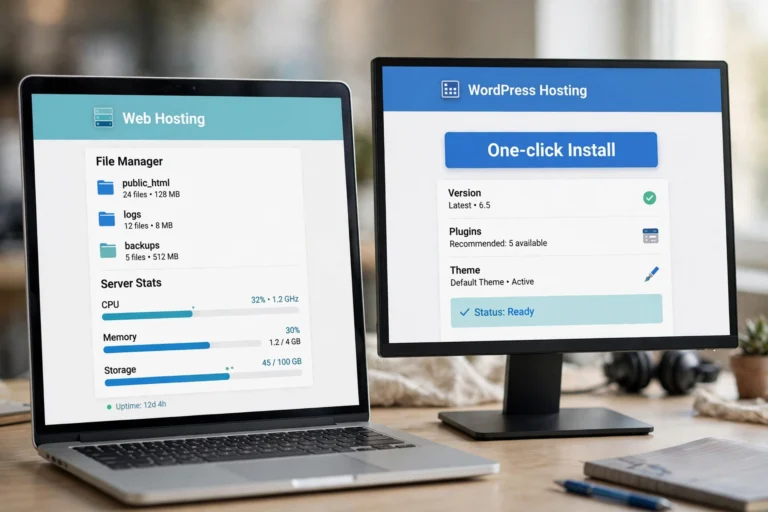
How to Install WordPress on Shared Hosting cPanel (2026)
Learning how to install wordpress on shared hosting cpanel is the first real step toward owning your website outright — no platform rules, no monthly page-builder fees, just your domain running the software that powers over 40 percent of the web. The process is far less technical than it sounds: modern cPanel includes one-click installers that do the heavy lifting in about five minutes.
This guide walks you through the full installation two ways — the quick one-click method with Softaculous, and the manual method for those who want full control — plus the essential settings to configure the moment WordPress is live. By the end, you will have a working site and a secure foundation to build on.
Before You Install: What You Need Ready
Installation goes smoothly when these are in place first:
- A domain name. Purchased from a registrar (Namecheap, Porkbun, Cloudflare Registrar) and pointed at your hosting account via nameservers. DNS changes can take a few hours to propagate — you can start the install with a temporary URL meanwhile.
- A shared hosting account with cPanel. Any mainstream shared host (Hostinger, Bluehost, A2 Hosting, Namecheap) includes cPanel and the Softaculous installer.
- Your cPanel login. Found in your host’s welcome email — usually a URL like yourdomain.com:2083 with a username and password.
- A strong admin password plan. Do not use “admin” as the username or a guessable password. A password manager makes this painless.

Method 1: Install WordPress on Shared Hosting With Softaculous (Recommended)
Softaculous is the auto-installer bundled with most cPanel accounts. It creates the database, uploads the files, and configures everything automatically.
- Log in to cPanel and scroll to the Software section. Click the “WordPress” icon under Softaculous Apps Installer (it may say “Softaculous” with a WordPress logo).
- Click Install Now. This opens the installation form — take your time with these fields, because they are harder to change later.
- Choose your domain and directory. Select your domain from the dropdown. Leave the “In Directory” field empty to install WordPress at yourdomain.com — typing “blog” or “wp” there would put the site at yourdomain.com/blog instead.
- Set the site name and description. Enter your site title and a short tagline. Both are easy to change later under Settings, then General.
- Create the admin account. Choose a unique username (not “admin”), a strong password (use the built-in generator), and an admin email address you actually check — password resets go here.
- Pick your language and options. Select your language, and consider enabling “Limit Login Attempts” if your Softaculous version offers it — it blocks brute-force attacks from day one.
- Click Install and wait. The progress bar takes 1–3 minutes. When it finishes, you will see links to your new site and your admin dashboard (yourdomain.com/wp-admin). Bookmark the dashboard link.
Method 2: Manual Install (Full Control)
Manual installation takes about 15 minutes and teaches you how WordPress actually fits together — useful knowledge for troubleshooting later.
- Download WordPress. Get the latest zip from wordpress.org and unzip it on your computer.
- Create a database. In cPanel, go to MySQL Databases: create a database, create a user with a strong password, add the user to the database, and grant All Privileges. Write down all three names.
- Upload the files. Use cPanel’s File Manager (or an FTP client like FileZilla) to upload the unzipped WordPress files into public_html — the contents of the wordpress folder, not the folder itself.
- Run the installer. Visit your domain in a browser. WordPress shows its famous five-minute setup: enter the database name, username, password, and host (usually “localhost”), then the site title and admin account details.
- Finish and log in. Click Install WordPress, then log in at yourdomain.com/wp-admin with the account you just created.
“Install it in the root directory, not in a subfolder — unless you enjoy explaining to visitors why your site lives at yourdomain.com/wp.”
First 10 Minutes: Essential Settings After Installing WordPress
A fresh WordPress install works, but it is not finished. These settings turn a default installation into a proper foundation:
- Permalinks. Go to Settings, then Permalinks, and select “Post name.” This gives you clean URLs (yoursite.com/my-article) instead of ugly ones (yoursite.com/?p=123) — critical for SEO.
- General settings. Under Settings, then General, confirm the site title, tagline, and timezone. Set the timezone to your actual location so scheduled posts publish when you expect.
- Delete the defaults. Remove the “Hello world!” post, the “Sample Page,” and the default comment. If you will not use them, delete the preinstalled themes except one (keep one as a fallback) and deactivate unused plugins like Hello Dolly.
- Install SSL. In cPanel, open SSL/TLS Status and run AutoSSL (or use your host’s Let’s Encrypt option) so your site loads over HTTPS. Then in WordPress go to Settings, then General, and make sure both URLs start with https://.
- Add two essential plugins. Install a security plugin (Wordfence or Solid Security) and a backup plugin (UpdraftPlus). Configure the backup to run weekly to remote storage from day one.
- Create the core pages. Add an About page, a Contact page, and a Privacy Policy page — visitors and search engines both expect them.
Common Installation Problems and Fixes
Most install issues come from a short list of causes. Here is how to recognize and fix each:
- “Error establishing a database connection.” The database name, username, password, or host in wp-config.php is wrong. Double-check the credentials you created in cPanel — this fixes it 95 percent of the time.
- Site shows the host’s default page instead of WordPress. DNS has not propagated yet, or the domain is not added to the hosting account. Wait a few hours, or preview via the host’s temporary URL.
- Softaculous installed to a subdirectory by accident. The “In Directory” field had a value in it. Easiest fix: delete the installation in Softaculous and reinstall with the field empty.
- HTTPS not working after install. The SSL certificate may still be provisioning (can take up to 24 hours), or the WordPress URLs still say http://. Run AutoSSL in cPanel, then update the URLs under Settings, then General.
- Cannot log in after install. Check that you are using the exact admin username from the install form — not your cPanel username. Use the “Lost your password?” link with the admin email you entered.

FAQ
How long does it take to install WordPress on cPanel?
About 5 minutes with Softaculous, or 15 minutes manually. DNS propagation for a brand-new domain can add a few hours before the site is reachable at its final address, but the install itself is quick.
Is the one-click installer as good as a manual install?
Yes — the result is identical. Softaculous simply automates the file upload, database creation, and configuration steps. Manual installation gives you more understanding and control, but no technical advantage for a standard site.
Can I install WordPress in a subdirectory and move it later?
You can, but moving it to the root later requires URL updates and is a common source of breakage. If the site belongs at yourdomain.com, install it there from the start by leaving the directory field empty.
Do I need to buy anything besides hosting and a domain?
No. WordPress itself is free, Softaculous is included with your hosting, and free SSL certificates come with most shared plans. Paid themes and plugins are optional upgrades, not requirements.
What should I do right after installing WordPress?
Set permalinks to Post name, enable SSL and switch URLs to https, delete default content, install security and backup plugins, and create your About, Contact, and Privacy pages. That ten-minute routine prevents most beginner headaches.
Conclusion
Knowing how to install wordpress on shared hosting cpanel removes the biggest mental barrier to owning your website: Softaculous turns it into a five-minute form, and even the manual route is just files plus a database plus a short wizard. Install to the root directory, use a strong admin account, and the technical part is done.
What matters more is the ten minutes after: permalinks, SSL, backups, and security turn a working install into a durable one. Do that setup once, and your site stands on a foundation that will serve you for years.