How to Add a New User in WordPress (2026)
Learning how to add a new user in WordPress is one of the first admin skills every site owner needs. Whether you are hiring a writer, bringing on a developer, or handing a shop manager access to your store, adding a user takes less than five minutes — and choosing the right role keeps your site secure.
In this guide, I will walk you through the exact steps to add a new user in WordPress, explain what each user role can and cannot do, and share best practices for managing accounts safely. No plugins or code required — everything happens in the built-in WordPress dashboard.
Note: this guide covers self-hosted WordPress (WordPress.org). If you are unsure which flavor of WordPress you are running, our WordPress.com vs WordPress.org guide breaks down the differences.
How to Add a New User in WordPress: Step-by-Step
You need an Administrator account to add new users. If you are not sure whether your account qualifies, check under Users → Profile — your role is listed there. Here is the full process:
- Log in to your WordPress dashboard with an administrator account.
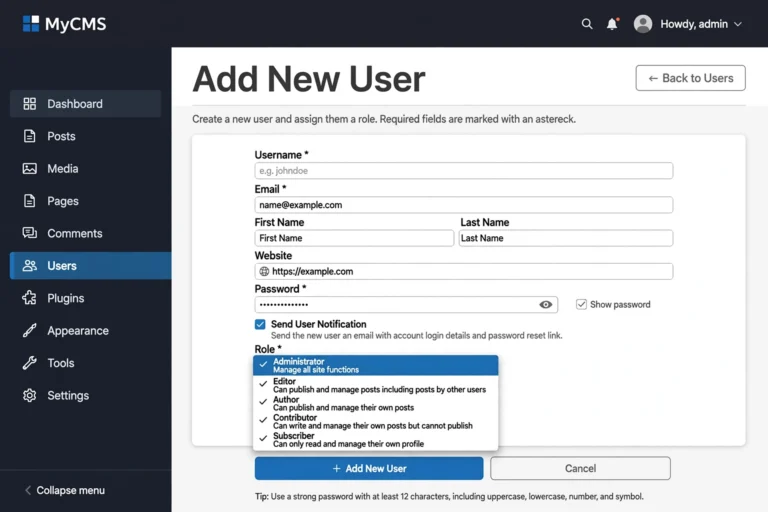
- In the left sidebar, hover over Users and click Add New User (in older versions this says “Add New”).
- Fill in the user details: enter a username, a valid email address, and the person’s first and last name. The username cannot be changed later, so pick something sensible — usually the person’s name or brand.
- Set a strong password. WordPress generates a secure password automatically; leave it as-is or click Show password to type your own. Use at least 12 characters with a mix of letters, numbers, and symbols.
- Tick “Send User Notification” so WordPress emails the new user their login credentials automatically. This saves you a manual email and is the safest way to deliver passwords.
- Choose a role from the Role dropdown (more on picking the right one below — when in doubt, give less access, not more).
- Click Add New User at the bottom. Done — the new account is live immediately.
The new user can now log in at yoursite.com/wp-login.php using the credentials emailed to them. Their first login works exactly like yours — WordPress will prompt them to set their own password if you left the notification option on.
Understanding WordPress User Roles
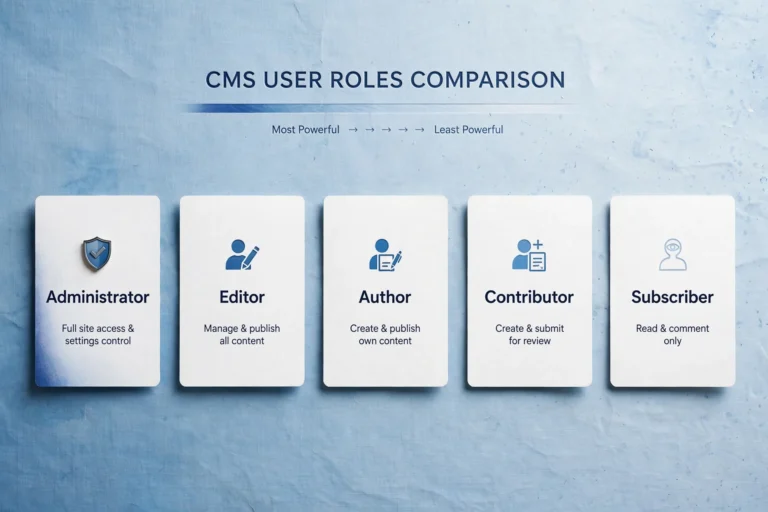
The role you assign controls what the new user can see and do. WordPress ships with five built-in roles. Getting this right is the single most important part of adding a user — a writer does not need admin powers, and a developer should not keep them forever.
Administrator
The highest level. Administrators can change settings, install plugins and themes, manage all users, and update the site. Give this role only to people you fully trust. Most sites should have no more than one or two administrators.
Editor
Editors can publish, edit, and delete any posts and pages on the site — including content written by other people. They cannot change site settings or install plugins. This is the ideal role for a content manager who oversees what gets published.
Author
Authors can write, edit, and publish their own posts. They can upload images and delete their own published work, but they cannot touch anyone else’s content. This is the best default role for blog writers and contributors who publish independently.
Contributor
Contributors can write and edit their own posts, but cannot publish them — an Editor or Administrator must approve and publish. This is the safest role for guest writers, interns, or anyone whose work needs review before going live.
Subscriber
The lowest level. Subscribers can only manage their own profile. This role is mostly used by membership sites and stores so registered visitors have an account without any editing powers. If you allow public registration, new sign-ups get this role by default.
“When in doubt, assign the lowest role that lets the person do their job. You can always upgrade access later — but you cannot undo the damage of an over-privileged account.” — the golden rule of WordPress user management
Quick rule of thumb for common hires: writer → Author (or Contributor if you review their work), content manager → Editor, developer or agency → Administrator temporarily, then downgrade them when the work is done.
How to Change a User’s Role or Delete a User
Adding a user is rarely the end of the story. Roles change, contracts end, and accounts need cleanup. All of this happens from the Users → All Users screen.
- Change a role: hover over the user’s name, click Edit, select a new role from the Role dropdown, and click Update User.
- Delete a user: hover over the name and click Delete. WordPress will ask what to do with their content — attribute all posts and pages to another user so nothing disappears, or delete the content along with the account.
- Reset a user’s password: on their profile page, click Set New Password under Account Management. Never ask users to share passwords over email or chat.

One safety rule: you cannot delete your own administrator account while logged in as it, and WordPress always requires at least one admin on the site. If you are removing the only admin, promote someone else first.
Best Practices for Managing WordPress Users
- Least privilege, always. Start every new account at the lowest role that works for their task. Upgrade only when they genuinely need more.
- Use strong, unique passwords for every account — the built-in generator is excellent. Better yet, require two-factor authentication with a free plugin for all admin accounts.
- Remove old accounts promptly. Former employees, finished freelancers, and one-time helpers should lose access the day their work ends. Dormant accounts are a favorite target for attackers.
- Never share one login. It is tempting to hand the agency “the admin login,” but shared credentials make it impossible to know who did what — and impossible to revoke one person’s access without affecting everyone.
- Keep user emails current. Password resets and security notifications go to the email on file. An outdated address means a locked-out user — or worse, notifications going to the wrong inbox.
- Review the user list twice a year. Open Users → All Users every six months, check that every account still belongs to an active person, and prune anything you do not recognize.
FAQ
Can I add a new user in WordPress without admin access?
No. Only Administrators can create new users, change roles, or delete accounts. If you need someone added and you are not an admin, ask the site’s administrator — there is no workaround, and that is by design.
What role should I give a blog writer?
Author if they publish on their own, or Contributor if you want to review their drafts before they go live. Both keep them away from site settings, plugins, and other people’s content.
Can I let visitors register themselves as users?
Yes. Go to Settings → General and tick “Anyone can register,” then set the New User Default Role (usually Subscriber). Only enable this if you actually need public accounts — on a simple blog it just invites spam registrations.
How many users can a WordPress site have?
There is no hard limit — sites run happily with tens of thousands of users. Performance only becomes a concern with very large membership or store databases, and even then, good hosting and caching handle it.
Why didn’t the new user receive their login email?
Usually the email landed in spam, or the site’s mail function is misconfigured (common on new hosting). Ask them to check spam first. If it keeps happening, install a free SMTP plugin like WP Mail SMTP so WordPress sends mail through a proper mail server instead of the server’s default mail function.
Conclusion
Now you know how to add a new user in WordPress: log in as an administrator, go to Users → Add New User, fill in the details, set a strong password, pick the right role, and send the notification. The whole process takes about two minutes — the only part worth thinking carefully about is the role.
Stick to the least-privilege habit: Contributor for writers who need review, Author for independent writers, Editor for content managers, and Administrator only for people you trust completely. Revisit your user list regularly, and your site will stay both collaborative and secure.
New to running your own site? Read WordPress.com vs WordPress.org to make sure you are on the right platform, and see What Is Web Hosting? Explained Simply if you are still deciding where to host.