What Is Private DNS on Android? (2026)
What is Private DNS on Android? It is a built-in setting (on Android 9 and newer) that encrypts your phone’s DNS queries — the “phonebook lookups” your phone performs every time it connects to a website or app server. Without it, those lookups travel in plain text, visible to your Wi-Fi network operator, your internet provider, and anyone snooping on the connection. With Private DNS turned on, they are scrambled with modern encryption, free, with no app to install. This guide explains how it works, how to enable it, and which providers to use.
What Is Private DNS on Android? How It Works
Every time your phone opens an app or a website, it asks a DNS server to translate a domain name (like example.com) into an IP address. Traditionally, this question-and-answer happens in plain, unencrypted text — like shouting your destination across a crowded room. Your internet provider logs these queries by default, public Wi-Fi operators can see them, and on open networks, attackers can intercept or even forge the answers (a technique behind many phishing attacks).
Private DNS switches this conversation to an encrypted protocol called DNS-over-TLS. The lookup still happens, but its contents are wrapped in the same kind of encryption that protects your banking sessions. Eavesdroppers see only an unreadable stream of data heading to your chosen DNS provider — not which sites and apps you are using.
What Is Private DNS on Android: What It Does and Doesn’t Do
It helps to be precise about the protection you actually get:
- It does: encrypt DNS queries so networks and ISPs cannot read or tamper with them; let you choose a trustworthy DNS provider instead of your ISP’s default; work across all apps automatically with zero battery or speed cost.
- It doesn’t: hide your IP address; encrypt the actual content of your traffic (HTTPS does that); replace a VPN for location-changing or full-traffic privacy.
Think of it as one layer of a privacy stack: HTTPS encrypts the conversation, Private DNS encrypts the address lookup, and a VPN (if you use one) hides where the traffic comes from. Each layer covers a different gap.
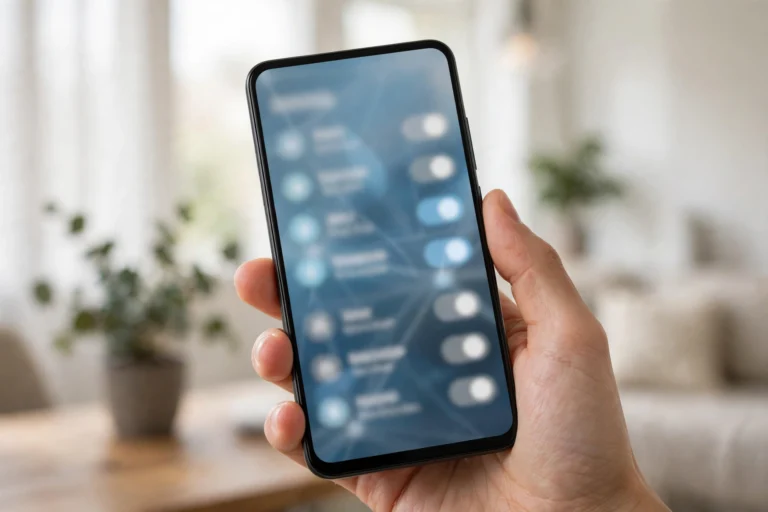
How to Turn On Private DNS on Android
Enabling it takes about thirty seconds:
- Step 1: Open Settings, then go to Network & Internet (on Samsung phones: Connections > More connection settings).
- Step 2: Tap Private DNS.
- Step 3: Select Private DNS provider hostname and type your provider’s hostname (see the list below), then tap Save.
That is the entire setup. There is nothing to keep running, no app icon, no subscription. Android handles the encryption silently for every app on the phone, on Wi-Fi and mobile data alike.
Best Private DNS Providers for Android in 2026
Private DNS needs a hostname (not an IP address). These are the most trusted options:
- Cloudflare: one.one.one.one — fast worldwide, strict no-logging policy. The best default for most people.
- Google: dns.google — extremely reliable, though Google logs queries per its privacy policy.
- Quad9: dns.quad9.net — blocks known malicious domains automatically; excellent security choice.
- AdGuard: dns.adguard-dns.com — blocks ads and trackers at the DNS level, system-wide, with no app needed.
- NextDNS: custom hostname from your NextDNS account — the power-user pick: per-device profiles, blocklists, and analytics you control.
For most users, Cloudflare’s one.one.one.one is the right starting point: it is fast, private, and free forever. If you want ad blocking without installing anything, AdGuard’s hostname is the clever alternative — ads disappear in apps and browsers alike.
Private DNS vs. VPN: Which Should You Use?
These solve different problems and work well together:
- Private DNS encrypts only your DNS lookups. It is free, built in, and has no speed cost — but your ISP still sees which IP addresses you connect to.
- VPN encrypts all your traffic and hides your IP address, but costs money for a trustworthy provider and can reduce speed slightly.
The practical advice: turn on Private DNS regardless — it is free protection with no downside. Add a reputable VPN on top if you want full-traffic privacy, use public Wi-Fi often, or need to change your virtual location. The two do not conflict.

Troubleshooting Private DNS Problems
- “Couldn’t connect” error. You likely typed the hostname wrong — it must be the exact hostname (like one.one.one.one), not an IP address. Double-check spelling.
- Some apps or sites stop working. A few corporate networks, school Wi-Fi systems, and parental-control setups block encrypted DNS on purpose. Switch Private DNS to Automatic (or Off) while on those networks.
- Captive portals (hotel/airport Wi-Fi login pages). The login page may fail to load with Private DNS on. Temporarily turn it off, complete the login, then turn it back on.
- Slower browsing after enabling. Rare, but try a different provider — DNS speed varies by region and network. Cloudflare, Google, and Quad9 rarely cause slowdowns.
- Setting keeps reverting. Some carrier-customized phones or work-profile (MDM-managed) devices restrict this setting. Check with your IT admin if the phone is employer-managed.
Private DNS and Parental Controls
Worth knowing for families: because Private DNS encrypts lookups, it can bypass DNS-based parental controls and content filters on your home network — a tech-savvy teen’s favorite loophole. If you rely on filtered DNS (like OpenDNS Family Shield or a router filter) to protect kids, be aware that anyone with the phone can switch Private DNS to an unfiltered provider. Some parental-control apps and MDM tools can lock the setting; check yours if this matters to your household.
FAQ
Is Private DNS on Android safe to turn on?
Yes. It only changes how your DNS queries are transmitted — encrypting them instead of sending them in plain text. Use a reputable provider hostname and there is no risk; you can switch it back to Automatic at any time.
Does Private DNS slow down my phone?
No. The encryption adds negligible overhead, and top providers like Cloudflare and Google often resolve queries faster than ISP DNS. Most people notice no difference, or a slight speedup.
Does Private DNS hide my browsing from my ISP?
Partially. It hides your DNS queries, but your ISP can still see the IP addresses you connect to. For complete privacy from your ISP, combine Private DNS with a VPN.
What hostname should I use for Private DNS?
For most people: one.one.one.one (Cloudflare) — fast and private. For security filtering: dns.quad9.net. For system-wide ad blocking: dns.adguard-dns.com.
Why is Private DNS not available on my phone?
It requires Android 9 (Pie) or newer. If your phone is older, the option will not appear — consider a DNS-changing app as an alternative, or upgrade the device. Some heavily customized or employer-managed phones may also hide the setting.

Conclusion
So what is Private DNS on Android? It is a free, built-in upgrade that encrypts your phone’s DNS lookups — closing a privacy gap that most people never knew existed. Thirty seconds in Settings with the hostname one.one.one.one, and every app on your phone quietly stops broadcasting its destinations in plain text. It is not a VPN and it is not magic, but as far as effort-to-protection ratios go, few settings on your phone beat it. Turn it on today and leave it on.