Best Docker Containers to Self Host (2026)
Best docker containers to self host are the apps that replace paid subscriptions and cloud services with software running on your own hardware. With Docker, you can run a private Netflix-style media server, a Google Photos alternative, an ad blocker for your whole home, and a password manager — all on a $100 mini PC, each app neatly packaged in its own container. This guide lists the best Docker containers to self host in 2026, picked for usefulness, stability, and beginner friendliness.
Every container below is free and open source, runs on modest hardware like a Raspberry Pi 5, and starts with a single docker compose file.
How to Choose the Best Docker Containers to Self Host
Not every app benefits from self hosting. The best candidates share a few traits: they store your personal data (photos, passwords, files), they replace a monthly subscription, or they work better when they are always on. A good self-hosted container should also be actively maintained, well documented, and light enough to run alongside your other services.
Docker makes this practical because each container is isolated: one app crashing or updating does not affect the others, and backing up a whole service means copying one folder.
The 12 Best Docker Containers to Self Host in 2026
These are ordered roughly by how much value they give a beginner. Start at the top and add more as you get comfortable.
1. Portainer — Manage Everything Visually
Portainer is the web dashboard for your Docker host. Instead of memorizing terminal commands, you get a clean interface to start, stop, update, and view logs for every container. It is the single best first install for anyone new to self hosting because it makes everything else easier.
- Why host it: visual control over your whole Docker setup from any device on your network.
- Hardware needs: almost nothing — it runs happily on a Raspberry Pi.
2. Jellyfin — Your Private Streaming Service
Jellyfin turns your movie, TV, and music collection into a Netflix-style streaming interface you can watch on your phone, TV, or laptop. Unlike Plex, it is fully free with no premium tier locking features behind a paywall, and there are no accounts or tracking.
- Why host it: stream your own media anywhere; transcodes on the fly for weaker devices.
- Hardware needs: modest, though 4K transcoding benefits from an Intel CPU with Quick Sync.

3. Immich — Google Photos Without Google
Immich is a self-hosted photo and video backup solution with automatic uploads from your phone, facial recognition, and a slick mobile app. If you are paying for iCloud or Google One storage just for photos, this is the container that pays for itself.
- Why host it: unlimited photo backup on your own drives; your memories stay private.
- Hardware needs: benefits from extra RAM for machine-learning features like face search.
4. Pi-hole — Network-Wide Ad Blocking
Pi-hole blocks ads and trackers at the DNS level for every device on your network — phones, smart TVs, tablets — with no software to install on any of them. Set your router’s DNS to Pi-hole once and enjoy faster page loads everywhere.
- Why host it: blocks ads on devices where ad blockers cannot be installed, like smart TVs.
- Hardware needs: trivial; runs on the smallest Raspberry Pi.
5. Vaultwarden — Your Own Password Manager
Vaultwarden is a lightweight, community-built server that works with the official Bitwarden apps. You get the full Bitwarden experience — autofill, sync, secure sharing — but your encrypted vault lives on your server, not someone else’s cloud.
- Why host it: complete control over your most sensitive data; extremely light on resources.
- Hardware needs: almost none; one of the lightest containers on this list.
6. Nextcloud — Private Cloud Storage and Office
Nextcloud replaces Google Drive, Dropbox, and even Google Docs with a private cloud on your hardware. File sync, calendars, contacts, collaborative document editing, and dozens of apps — all under your control.
- Why host it: a full productivity suite with no subscription and no storage limits beyond your disks.
- Hardware needs: moderate; give it 2–4 GB of RAM and fast storage for best results.
7. Paperless-ngx — A Digital Filing Cabinet
Paperless-ngx scans, OCRs, and organizes documents — receipts, bills, contracts — into a searchable archive. Feed it PDFs and never dig through a drawer again.
- Why host it: turns a pile of paperwork into full-text-searchable documents in seconds.
- Hardware needs: light; OCR is the only briefly CPU-heavy part.
8. Uptime Kuma — Know When Things Break
Uptime Kuma monitors your websites and home services, alerting you by email, Telegram, or Discord the moment something goes down. Once you self host a few services, this is the tool that watches them for you.
- Why host it: a beautiful status page and instant downtime alerts for everything you run.
- Hardware needs: negligible.
9. Home Assistant — Smart Home Hub
Home Assistant unifies hundreds of smart home brands into one local, private dashboard and automation engine. Your lights, thermostats, and sensors keep working even when the internet goes down — no cloud required.
- Why host it: one app for every smart device, with automations that run locally and fast.
- Hardware needs: light for basics; a USB Zigbee stick unlocks the most devices.
10. Gitea — Your Own Git Server
Gitea is a lightweight Git service with a GitHub-like interface for your code, notes, and projects — private repositories with zero cost and full control.
- Why host it: private repositories with zero cost and full control; runs on almost anything.
- Hardware needs: very light.
11. Mealie — Recipe Manager and Meal Planner
Mealie imports recipes from any website, builds weekly meal plans, and generates grocery lists — a quiet quality-of-life upgrade for anyone who cooks regularly.
- Why host it: your recipes, meal plans, and shopping lists in one searchable place.
- Hardware needs: light.
12. Actual Budget — Private Budgeting App
Actual Budget is a privacy-focused, envelope-style budgeting app you host yourself. Your financial data never touches a third-party server, which is exactly how budgeting software should work.
- Why host it: full-featured budgeting with complete data privacy.
- Hardware needs: very light.
How to Start Self Hosting with Docker Containers
Getting from zero to your first container takes about an hour:
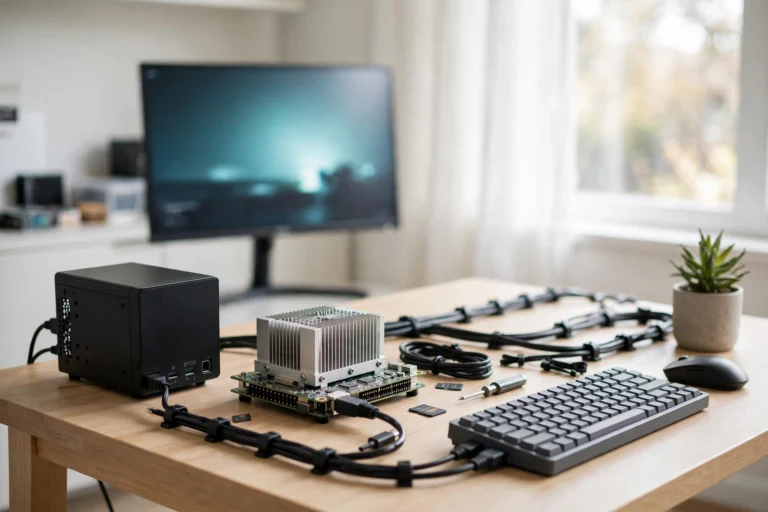
- Pick your hardware. A used mini PC (Intel N100 or similar), a Raspberry Pi 5, or an old laptop all work. Aim for at least 8 GB of RAM if you plan to run several services.
- Install a Linux OS. Ubuntu Server LTS or Debian are the safe defaults with the most tutorials.
- Install Docker and Docker Compose. The official Docker install script handles this in minutes.
- Deploy Portainer first. One command gives you the visual dashboard that makes everything after it easier.
- Add one container at a time. Start with Pi-hole or Jellyfin, get it working, then expand. Each new service is just a small YAML file.
- Set up backups. Copy your container data folders to an external drive or a second machine regularly. A backup you have never tested is not a backup — restore one file to prove it works.
Docker Security Basics for Self Hosters
Running services on your home network is safe if you follow a few rules. Keep containers updated — Portainer flags available updates. Do not expose services to the internet unless you need remote access; when you do, use a reverse proxy like Nginx Proxy Manager with HTTPS and strong passwords. Use long, unique passwords for every admin panel and keep your host OS patched.
FAQ
Do I need a powerful computer to self host Docker containers?
No. Most containers on this list run on a Raspberry Pi or a $100 mini PC. Only media transcoding (Jellyfin), photo face recognition (Immich), and large Nextcloud instances benefit from more RAM and CPU. Start small and upgrade only if something feels slow.
How much does it cost to self host with Docker?
The software is free — your only costs are hardware and electricity. A mini PC idling at 10 watts costs a few dollars a year to run, and a single 4 TB drive holds years of photos and media. Most people recover their hardware cost within a year by canceling one or two subscriptions.
Is self hosting safe for beginners?
Yes, if you keep services on your home network and follow basic security: unique passwords, regular updates, and no port forwarding you do not understand. The containers themselves are isolated from each other, so one misbehaving app cannot take down the rest.
Docker vs. running apps directly — which is better?
Docker. Containers isolate dependencies, make updates and backups trivial, and let you run conflicting apps on one machine without dependency headaches.
Can I access my self-hosted services away from home?
Yes. The safest method is a VPN like Tailscale or WireGuard into your home network. If you prefer direct access, use a reverse proxy with HTTPS and authentication. Never expose admin panels like Portainer to the open internet without protection.
Conclusion
The best docker containers to self host are the ones that give you back control: Portainer to manage it all, Jellyfin and Immich to replace streaming and photo subscriptions, Pi-hole to clean up your whole network, and Vaultwarden to guard your passwords. Start with one or two, learn the rhythm of updates and backups, and expand from there. Within a weekend, a modest mini PC can quietly replace several monthly subscriptions — and everything keeps working whether a company changes its pricing or not.