Transfer Photos Android to iPhone (2026)
Needing to transfer photos Android to iPhone usually hits at the worst moment — you just switched phones and your entire camera roll is stuck on the old device. The good news: moving photos between Android and iPhone is straightforward in 2026, with five reliable methods ranging from Apple’s official one-tap tool to simple cloud sync. This guide compares them all so you can pick the right one for how many photos you have and how much effort you want to spend.
Quick recommendation: if your iPhone is brand new and not yet set up, use Method 1. If it’s already set up, skip to Method 2.
Method 1: Use Apple’s Move to iOS App (Best for New iPhones)
Apple’s official Move to iOS app is the cleanest option — but it only works during the iPhone’s initial setup:
- Step 1: On your Android phone, install “Move to iOS” from the Play Store.
- Step 2: Start setting up your new iPhone. On the “Transfer Your Apps & Data” screen, tap “From Android.”
- Step 3: Your iPhone displays a 6- or 10-digit code. Enter it in the Move to iOS app on your Android.
- Step 4: The iPhone creates a temporary Wi-Fi network; your Android joins it automatically.
- Step 5: Select “Photos” (and anything else you want) and tap Continue. Transfers run over the direct Wi-Fi connection — no internet needed.
A few thousand photos typically take 20–60 minutes. Keep both phones plugged in and untouched during the transfer. Note: this moves your camera roll into Apple Photos; it doesn’t merge with an existing iCloud library — that’s what Method 2 is for.
Method 2: Sync Through Google Photos (Easiest for Set-Up iPhones)
If your iPhone is already in use, Google Photos is the path of least resistance:
- Step 1: On your Android, open Google Photos and confirm backup is complete (profile icon shows “Backup complete”).
- Step 2: On your iPhone, install Google Photos and sign in with the same Google account.
- Step 3: Your entire library appears. To move photos into Apple Photos, select them in Google Photos, tap Share, and choose “Save to device” — or enable auto-save in Google Photos settings.
This method is wireless, works in the background, and handles tens of thousands of photos. The trade-off: it uses your Google storage, and the free 15GB fills fast — check your usage before starting a huge library.
Method 3: Transfer via Computer With a USB Cable
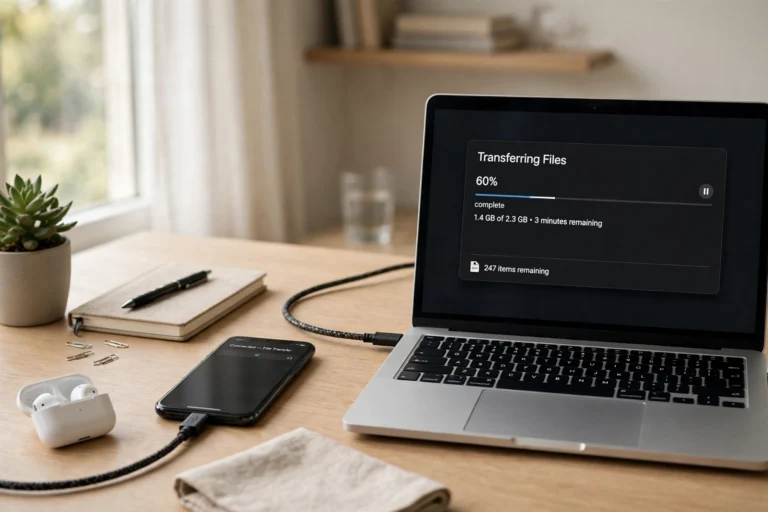
The wired method is fastest for very large libraries and needs no cloud storage:
- Step 1: Connect your Android to a computer with a USB cable, unlock it, and set the USB mode to “File transfer.”
- Step 2: Copy the DCIM folder (your camera photos) to a folder on the computer.
- Step 3 (Mac): Connect the iPhone, open Finder (or iTunes on older macOS/Windows), select the iPhone, go to Photos, and sync the folder.
- Step 4 (Windows): With iTunes installed, connect the iPhone and use Photos sync, or upload the folder to iCloud.com and let it sync down.
Use a good cable and a USB port directly on the computer — flaky connections are the main cause of failed wired transfers.
Method 4: Use iCloud.com Upload
If you want your photos in iCloud Photos without installing anything on the iPhone:
- Step 1: On a computer, go to iCloud.com and sign in with your Apple ID.
- Step 2: Open Photos and drag your Android photo folders into the browser window to upload.
- Step 3: On your iPhone, make sure iCloud Photos is enabled (Settings, then your name, then iCloud, then Photos). The uploads sync down automatically.
This works well for moderate libraries. Watch your iCloud storage — the free 5GB won’t hold much, so most people need the 50GB ($0.99/month) or 200GB plan for this.

Method 5: Send a Few Photos Quickly
For a handful of photos rather than a whole library, don’t overthink it:
- Nearby Share / Quick Share to a middleman. Android’s Quick Share can’t send directly to an iPhone, but you can share to a computer or Chromebook, then AirDrop or message them to the iPhone.
- Messaging apps. WhatsApp, Telegram, or email work for small batches — but they compress images, so don’t use these for photos you want at full quality. Telegram’s “send as file” option preserves quality.
- Shared cloud folder. Drop photos in a shared Google Drive or Dropbox folder from the Android, open it on the iPhone, and save to Apple Photos. Full quality, no cable.
Transfer Photos Android to iPhone: Which Method Should You Choose?
- New iPhone, whole library: Move to iOS (Method 1).
- iPhone already set up, whole library: Google Photos (Method 2).
- Huge library, slow internet: USB via computer (Method 3).
- Want everything in iCloud Photos: iCloud.com upload (Method 4).
- Just a few photos: cloud folder or Telegram as file (Method 5).
After any transfer, spot-check: open Apple Photos on the iPhone, scroll to the oldest and newest dates, and confirm counts roughly match. Photo metadata (dates, locations) transfers correctly with Methods 1–4.
Transfer Photos Android to iPhone Without Losing Quality
Quality loss is the silent killer of photo transfers. Here’s how to keep every pixel:
- Check Google Photos backup quality. In Google Photos settings, make sure backup is set to “Original quality,” not “Storage saver” — the latter compresses photos to save space.
- Avoid messaging apps for keepsakes. WhatsApp, Messenger, and standard MMS all compress images aggressively. Fine for sharing a funny screenshot; unacceptable for photos you want to print someday.
- Use “send as file” options. Telegram, email attachments, and cloud drive uploads preserve original quality because they treat the photo as a file, not a chat image.
- Verify with file sizes. After transferring, compare a photo’s file size on both phones (details/info view). Matching sizes mean nothing was compressed in transit.
- Keep originals until verified. Don’t wipe the Android until you’ve confirmed counts, dates, and spot-checked quality on the iPhone. Storage is cheap; lost photos are not.
Frequently Asked Questions About Transferring Photos From Android to iPhone
Can I use Move to iOS after my iPhone is already set up?
No — Move to iOS only works during the iPhone’s initial setup. To use it on an already-set-up iPhone you’d have to erase the iPhone first (Settings, then General, then Transfer or Reset iPhone). For most people, Google Photos is the better option at that point.
Will my photo dates and albums transfer?
Dates and locations transfer correctly with Move to iOS, Google Photos, and wired/computer methods. Album organization generally does not — expect to reorganize albums in Apple Photos afterward.
How long does it take to transfer 10,000 photos?
Over direct Wi-Fi with Move to iOS, roughly 1–2 hours. Via Google Photos it depends on your upload speed — a large library can take overnight. The wired method is fastest if you have the cables and a computer handy.
Do transferred photos lose quality?
Not with the main methods — Move to iOS, Google Photos (at original quality setting), USB, and iCloud all preserve full resolution. Only messaging apps like WhatsApp compress photos, so avoid those for anything you want to keep at full quality.
What about photos in WhatsApp and other apps?
Camera-roll photos transfer with every method above. Photos inside apps (like WhatsApp media) transfer with Move to iOS if you include WhatsApp data; otherwise, back up WhatsApp chats separately and restore them on the iPhone.
Conclusion
To transfer photos from Android to iPhone, use Move to iOS if the iPhone is new, Google Photos if it’s already set up, a USB cable and computer for huge libraries or slow internet, or iCloud.com if you want everything in iCloud Photos. Whichever method you pick, verify the transfer by checking photo counts and dates in Apple Photos afterward — and keep the Android around until you’re sure everything made it over.