How to Use ChatGPT as a Virtual Assistant for Daily Tasks (2026)
How to use ChatGPT as a virtual assistant for daily tasks is simpler than most people think: you do not need a paid plan, special plugins, or technical skills. You just need the right setup and a handful of repeatable workflows. With Custom Instructions and a few saved prompt templates, ChatGPT can handle email drafting, scheduling, research, meal planning, and reminders — the same busywork a human assistant would take off your plate.
This guide shows you how to configure ChatGPT for assistant work, gives you ready-to-use prompts for the most common daily tasks, and explains the limits you should know so nothing important slips through the cracks.
Set Up ChatGPT to Think Like Your Assistant
Before handing ChatGPT daily tasks, spend ten minutes configuring it. This one-time setup makes every future request faster and better:
- Fill in Custom Instructions. Tell it who you are, your job, your timezone, your work hours, and how you like things formatted. Example: “I’m a freelance designer in Austin, working 9-6 Central. Keep answers short and action-oriented. Use bullet points by default.”
- Create a dedicated “Daily Assistant” chat. Start one conversation titled for daily use and keep returning to it. ChatGPT remembers context within a conversation, so it learns your routines over time.
- Set your preferences explicitly. Tell it your date format, your currency, how formal your emails should be, and which tools you use (Gmail, Google Calendar, Notion). The fewer assumptions it has to make, the fewer corrections you will make.
- Use memory features. On supported plans, ChatGPT can remember facts across chats — your name, your projects, your preferences. Review saved memories periodically and delete anything outdated.

Think of this setup as the onboarding conversation you would have with a new human assistant. The clearer the briefing, the better the work.
Morning Routine: Planning Your Day in 5 Minutes
A morning briefing is the highest-value daily habit. Instead of staring at a scattered to-do list, paste your tasks into ChatGPT and let it organize them:
- Dump everything, let it prioritize. “Here are my tasks for today: [list]. I have meetings 10-11 and 3-4. Order these by priority and estimate how long each takes.”
- Get a realistic schedule. “Turn this into an hour-by-hour plan with 15-minute breaks, finishing by 6 PM. Flag anything that probably won’t fit.”
- Prepare for meetings. “I have a call with [client] at 2 PM about [topic]. Give me 5 talking points and 3 questions to ask, based on this background: [paste notes].”
- Set your top 3. “If I could only finish 3 of these tasks today, which should they be and why?” This forces the prioritization most people skip.
“The best virtual assistant workflow is a two-minute morning dump and a two-minute evening review. ChatGPT handles the thinking in between — your job is just to give it the raw material.”
Do this for a week and you will notice your days start with clarity instead of decision fatigue.
Email and Communication: Draft Everything Faster
Email is where ChatGPT saves most people the most time. It cannot send emails for you, but it can draft nearly anything in seconds:
- Draft replies from bullet points. Paste an email you received and write: “Reply to this. Key points: confirm Friday works, ask for the invoice, keep it friendly but brief.” Review and send.
- Soften difficult messages. “Rewrite this to be firm but polite: [your draft].” Perfect for negotiations, late-payment follow-ups, and saying no gracefully.
- Summarize long threads. Paste a messy email chain and ask: “Summarize this thread in 5 bullets: what’s decided, what’s pending, and what I need to do.”
- Write routine messages once, reuse forever. Ask ChatGPT to create templates for your most common emails — meeting requests, follow-ups, introductions — then save them for reuse.
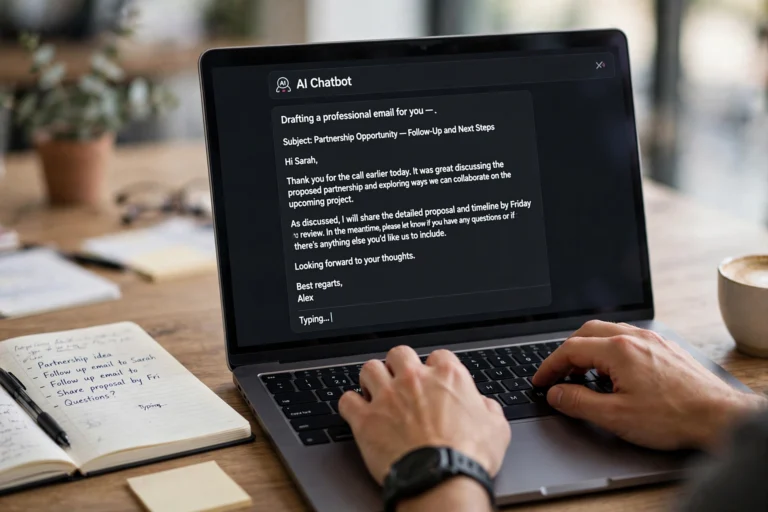
Always proofread before sending. ChatGPT drafts are excellent starting points, but your name is on the email — a 20-second review catches tone mistakes and wrong details.
Research and Decisions: Your On-Demand Analyst
ChatGPT shines at the kind of quick research that used to eat an afternoon. Use it as a first-pass analyst:
- Compare options fast. “Compare these 3 project management tools for a 5-person remote team: price, key features, biggest drawback of each. Recommend one.”
- Explain things simply. “Explain how a Roth IRA works like I’m a smart beginner. Then give me the 3 most common mistakes people make.”
- Brainstorm with constraints. “Give me 10 birthday gift ideas under $50 for someone who loves hiking and coffee. No gift cards.”
- Sanity-check decisions. “I’m thinking of switching from X to Y because [reasons]. Play devil’s advocate — what am I missing?”
For anything where facts matter — prices, dates, regulations, medical or legal questions — verify ChatGPT’s claims with a real source. It is a brilliant thinking partner but an unreliable fact database.
Personal Life: Meals, Travel, and Errands
A virtual assistant is not just for work. ChatGPT handles personal logistics surprisingly well:
- Meal planning. “Plan 5 weeknight dinners for 2 people, 30 minutes max each, using chicken, rice, and vegetables I already have. Include a grocery list for what’s missing.”
- Travel itineraries. “3 days in Chicago, first visit, I like architecture and deep-dish pizza. Build a relaxed day-by-day plan with neighborhoods and transit tips.”
- Gift and event planning. From party themes to packing lists to “what do I say in this thank-you note,” ChatGPT handles the mental load of occasions.
- Learning something new. “Teach me basic Spanish for a trip in 6 weeks. Give me a 15-minute daily plan focusing on travel phrases.”

Evening Review: Close the Loop
End your day the way a good assistant would — with a debrief. This two-minute habit compounds:
- Log what got done. “Here’s what I finished today: [list]. Here’s what slipped: [list]. Help me reschedule the slipped items for tomorrow.”
- Capture ideas before they vanish. Brain-dump everything on your mind — ideas, worries, random to-dos — and ask ChatGPT to sort them into categories with next actions.
- Prep for tomorrow. “Based on my calendar [paste], what should I prepare tonight so tomorrow goes smoothly?”
“An assistant that only takes orders is a tool. An assistant you debrief with every evening becomes a system — and systems are what actually change how your days feel.”
Know the Limits: What ChatGPT Can’t Do
Using ChatGPT as a virtual assistant works brilliantly within its boundaries. Be clear about what is outside them:
- It cannot take real actions. It cannot send emails, book flights, or update your calendar directly (unless connected through specific integrations). You are the hands; it is the brain.
- It does not remember unless you tell it. Outside of memory features, each new chat starts fresh. Keep ongoing projects in dedicated conversations.
- It can be confidently wrong. Never let it finalize anything involving money, legal commitments, or health without your verification.
- It has no sense of urgency. It will not chase you about deadlines. Pair it with real reminders — phone alarms, calendar alerts — for time-sensitive tasks.
The winning formula: ChatGPT does the thinking and drafting, you do the deciding and sending. That division of labor is exactly how the best human-assistant relationships work too.
FAQ
Do I need ChatGPT Plus to use it as a virtual assistant?
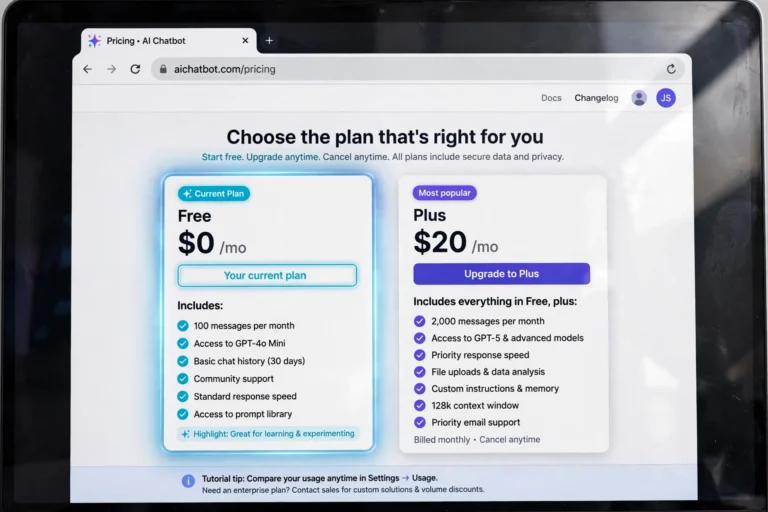
No. The free tier handles all the workflows in this guide — drafting, planning, summarizing, brainstorming. Paid plans help with longer documents, more complex analysis, and features like memory and file uploads, but the core assistant setup works fine for free.
How is this different from just asking ChatGPT random questions?
The difference is the system: Custom Instructions, a dedicated daily chat, saved prompt templates, and morning/evening routines. Random questions give random value; a structured assistant setup gives consistent daily value.
Can ChatGPT access my calendar or email directly?
Not by default. ChatGPT cannot read your Gmail or Google Calendar on its own — you paste in what it needs to see. Some integrations and connected apps can bridge this gap, but the manual copy-paste workflow in this guide works for everyone and keeps your data under your control.
Is it safe to share personal details with ChatGPT?
Be thoughtful. Avoid pasting passwords, full financial account numbers, or highly sensitive personal data. For everyday tasks — schedules, emails, plans — the risk is minimal, but review OpenAI’s data controls and turn off training-data usage in settings if you prefer.
How long does it take to see real time savings?
Most people feel the difference within the first week, especially on email and planning. The bigger payoff comes after 2-3 weeks, once your Custom Instructions are tuned and your prompt templates are dialed in for your specific routines.
Conclusion
Learning how to use ChatGPT as a virtual assistant for daily tasks is really about building a small system: configure it once with Custom Instructions, run a five-minute morning planning session, let it draft your emails and research your decisions, and close the day with a quick review. None of these steps is complicated — the power is in doing them consistently.
Start today with just the morning briefing. Once that becomes a habit, add email drafting, then the evening review. Within a month you will wonder how you managed your days without an assistant — even an AI one.