How to Run Local LLM Models on a Slow Laptop for Free (2026)
How to run local LLM models on a slow laptop for free is a question that surprises people — most assume you need an expensive gaming rig or a Mac with tons of memory. In reality, lightweight AI models in 2026 run just fine on old, slow laptops with no dedicated graphics card. Everything happens on your machine: no subscriptions, no internet required after setup, and total privacy.
This guide shows you exactly which tools to install, which small models work on weak hardware, how to set realistic expectations, and the tweaks that make the experience smooth even on a 5-year-old laptop.
What “Slow Laptop” Actually Means for Local AI
Let us set honest expectations. Local AI performance depends mostly on your RAM and CPU — not on having a fancy graphics card:
- Minimum viable: 8 GB RAM. With 8 GB, you can run small 1B-3B parameter models. Responses take a few seconds per sentence — usable, not snappy.
- Comfortable: 16 GB RAM. This unlocks 7B-8B models with quantization, which is the sweet spot: genuinely capable AI at acceptable speed on CPU alone.
- CPU matters more than you think. Any dual-core processor from the last decade works. More cores help, but even modest CPUs handle small models.
- Storage: 5-10 GB free. Small models are a few gigabytes each. An SSD helps loading times but is not required.
- No GPU needed. Modern CPU-optimized models are designed exactly for this — integrated graphics are fine.
If your laptop can run a web browser without crying, it can probably run a small local LLM. The key is picking the right model size, which we will cover next.
Step 1: Install Ollama (The Easiest Path)
Ollama is the simplest way to run local models — one download, a few commands, and you are chatting with AI offline. It is free and open source:
- Download Ollama. Go to ollama.com and grab the installer for Windows, Mac, or Linux. Installation takes about two minutes.
- Open your terminal. On Windows, use PowerShell or Command Prompt. On Mac, use Terminal. Do not worry — you only need to type a few commands.
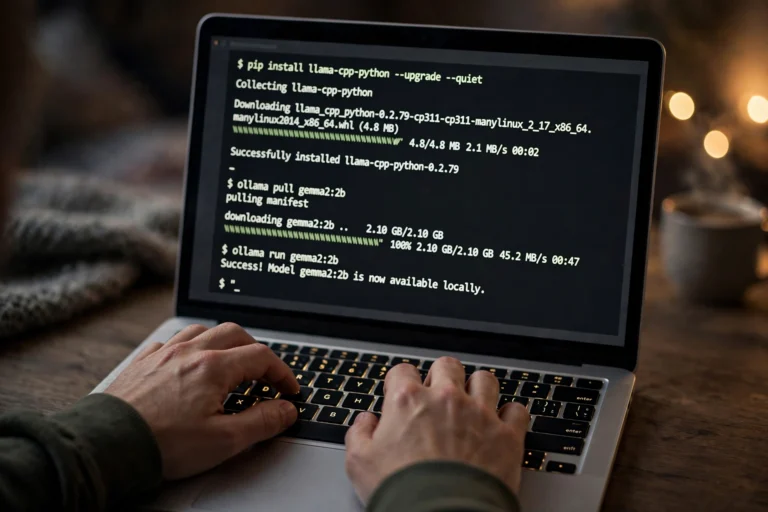
- Pull a small model. Type ollama pull llama3.2:1b and press Enter. This downloads a tiny but capable 1-billion-parameter model (about 1.3 GB).
- Start chatting. Type ollama run llama3.2:1b and ask it anything. Congratulations — you are now running AI with no internet, no account, no cost.
“The magic moment of local AI is unplugging your Wi-Fi and watching it still answer. That is when you truly understand: the intelligence is on your machine now.”
Step 2: Pick the Right Model for Your Hardware
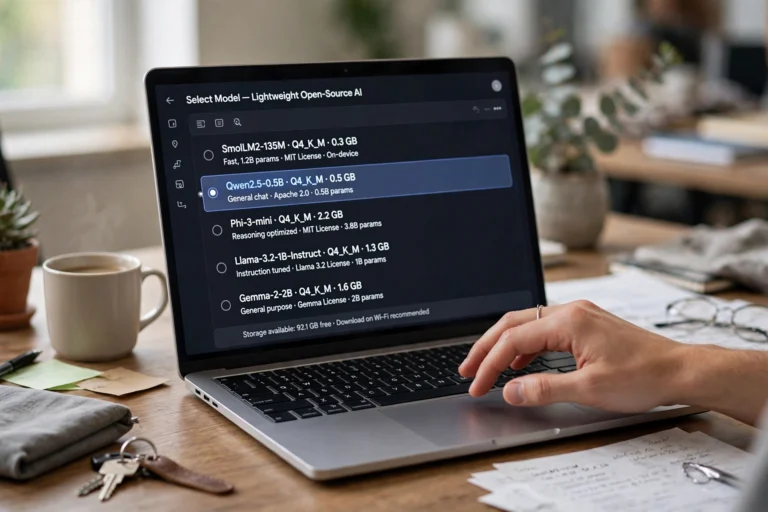
Model choice makes or breaks the experience on slow hardware. Bigger is not better if your laptop chokes on it. Here is what to run:
- 8 GB RAM or very old CPU: Try llama3.2:1b or qwen2.5:1.5b. Tiny, fast, good for simple Q&A, writing help, and brainstorming.
- 8-12 GB RAM: Step up to llama3.2:3b or qwen2.5:3b. Noticeably smarter — handles summaries, explanations, and light coding help.
- 16 GB RAM: The sweet spot — llama3.1:8b or mistral:7b with quantization (the default downloads are already quantized). Genuinely useful for real work.
- What is quantization? It is compression for AI models — slightly less precision, massively less memory. A quantized 8B model uses ~5 GB instead of ~16 GB, with barely noticeable quality loss. Ollama downloads quantized versions by default.
Rule of thumb: if responses take more than 10 seconds to start, drop to a smaller model. A fast small model you actually use beats a slow big model you abandon.
Step 3: Get a Friendly Interface (Beyond the Terminal)
The terminal works, but a proper chat interface makes local AI feel like the real thing. These are all free:
- Open WebUI. The most popular choice — a clean, ChatGPT-like web interface that runs in your browser and connects to Ollama. Install it with one Docker command, or use the simplified installer.
- GPT4All. A standalone desktop app with models built in — arguably the simplest option for total beginners. Download, pick a model, chat.
- AnythingLLM. Great if you also want to chat with your documents (upload PDFs and ask questions about them) — all locally.
- Mobile access on your network. With Open WebUI running, you can even chat with your laptop’s AI from your phone over your home Wi-Fi.

Step 4: Speed Tweaks for Slow Hardware
A few settings make a real difference on weak machines:
- Close other programs. Browsers with 30 tabs eat the RAM your model needs. Give the AI room to breathe.
- Use smaller context. Long conversations slow everything down. Start fresh chats for new topics instead of one endless thread.
- Lower the context length. In Ollama, you can set a smaller context window (e.g., 2048 tokens instead of 4096) for noticeably faster responses.
- Keep your laptop plugged in and cool. Thermal throttling is real — a laptop cooking itself on a bed will run AI at half speed. Use a hard flat surface.
- Try different models. Qwen, Llama, Mistral, Phi — they have different speed/quality trade-offs on CPU. Spend an afternoon testing; the fastest good-enough model wins.
What Local Models Are Good (and Bad) At
Honest expectations prevent disappointment. Small local models in 2026 are genuinely useful for:
- Writing help. Drafting, rewriting, summarizing, brainstorming — the bread and butter of daily AI use.
- Learning and explanations. “Explain this like I’m five” works great, on any topic, with infinite patience.
- Private tasks. Journaling help, personal planning, anything you would not paste into a cloud chatbot.
- Offline work. Planes, rural areas, or just a dead router — your AI keeps working.
Where they struggle: complex reasoning, advanced coding, very recent events (their knowledge has a cutoff), and long-document analysis. For those, use a cloud AI — local and cloud AI complement each other rather than compete.
“Think of a local model as a smart, private notebook — not a replacement for the cloud giants. It handles 80% of daily AI tasks with 100% of the privacy.”
FAQ
Is running local AI models really free?
Yes — the software (Ollama, Open WebUI, GPT4All) and the open models (Llama, Qwen, Mistral, Phi) are all free. Your only cost is electricity. There are no subscriptions, no API bills, and no usage limits.
Will this damage or overheat my old laptop?
No more than any demanding program. AI inference uses your CPU heavily, so the laptop gets warm and the fan spins up — the same as video editing or gaming. Keep vents clear and do not block airflow, and it is perfectly safe.
How much disk space do I need?
Plan for 2-10 GB depending on the models you choose. A 1B model is ~1.3 GB; a quantized 8B model is ~4.7 GB. You can delete models you do not use with a single command to free space.
Can I run local AI without any internet at all?
After the initial download, yes — completely offline. Download Ollama and your chosen models while connected, then disconnect. Everything runs on your machine indefinitely.
Are local models as good as ChatGPT or Claude?
The small models that run on slow laptops are not as capable as the flagship cloud models — that is the honest truth. But they are far better than most people expect, completely private, free forever, and improving every year. For everyday writing, questions, and brainstorming, they are more than enough.
Conclusion
Learning how to run local LLM models on a slow laptop for free boils down to three steps: install Ollama, pick a small quantized model that fits your RAM, and add a friendly interface like Open WebUI or GPT4All. Close your other programs, keep conversations reasonably short, and set honest expectations about what small models can do.
Your old laptop is not too slow for AI — it just needs the right-sized model. Download Ollama today, pull a 1B or 3B model, and experience the small thrill of AI that answers with the Wi-Fi off. It is free, private, and yours.