How to Replace Gemini With Perplexity on Android Phone (2026)
How to replace Gemini with Perplexity on Android phone is easier than most people expect — Android lets you change your default digital assistant, and Perplexity’s app can take over the job. If you prefer Perplexity’s cited, search-powered answers over Gemini’s style, you can make the switch in about five minutes, including the long-press power button shortcut.
This guide walks you through installing Perplexity, setting it as your default assistant, what changes (and what does not), and how to switch back if you change your mind.
Why Switch From Gemini to Perplexity?
Both are capable AI assistants, but they have different strengths. People usually switch for these reasons:
- Cited answers. Perplexity shows its sources inline for nearly every claim, making it easy to verify — great for research and fact-checking.
- Search-first design. Perplexity is built around live web search, so its answers about current events, prices, and recent developments tend to be fresher.
- Less Google ecosystem lock-in. If you are reducing your dependence on Google services, swapping the assistant is a natural step.
- Different answer style. Perplexity’s responses are typically concise and structured, which some users prefer over Gemini’s more conversational tone.
What you give up: deep integration with Google apps. Gemini can reach into your Gmail, Calendar, and Drive in ways Perplexity cannot. If you rely on “when is my flight?” style questions, think twice before switching.
Step 1: Install and Set Up the Perplexity App
Start with the basics — get Perplexity on your phone and signed in:
- Install Perplexity from the Play Store. Search for “Perplexity” (by Perplexity AI) and install the official app. Avoid copycat apps with similar names.
- Create an account or sign in. You can use Google, Apple, or email sign-in. A free account works fine for assistant use.
- Grant the permissions it asks for. The app may request microphone access (for voice input) and other permissions — grant what you are comfortable with.
- Take it for a test drive. Ask a few questions first to confirm you like the experience before making it your default.
Step 2: Set Perplexity as Your Default Assistant
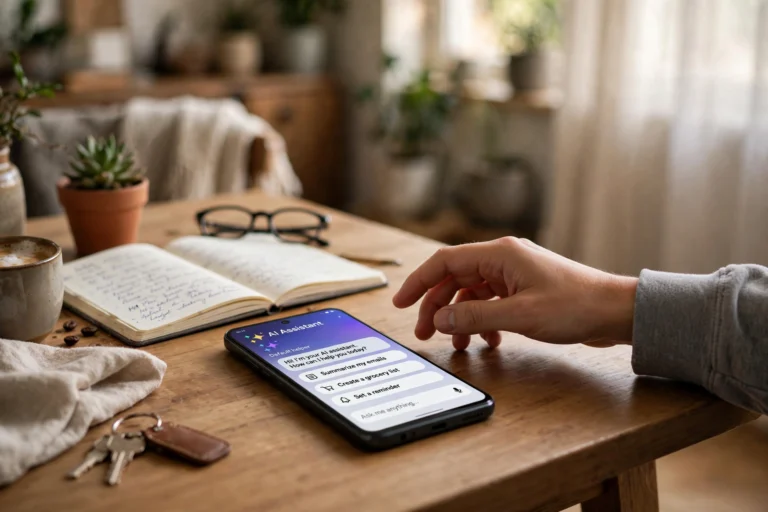
This is the key step — telling Android to use Perplexity instead of Gemini when you trigger the assistant. The exact menu names vary slightly by phone brand, but the path is:
- Open Settings. Go to your phone’s main Settings app.
- Find the assistant setting. Go to Apps, then “Default apps” (on Samsung: Settings > Apps > Choose default apps). Look for “Digital assistant app” or “Assist app.”
- Select Perplexity. Tap the current default (likely Google/Gemini) and choose Perplexity from the list. If Perplexity does not appear, open the Perplexity app once more, then check again.
- Confirm the switch. Android may warn you about changing assistants — confirm. You can reverse this anytime.

“The ‘default assistant’ setting is the master switch. Once Perplexity is selected here, every assistant trigger on your phone — gestures, buttons, voice — routes to Perplexity instead of Gemini.”
Step 3: Configure Your Assistant Trigger
After changing the default, make sure your preferred way of summoning the assistant still works:
- Long-press the power button. On most Android phones this is the main assistant trigger. Test it — Perplexity should now pop up instead of Gemini.
- Swipe gesture. If you use the corner-swipe gesture (swipe in from the bottom corner), verify it launches Perplexity.
- Voice activation. Note that “Hey Google” hotword detection is tied to Google’s app — switching the default assistant does not move voice wake-up to Perplexity. You will trigger Perplexity with buttons/gestures, then use voice input inside the app.
- Home button (older phones). Long-pressing the home button should also route to your new default.
Test each trigger once. If one still opens Gemini, double-check the default-assistant setting — some phone brands have per-trigger overrides buried in advanced settings.
What Works Differently After the Switch
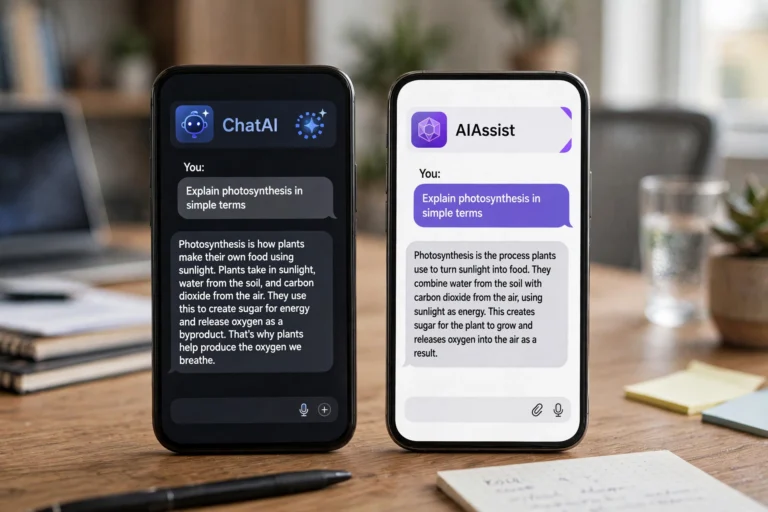
Setting expectations prevents frustration. Here is the honest comparison of daily life with Perplexity as your assistant:
- Questions and research: better. This is Perplexity’s home turf — fast, sourced answers to factual questions, often superior to Gemini for “what’s the latest on…” queries.
- Device control: weaker. “Turn on Bluetooth,” “set a timer,” “call Mom” — Gemini handles system commands more deeply. Perplexity can do some of this but not all.
- Google app integration: gone. No more “find my boarding pass in Gmail” or “what’s on my calendar today” — those need Google’s assistant.
- Voice conversations: decent. Perplexity supports voice input and spoken answers, though the hands-free experience is less polished than Gemini’s.
- Follow-up questions: excellent. Perplexity’s thread-based follow-ups with persistent sources are arguably better for research sessions.
Tips for Getting the Most Out of Perplexity as Your Assistant
A few habits make the switched experience much better:
- Use voice input for speed. Tap the microphone in Perplexity and just talk — it is the closest thing to the hands-free assistant experience.
- Add the widget to your home screen. Perplexity’s search widget gives you one-tap access without even triggering the assistant.
- Learn the focus modes. Perplexity lets you focus searches on web, academic papers, social media, or video — pick the right lens for your question.
- Keep Google Assistant for device tasks. Nothing stops you from opening the Google app manually for “set a timer” while Perplexity handles your questions. Use each for its strengths.
“You don’t have to pick one assistant for everything. The smart setup is Perplexity as the default for questions and research, with Google’s app a tap away for device commands.”
How to Switch Back to Gemini
Changed your mind? Reverting takes thirty seconds:
- Return to the default-assistant setting. Settings > Apps > Default apps > Digital assistant app.
- Select Google. Choose the Google/Gemini option to restore the original behavior.
- Re-enable Gemini features. If you disabled anything during the switch, turn it back on in the Google app’s settings.
There is no penalty for experimenting — Android lets you swap default assistants as often as you like.
FAQ
Is Perplexity free to use as an assistant?
Yes. Perplexity’s free tier covers everyday assistant use — asking questions, voice input, and follow-ups. A Pro subscription exists with more powerful models and features, but it is not required to replace Gemini as your default assistant.
Will “Hey Google” still work after switching?
The “Hey Google” hotword stays tied to Google’s app and will still summon Google’s assistant, not Perplexity. Your button and gesture triggers follow the new default; voice wake-up does not. This is an Android limitation, not something Perplexity can change.
Can Perplexity control my smart home devices?
Not directly the way Google Assistant does. If your smart home runs through Google Home, keep the Google Home app handy for device control and let Perplexity handle questions and research.
Does this work on Samsung phones?
Yes. Samsung phones have the same default-assistant setting (Settings > Apps > Choose default apps > Digital assistant app). Note that Samsung’s Bixby button can also be remapped or disabled separately if it interferes.
Will switching delete my Gemini history or data?
No. Changing your default assistant does not delete anything — your Gemini conversation history stays in your Google account. You can review or delete it anytime through Google’s activity controls.
Conclusion
Learning how to replace Gemini with Perplexity on Android phone takes about five minutes: install the Perplexity app, change the default assistant in Settings, and test your triggers. You gain cited, search-powered answers as your everyday assistant; you lose some deep Google integration and hands-free voice wake-up.
Try it for a week. If Perplexity’s sourced answers win you over, keep it. If you miss Gemini’s device control, switching back takes thirty seconds. Either way, now you know your phone’s assistant is your choice — not a default you are stuck with.