How to Summarize YouTube Videos With NotebookLM (2026)
How to summarize YouTube videos with NotebookLM is one of the best free productivity tricks of 2026: paste a video link, and Google’s NotebookLM pulls the transcript, summarizes it, and lets you ask questions about the content — as if you had watched the whole thing. A two-hour podcast becomes a five-minute read, with every claim linked back to the exact moment in the video.
This guide shows you how to add YouTube videos as sources, generate summaries and study materials, ask smart follow-up questions, and handle the cases where videos do not have transcripts.
Why NotebookLM Beats Other Video Summarizers
Plenty of tools summarize YouTube videos, but NotebookLM has advantages that matter:
- It is completely free. No credits, no per-video limits, no paywalled features for basic summarizing.
- Citations to exact timestamps. Every answer links to the moment in the video it came from — click and verify in seconds.
- It is conversational. Unlike one-shot summarizers, you can ask follow-up questions: “what did they say about pricing?” or “give me the counterarguments.”
- It generates study formats. Beyond summaries: FAQs, timelines, briefing docs, and even audio overviews you can listen to instead.
- Multiple videos, one notebook. Add several videos on the same topic and ask comparative questions across all of them.
The result is less “video summarized” and more “video transformed into a research assistant that watched it for you.”
Step 1: Add a YouTube Video as a Source
Getting a video into NotebookLM takes under a minute:
- Go to NotebookLM. Open notebooklm.google.com and sign in with your Google account, then create a new notebook.
- Click “Add source.” Choose the YouTube option (listed as “YouTube” or “Link” depending on the current interface).
- Paste the video URL. Copy the link from YouTube and paste it in. NotebookLM fetches the video’s transcript automatically.
- Wait for processing. Short videos process in seconds; long ones take a minute or two. You will see the video appear in your source list when ready.
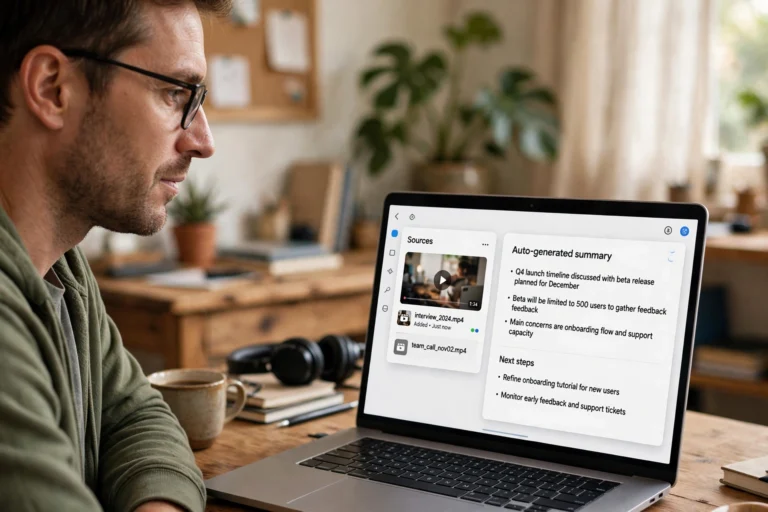
“The whole workflow is: link in, knowledge out. If you can copy and paste a URL, you already know how to use NotebookLM for YouTube videos.”
Step 2: Generate an Instant Summary
Once the video is added, NotebookLM automatically creates an overview. But you can get exactly the summary format you want:
- Ask for the format you need. “Summarize this video in 10 bullet points” or “give me a 3-paragraph summary a beginner could understand.”
- Request key takeaways. “What are the 5 most important takeaways from this video?” — perfect for deciding whether the full video is worth your time.
- Get action items. For tutorials and how-tos: “List every actionable step mentioned in this video, in order.”
- Generate a briefing doc. Use NotebookLM’s built-in generators to create a polished summary document you can save or share.
Pro move: summarize first, then decide whether to watch. Most videos contain 10 minutes of value stretched across an hour — the summary tells you which 10 minutes matter, and the timestamp citations let you jump straight to them.
Step 3: Ask Follow-Up Questions Like a Researcher
The summary is just the start. NotebookLM’s chat turns the video into something you can interrogate:
- Dig into specifics. “What exact numbers did they cite about the market size?” or “what was the guest’s main criticism?”
- Extract structured data. “Make a table of every tool mentioned, with what each one does and its price.”
- Get the other side. “What arguments against the video’s main claim were mentioned, if any?”
- Connect to your context. “Based on this video, what should I do first for my small business?” — grounding advice in the video’s content.
- Quiz yourself. “Test me on the key concepts from this video with 5 questions” — great for lectures and courses.
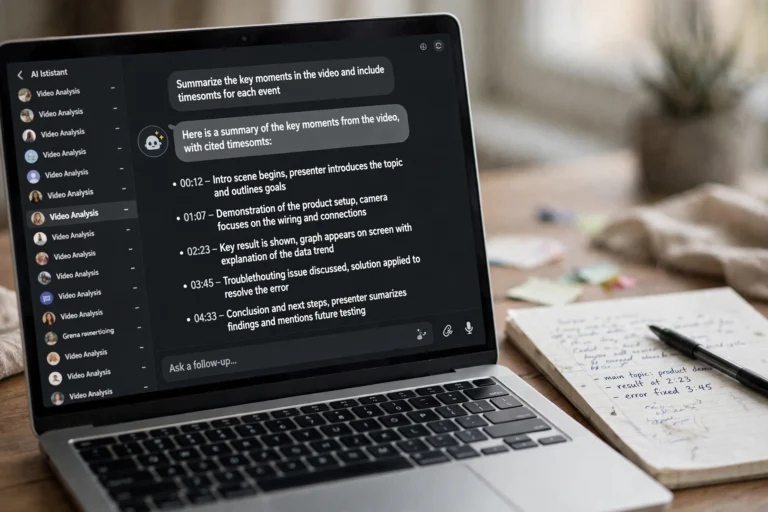
Step 4: Summarize Multiple Videos Together
This is where NotebookLM pulls ahead of simple summarizer tools. Add several videos to one notebook and work across them:
- Research a topic fast. Add 5 videos on “best budget microphones,” then ask: “which microphone gets recommended most across these videos, and why?”
- Compare viewpoints. “Video A says X about intermittent fasting, video B says Y — summarize the disagreement and what evidence each cites.”
- Build a master summary. “Combine the key points from all sources into one organized guide, noting where they agree and conflict.”
- Find the gaps. “What important subtopic does none of these videos cover?” — reveals what you still need to research.
Each answer cites which video and timestamp it came from, so multi-video research stays verifiable instead of turning into mush.
Step 5: Turn Videos Into Audio Overviews and Study Guides
NotebookLM can repackage video content into formats that fit your life:
- Audio Overviews. Generate a podcast-style conversation between two AI hosts discussing the video’s content — perfect for commutes or workouts.
- Study guides. Auto-generate FAQs, glossaries of key terms, and timelines from the video.
- Briefing documents. A clean, shareable doc summarizing everything — useful for teams or study groups.
- Mind maps. Visual maps of the video’s concepts and how they connect (available in newer versions).

“A two-hour video becomes a ten-minute podcast, a one-page brief, and a searchable Q&A — all from one link. That is not summarizing; that is time travel.”
Handling Videos Without Transcripts
NotebookLM needs a transcript to work with. Most YouTube videos have auto-generated captions, but some do not. When a video fails to import:
- Check for captions on YouTube. Open the video, click the CC button or check the description — if no captions exist, NotebookLM cannot process it.
- Try the auto-generated route. YouTube auto-captions most videos automatically; if they are missing, they may appear within a day or two of upload.
- Use videos with clear speech. Heavy background music, multiple overlapping speakers, or non-English audio without captions all reduce quality.
- Very long videos may be truncated. Multi-hour streams sometimes exceed source limits — try adding specific segments or check NotebookLM’s current limits.
FAQ
Is summarizing YouTube videos with NotebookLM really free?
Yes. NotebookLM is free to use with generous limits — adding YouTube videos, generating summaries, chatting, and creating audio overviews all cost nothing. You just need a Google account.
Does the video creator know I summarized their video?
No. NotebookLM fetches the public transcript the same way any viewer could read the captions. Creators receive no notification, and summarizing for personal learning is standard fair use.
How accurate are the summaries?
Very accurate for what was actually said — NotebookLM works from the transcript and cites timestamps, so you can verify any claim in one click. But remember it summarizes the video’s claims, not the truth: if the video contains misinformation, the summary will reflect it.
Can I summarize private or unlisted videos?
Only if you have access to them and they have captions. Unlisted videos work if you paste the link; truly private videos restricted to specific accounts generally cannot be processed.
What’s the maximum video length?
Limits change over time, but NotebookLM handles typical videos (up to a couple of hours) well. Extremely long streams or multi-hour content may hit source-size limits — for those, summarize in sections or focus on the most relevant parts.
Conclusion
Learning how to summarize YouTube videos with NotebookLM gives you a genuine superpower in 2026: paste a link, get a cited summary, interrogate the content with follow-up questions, and repackage it as audio or study guides. Multi-video notebooks turn hours of watching into minutes of real understanding.
Next time a two-hour video lands in your watch-later list, try the NotebookLM route first. You will either save ninety minutes — or discover the ten minutes that are actually worth watching.