How to Backup iPhone to External Hard Drive: Mac & Windows Guide (2026)
How to backup iPhone to external hard drive is a question every iPhone owner asks once their computer runs out of space: a full iPhone backup can easily eat 50 to 200 GB, and most laptops do not have that to spare. The good news is that both Mac and Windows let you redirect your iPhone backup to an external drive with a simple folder move plus one terminal command — no third-party software needed.
This guide walks you through the complete process for both operating systems: what you need, how to move your existing backup folder, how to make future backups land on the external drive automatically, and how to verify everything worked.
Why Backup Your iPhone to an External Hard Drive?
Apple gives you two official backup options: iCloud and your computer. iCloud’s free tier is only 5 GB — nowhere near enough for a modern iPhone — and paid iCloud storage is a monthly bill forever. Backing up to your computer is free and unlimited, but a single full backup can swallow a huge chunk of a 256 GB MacBook’s drive.
An external hard drive solves both problems. You get the completeness of a local backup (every photo, message, app, and setting) without sacrificing your laptop’s storage, and you keep a physical copy you control. A 1 TB external SSD costs less than a year of 2 TB iCloud storage, and the backup runs over a cable — no waiting on slow uploads.
What You Need Before You Start
- An external drive with enough free space. Check your iPhone’s used storage in Settings > General > iPhone Storage, then pick a drive at least twice that size. An SSD is faster; a spinning hard drive works fine and costs less.
- The right cable or adapter. iPhone 15 and newer use USB-C; older iPhones need a Lightning-to-USB cable. If your Mac only has USB-C ports and your drive is USB-A, grab a small adapter.
- A compatible drive format. On Mac, format the drive as APFS or Mac OS Extended using Disk Utility. On Windows, exFAT or NTFS both work. Avoid leaving it in a camera or console format.
- About 30–60 minutes. The first backup is the slow one. Plug your laptop into power so it does not sleep mid-transfer.
How to Backup iPhone to External Hard Drive on Mac
On macOS Catalina and later, iPhone backups run through Finder, and they live in a hidden folder: ~/Library/Application Support/MobileSync/Backup. The trick is to move that folder to your external drive and leave a symbolic link in its place, so Finder keeps saving backups to the drive without knowing the difference.
- Step 1: Connect your external drive and make sure it appears in Finder. Note its exact name — you will need it for the terminal command.
- Step 2: Open the backup folder. In Finder, press Command + Shift + G and paste ~/Library/Application Support/MobileSync/Backup, then press Enter.
- Step 3: Copy the Backup folder to your external drive. Drag it over (or copy-paste). If you have never backed up before, this folder may not exist yet — in that case, skip to step 5.
- Step 4: Rename the original folder to BackupOld as a safety net. Do not delete it until you have verified the new setup works.
- Step 5: Create the symbolic link. Open Terminal and run: ln -s /Volumes/YourDriveName/Backup ~/Library/”Application Support”/MobileSync/Backup — replacing YourDriveName with your drive’s exact name.
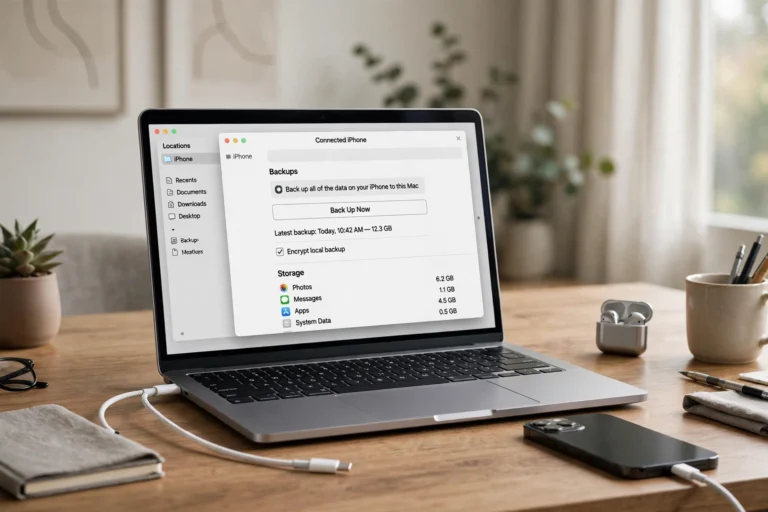
- Step 6: Back up your iPhone. Connect your iPhone, open Finder, select it in the sidebar, choose “Back up all of the data on your iPhone to this Mac,” and click Back Up Now. The data now flows to your external drive.
How to Backup iPhone to External Hard Drive on Windows
On Windows, backups run through the Apple Devices app or iTunes, and the same symlink trick applies — the command is just different. First, find your backup folder. For the Microsoft Store version of iTunes or the Apple Devices app, it is C:\Users\YourName\Apple\MobileSync\Backup. For the classic desktop iTunes, it is C:\Users\YourName\AppData\Roaming\Apple Computer\MobileSync\Backup.
- Step 1: Close iTunes or the Apple Devices app completely. The backup folder cannot be moved while the app is running.
- Step 2: Move the Backup folder to your external drive (for example, D:\iPhoneBackup). If the folder does not exist yet, simply create an empty folder on the drive with that name.
- Step 3: Open Command Prompt as administrator. Search for “cmd,” right-click, and choose Run as administrator.
- Step 4: Create the directory junction. For the Store version, run: mklink /J “C:\Users\YourName\Apple\MobileSync\Backup” “D:\iPhoneBackup” — adjusting the drive letter and your username. For classic iTunes, use the AppData path instead.
- Step 5: Back up your iPhone. Reopen iTunes or Apple Devices, connect your iPhone, and run a backup. Windows will follow the junction straight to your external drive.
How to Verify Your iPhone Backup Worked
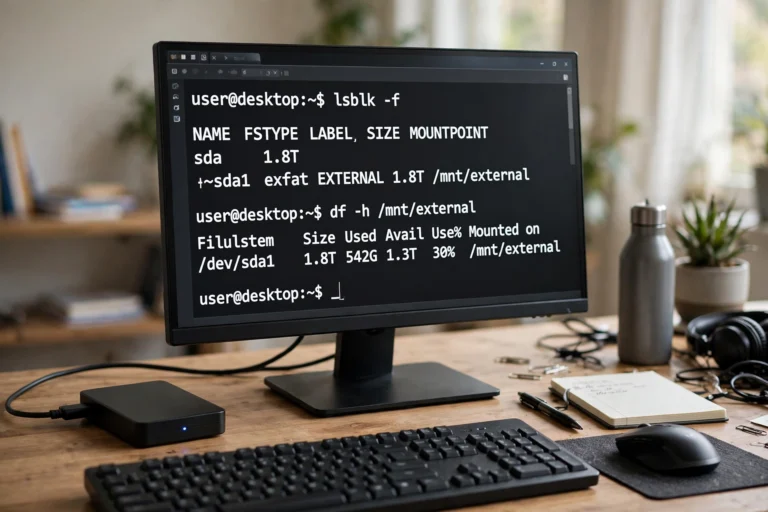
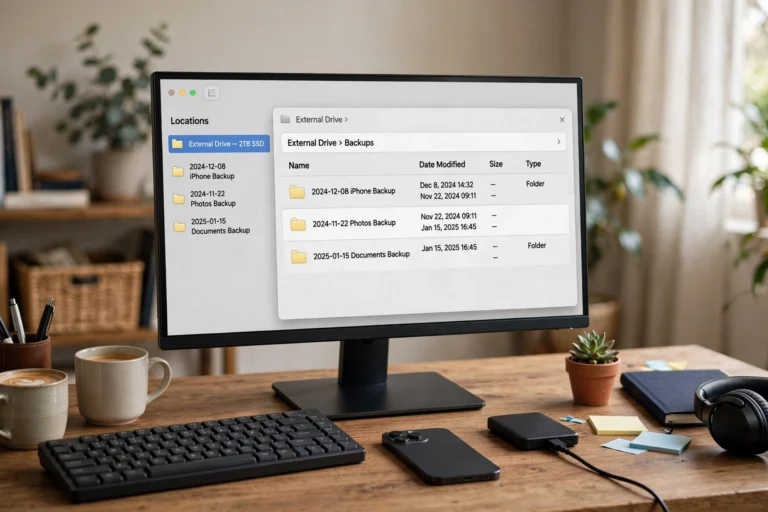
Do not trust the setup until you have confirmed it. After your first backup to the external drive finishes, check two things. First, look at the drive itself: the Backup folder should now contain a subfolder with a long random-looking name, and its size should roughly match your iPhone’s used storage. Second, confirm in Finder or iTunes: open the backup preferences and check that the latest backup’s date and time are current.
As a final sanity check, rename or remove the BackupOld safety copy you made earlier only after a second successful backup. Two good backups on the external drive means the original is safe to delete.
Tips for Keeping Your External iPhone Backups Healthy
- Encrypt your backups. In Finder or iTunes, check “Encrypt local backup” and set a password you will remember. Encrypted backups include saved passwords, Wi-Fi settings, and Health data — unencrypted ones do not.
- Always eject the drive properly. Pulling the cable mid-backup can corrupt the backup folder. Eject from Finder or the system tray first.
- Keep the drive’s name stable. The symbolic link points to the drive by name. If you rename the drive later, backups will fail until you update the link.
- Back up regularly. A backup is only as good as its age. Plug in the drive and run a fresh backup at least once a month — weekly if your photos matter to you.
FAQs About Backing Up iPhone to an External Hard Drive
Can I back up my iPhone directly to the drive without a computer?
No — Apple does not support backing up an iPhone directly to an external drive. The iPhone must back up through a Mac or PC; the external drive simply replaces the computer’s internal storage as the destination.
Will this work with a USB flash drive instead of a hard drive?
Yes, as long as it has enough space and stays connected for the whole backup. Flash drives are slower and easier to bump loose mid-transfer, so a proper external SSD or hard drive is the safer choice.
What happens if I unplug the drive and back up again?
Finder or iTunes will show an error because the backup destination is missing. Reconnect the drive (with the same name) and the backup will resume normally. Nothing is lost — the backup simply cannot run without its destination.
Does the symlink trick still work in 2026?
Yes. Apple has not changed the backup folder locations or blocked symbolic links. The paths above are current for the latest macOS and Windows versions of Apple’s backup tools.
Conclusion
Learning how to backup iPhone to external hard drive takes about ten minutes of setup and saves you from the two worst backup outcomes: a full laptop and a lapsed iCloud subscription. Move the folder, create the link, run one backup, and verify it landed on the drive. From then on, every backup goes exactly where you want it — off your computer and safely on your own storage.