Windows Clipboard History Shortcut: How to Enable and Use It (2026)
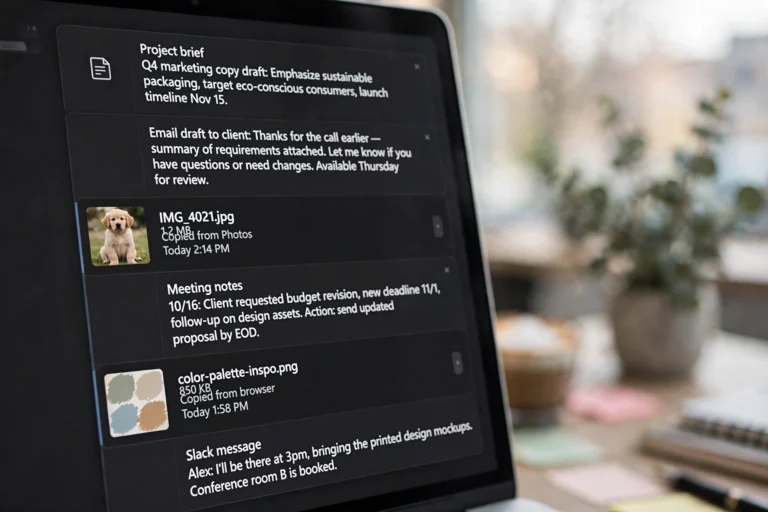
The Windows clipboard history shortcut is Windows key + V — and it upgrades copy-paste from a one-item memory into a searchable history of everything you have copied. Instead of losing the link you copied five minutes ago the moment you copy something new, you press Win+V and pick any of your recent copies from a panel. It is built into Windows 10 and 11, it is free, and most people have never turned it on.
This guide shows you how to enable clipboard history, use it fluently, pin your most-used items, sync it across devices, and manage the privacy side — all in a few minutes.
How to Enable Clipboard History in Windows
Clipboard history is off by default on many PCs. Turning it on takes ten seconds:
- The fast way: press Windows key + V. A small panel appears saying clipboard history is off, with a “Turn on” button. Click it. Done.
- Via Settings: open Settings → System → Clipboard → toggle “Clipboard history” on. While you are here, note the other options we will use below.
- Confirm it works: copy two different things (select text, Ctrl+C, twice), then press Win+V. You should see both items listed, newest first.
That is the entire setup. From now on, Windows remembers your copies instead of forgetting each one the moment you copy the next thing.
Using the Windows Clipboard History Shortcut Day to Day
Once enabled, Win+V becomes one of those shortcuts you wonder how you lived without:
- Paste from history: press Win+V, click the item (or arrow-key to it and press Enter). It pastes exactly as if you had just copied it.
- It stores more than text. Clipboard history keeps images and screenshots too — copy an image from the web, screenshot with Win+Shift+S, and both wait in your history panel.
- History holds up to 25 items. Older entries fall off as new ones arrive, so it is a rolling recent-history, not an archive.
- Items over 4MB are skipped. Huge images or files will not clutter the list; they simply are not stored.
- History clears on restart. Unless you pin an item (next section), everything vanishes when you reboot. Treat it as a workday tool, not permanent storage.
The real-world win: research. Copy five links, three quotes, and two images from different tabs, then paste them into your document one by one from the history panel — no more alt-tabbing back and forth re-copying each piece.
Pin Items You Use All the Time
Some things you copy daily: your email address, a mailing address, a code snippet, a standard reply. Pinning keeps them permanently at the top of the history:
- How to pin: press Win+V, hover over an item, and click the pin icon. Pinned items stay through reboots and never get pushed out by newer copies.
- What to pin: contact details, addresses, frequently used phrases, login-adjacent non-secrets (never pin passwords — see the privacy section), HTML snippets, emoji you use often.
- How to unpin: same panel, click the pin icon again. The item returns to normal history behavior.
A pinned list of your five most-copied items turns Win+V into a personal snippet manager — no extra software required.
Sync Clipboard History Across Your Devices
If you use more than one Windows PC signed into the same Microsoft account, your clipboard can follow you:
- Enable sync: Settings → System → Clipboard → turn on “Sync across your devices.”
- Choose automatic or manual. Automatic syncs everything; manual lets you pick items to send via the Win+V panel. Manual is the privacy-conscious choice.
- Copy on desktop, paste on laptop. Copy a link on your work PC and it appears in the Win+V history on your home laptop seconds later.
- Requirements: both devices need Windows 10 (1809+) or Windows 11, the same Microsoft account, and an internet connection.
Windows Clipboard History Shortcut: Privacy and Clearing
A history of everything you copy is convenient — and worth managing thoughtfully:
- Do not copy passwords into it. Password managers with auto-type or autofill keep credentials out of the clipboard entirely. If you must copy a password, clear history immediately after.
- Clear everything: press Win+V and click “Clear all” at the top of the panel. Or go to Settings → System → Clipboard → “Clear clipboard data.”
- Clear a single item: in the Win+V panel, click the three dots on any item and choose Delete.
- Turn sync off for sensitive work. If you handle confidential material, disable “Sync across your devices” so clipboard contents never leave the machine.
- Turn history off entirely: same Settings page, toggle “Clipboard history” off. The Win+V panel goes back to its dormant state.
Beyond the Basics: Power Tips
- Win+V vs Ctrl+V: Ctrl+V always pastes the most recent copy — fastest for the common case. Win+V is for reaching further back. Use both without thinking about it.
- Emoji panel synergy: Win+. (period) opens the emoji picker; Win+V opens clipboard history. Together they cover most of what you insert repeatedly.
- Screenshots land in history: Win+Shift+S captures a screenshot straight to the clipboard, and it appears in Win+V ready to paste into chat, email, or a document.
- Plain-text pasting: clipboard history pastes with original formatting. To strip formatting, paste then press Ctrl+Shift+V in apps that support it, or paste via Notepad as a scrub step.
- Third-party upgrades: if 25 items is not enough, free tools like Ditto extend history to thousands of entries with search. Start with the built-in version; upgrade only if you outgrow it.
FAQ
What is the Windows clipboard history shortcut?
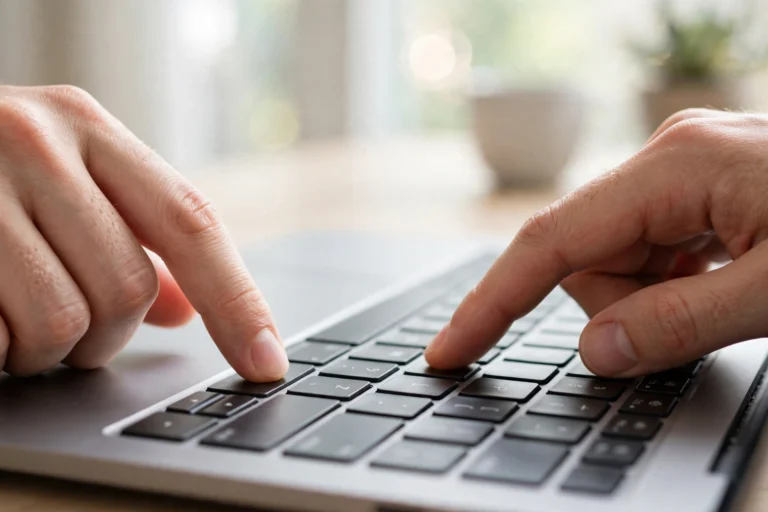
Windows key + V. Press it anywhere to open the clipboard history panel, showing your recent copies. If history is disabled, the same shortcut opens a prompt to turn it on.
Why is Win+V not working on my PC?
Three usual causes: clipboard history is turned off (press Win+V and click “Turn on”), you are on an older Windows 10 build (update to 1809 or later), or another app has hijacked the Win+V hotkey — clipboard managers and some utilities do this. Check the Settings → System → Clipboard toggle first.
How many items does clipboard history store?
Up to 25 items, including text and images under 4MB. Older entries are removed automatically as new ones arrive. Pinned items do not count against the limit in practice — they stay fixed at the top regardless.
Does clipboard history work after restarting my computer?
Unpinned items are cleared on restart; pinned items survive. If you need something to persist across reboots, pin it — or save it in a notes app instead of relying on the clipboard.
Is clipboard history safe to use with sensitive data?
It is as safe as your logged-in Windows account — anyone with access to your unlocked PC can press Win+V and read it. Avoid copying passwords into it (use a password manager’s autofill), clear history after handling sensitive text, and disable cross-device sync if you work with confidential material.
Conclusion
The Windows clipboard history shortcut — Win+V — turns copy-paste into a superpower: enable it once, pull anything from your recent history with a keystroke, pin the items you use daily, and sync across PCs when it helps. Clear it when you handle anything sensitive.
It takes ten seconds to turn on and saves a few minutes every single day. Few Windows features offer a better return on so little effort — press Win+V right now and claim yours.