HDMI vs DisplayPort: Which Should You Use? (2026)
HDMI vs DisplayPort is the first question to answer whenever you connect a monitor, and the right choice depends on what you are plugging in. Both carry high-definition video and audio over a single cable, but they were designed for different jobs: HDMI grew up in living rooms, DisplayPort grew up on desks. Pick the wrong one and you can silently lose refresh rate, resolution, or features you paid for.
This guide breaks down the real differences — bandwidth, versions, connectors, and special features — then gives you a simple rule for every common setup: gaming PC, office monitor, 4K TV, or laptop dock.
HDMI vs DisplayPort: The Quick Answer
In a hurry? Here is the short version:
- Gaming PC to monitor: use DisplayPort. It supports the highest refresh rates and adaptive sync with the fewest headaches.
- PC or console to TV: use HDMI. It is what TVs are built around, and it carries features like ARC/eARC for soundbars.
- Office or general use: either works fine. Use whichever port your monitor and computer share.
- Laptop dock: DisplayPort (often over USB-C) usually drives more monitors at higher resolutions than HDMI.
Now the details, so you understand why — and know when the quick answer does not apply.
What HDMI Is Best At
HDMI (High-Definition Multimedia Interface) is the universal connector of home entertainment. Every TV, soundbar, game console, streaming stick, and Blu-ray player speaks it. Its strengths:
- Universal compatibility. If it plugs into a TV, it is HDMI. No adapters, no guessing.
- Audio return channel (ARC/eARC). HDMI can send audio back from your TV to a soundbar or receiver over the same cable — DisplayPort cannot do this.
- Consumer electronics features. CEC lets one remote control multiple devices; HDMI 2.1 brings 4K at 120Hz and 8K at 60Hz for consoles and TVs.
- Long cable runs. Passive HDMI cables work reliably up to about 25 feet; active and fiber HDMI cables go much further — handy for projectors.
The catch: on PCs, HDMI has historically lagged DisplayPort for high-refresh-rate gaming, and many monitors limit their HDMI ports to lower refresh rates than their DisplayPort input. Always check your specific monitor’s specs.
What DisplayPort Is Best At
DisplayPort was designed by the computer industry for computer monitors, and it shows in the spec sheet:
- Higher bandwidth. DisplayPort 2.1 reaches up to 80 Gbps — enough for 4K at 240Hz or 8K at 60Hz without compression. HDMI 2.1 tops out at 48 Gbps.
- Adaptive sync done right. FreeSync and G-Sync variable refresh rate work most reliably over DisplayPort, eliminating screen tearing in games.
- Multi-monitor from one port. DisplayPort’s daisy-chaining (MST) can drive several monitors from a single output — a favorite for trading desks and ultrawide-plus-side-screen setups.
- USB-C Alt Mode. Many laptops output DisplayPort signals through their USB-C ports, carrying video, data, and laptop charging over one cable to a dock.
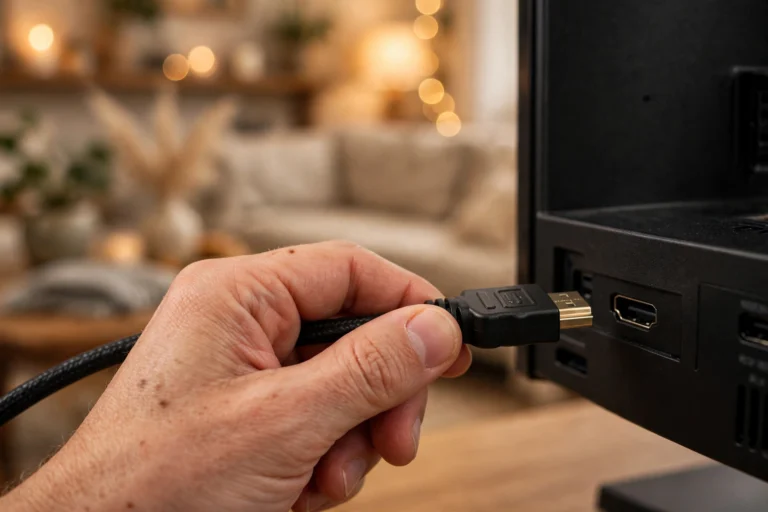
The catch: DisplayPort is rare on TVs and home theater gear. If your setup involves a television, soundbar, or game console, HDMI is effectively mandatory.
HDMI vs DisplayPort: Versions and Bandwidth Compared
Not all HDMI ports and not all DisplayPort ports are equal. The version number matters more than the connector shape:
- HDMI 2.0: 18 Gbps — 4K at 60Hz. Still common on budget monitors and older TVs.
- HDMI 2.1: 48 Gbps — 4K at 120Hz, 8K at 60Hz. Standard on modern TVs, PS5, and Xbox Series X.
- DisplayPort 1.4: 32.4 Gbps — 4K at 120Hz, or 4K at 60Hz with HDR. Very common on gaming monitors.
- DisplayPort 2.1: up to 80 Gbps — 4K at 240Hz+, 8K at 60Hz. Found on high-end GPUs and premium monitors in 2026.
A cheap cable can also bottleneck you: for HDMI 2.1 features you need an “Ultra High Speed” certified cable, and for DisplayPort 2.1 you need a DP80-rated cable. When a monitor refuses to hit its advertised refresh rate, the cable is the culprit more often than people expect.
Which Cable for Gaming?
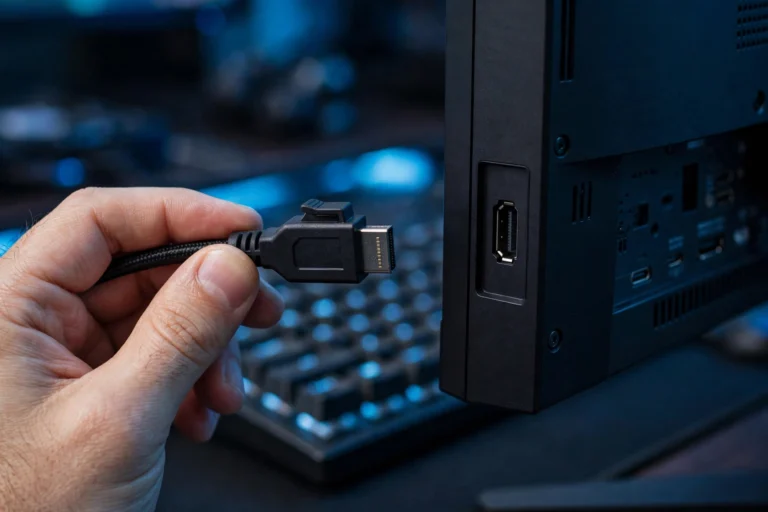
Gamers should default to DisplayPort for a PC monitor. It unlocks the highest refresh rates, the most reliable adaptive sync, and the lowest input lag path on most displays. Competitive players running 144Hz, 240Hz, or 360Hz monitors will always use DisplayPort.
The exception is console gaming on a TV: the PS5 and Xbox Series X output over HDMI 2.1, and that is the only port your TV has. Pair them with an Ultra High Speed HDMI cable to get 4K 120Hz, and enable your TV’s game mode to cut input lag.
Which Cable for Work and Everyday Use?
For office work, browsing, and video calls, it genuinely does not matter — a 60Hz 1080p or 1440p desktop looks identical over either cable. Use whichever ports line up between your computer and monitor.
Two cases where DisplayPort wins at the desk: multi-monitor setups (daisy-chaining or a USB-C dock driving two or three screens) and high-resolution displays (a 4K or 5K monitor at 60Hz+ is more reliably driven over DisplayPort 1.4 than older HDMI 2.0 ports). If your laptop has one USB-C port doing everything through a dock, that dock is almost certainly using DisplayPort underneath.
Adapters and Mixed Setups
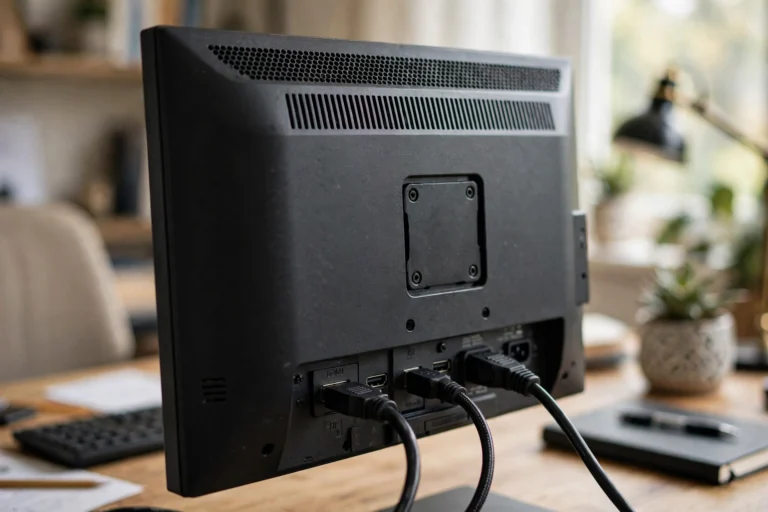
Sometimes your devices disagree — a laptop with only HDMI and a monitor whose best port is DisplayPort. Here is what works:
- DisplayPort source to HDMI display: cheap passive adapters work fine. This direction is easy.
- HDMI source to DisplayPort display: needs an active adapter with a chip inside — passive cables in this direction do not work. Budget for it.
- USB-C to either: a USB-C to DisplayPort or USB-C to HDMI cable handles this directly, provided your USB-C port supports video output (check for a DisplayPort or Thunderbolt icon).
- Daisy-chaining monitors: only works DisplayPort-to-DisplayPort. The moment HDMI enters the chain, it stops.
FAQ
Is DisplayPort better than HDMI for gaming?
For PC gaming on a monitor, yes — DisplayPort supports higher refresh rates and more reliable adaptive sync (FreeSync/G-Sync). For console gaming on a TV, HDMI 2.1 is the standard and performs excellently at 4K 120Hz.
Can I use HDMI and DisplayPort at the same time?
Absolutely. Most graphics cards and monitors have both, and you can run one monitor on HDMI and another on DisplayPort simultaneously. Windows and macOS treat them as independent displays with no conflicts.
Does the cable quality actually matter?
Yes, at the high end. A basic cable is fine for 1080p 60Hz, but 4K 120Hz over HDMI 2.1 or 4K 240Hz over DisplayPort 2.1 requires a certified high-bandwidth cable. If your monitor will not reach its advertised refresh rate, try a certified cable before blaming anything else.
Why does my monitor look worse over HDMI?
Two common reasons: the monitor’s HDMI port may be limited to a lower refresh rate than its DisplayPort input, or the PC defaulted to limited RGB range over HDMI (a TV-oriented setting). Check the refresh rate in display settings and set the color range to “Full” in your GPU control panel.
Will HDMI be replaced by DisplayPort?
Not anytime soon. HDMI dominates televisions, consoles, and home theater, while DisplayPort dominates PC monitors. They serve different ecosystems, and both keep getting faster — expect them to coexist for years.
Conclusion
The HDMI vs DisplayPort debate has a simple resolution: DisplayPort for your gaming PC and multi-monitor desk setup, HDMI for your TV, console, and soundbar. Match the cable to the ecosystem, check the version numbers on both ends, and buy a certified cable when you are pushing high refresh rates or 4K.
Most connection problems come down to three things: the wrong port choice, an outdated cable, or a setting nobody changed. Get those right and either standard will give you a flawless picture.