How to Build a Private AI Assistant That Searches Your Documents (2026)
How to build a private AI assistant that searches your documents sounds like a job for engineers, but in 2026 it is a weekend project for anyone. The idea is simple: instead of uploading your private files to a cloud chatbot, you set up a system where AI reads your documents locally or in a private workspace — and answers questions using only your files as its source. Your contracts, notes, manuals, and research stay yours.
This guide shows you three approaches, from easiest to most private: a no-code notebook tool, a private cloud workspace, and a fully local setup. No programming required for the first two, and only basic computer skills for the third.
Why Build a Private Document Assistant?
Regular chatbots are trained on public internet data — they do not know what is in your files. A document-searching assistant fills that gap, and keeping it private matters:
- Your files never train public models. Contracts, financial records, medical notes, and business plans should not become AI training data.
- Answers come from your sources. Instead of generic web knowledge, you get answers grounded in your actual documents — with citations to the exact page.
- It remembers everything. Humans forget what is buried in a 200-page manual or three years of meeting notes. Your assistant does not.
- It works the way you think. Ask “what did we decide about the refund policy in the March meeting?” and get an answer instead of digging through files for an hour.
This technology is called RAG (retrieval-augmented generation): the AI retrieves the relevant chunks of your documents, then generates an answer based on them. You do not need to understand the term — you just need to pick an approach below.
Option 1: NotebookLM — The Easiest Start (Free)
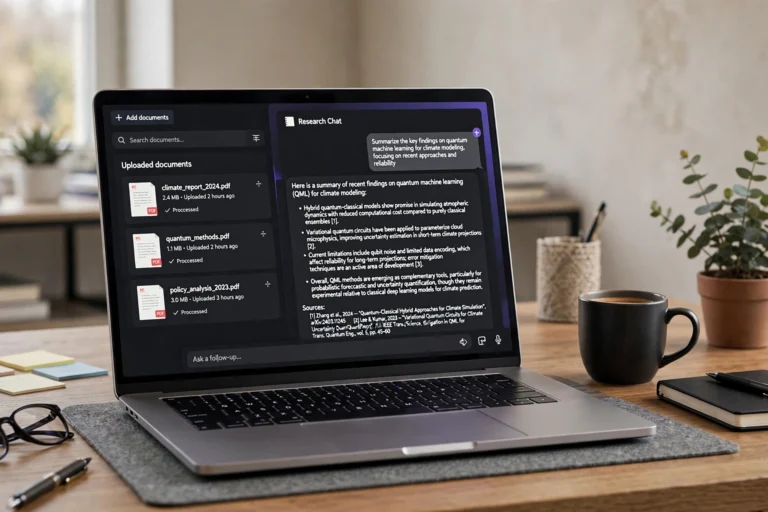
Google’s NotebookLM is the fastest way to get a private document assistant with zero setup. Upload your files and start asking questions within minutes:
- Create a notebook. Go to notebooklm.google.com, sign in, and create a new notebook.
- Add your sources. Upload PDFs, Google Docs, text files, pasted text, website URLs, or even YouTube links. Each notebook holds multiple sources.
- Ask questions in chat. “Summarize the key terms of this contract” or “what does the manual say about error code 42?” — answers include clickable citations to the exact source passage.
- Generate study materials. NotebookLM can auto-create summaries, FAQs, timelines, and even audio overviews from your documents.
“NotebookLM is the 80/20 solution: 80% of the benefit of a private document assistant with about 20 minutes of effort. Start here unless you have a specific reason not to.”
The privacy trade-off: your documents live on Google’s servers. Google states NotebookLM data is not used to train models, but if your files are extremely sensitive, consider Option 3.
Option 2: A Private Cloud Workspace (ChatGPT/Claude Projects)
If you already use ChatGPT or Claude, their project features turn them into document assistants with minimal fuss:
- Create a project. In ChatGPT, use Projects; in Claude, use Projects — both let you upload files that stay attached to that workspace.
- Upload your document set. Add the manuals, reports, or notes you want searchable. Organize by project: one project per document collection.
- Set custom instructions for the project. Tell it: “Answer only from the uploaded documents. Cite the source file for every claim. If the answer isn’t in the documents, say so.”
- Ask away. The AI searches your uploads when answering, giving you sourced answers without re-uploading files every chat.
This approach is ideal for work documents you already handle in these tools. The limitation: file storage caps on free plans, and your data sits on a third-party server — fine for most business use, not for state secrets.
Option 3: Fully Local — Your Documents Never Leave Your Computer
For maximum privacy, run everything on your own machine. Nothing uploads anywhere, and it works offline. The beginner-friendly path:
- Install Ollama. Download it free from ollama.com (Windows, Mac, Linux). It runs AI models locally with a simple interface.
- Install a document-chat app. Tools like AnythingLLM or GPT4All give you a clean desktop app: point them at Ollama, then drag in your documents.
- Add your files. Drop in PDFs, Word docs, and text files. The app indexes them — this is the “retrieval” part of RAG, done automatically.
- Chat with your documents. Ask questions in plain English. The app finds the relevant passages locally and the local model answers from them.
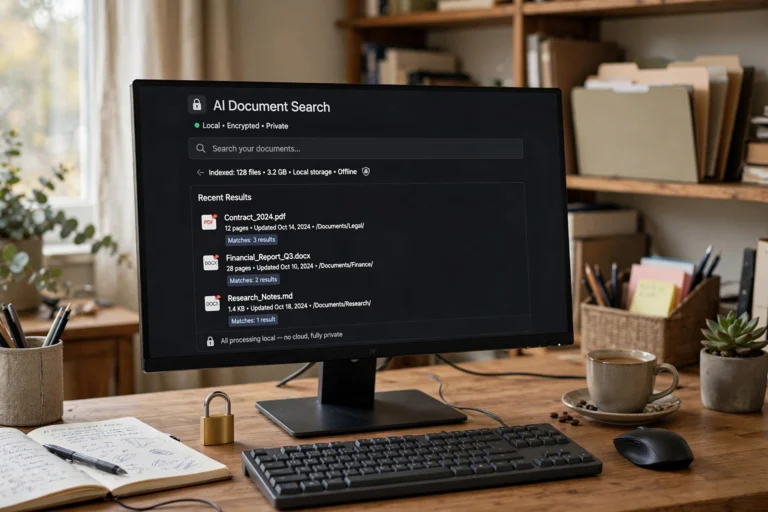
The trade-off: local models are less capable than cloud giants, and indexing large document sets takes time and disk space. But for straightforward “find and summarize what’s in my files” tasks, local setups are surprisingly good — and completely private.
Organizing Your Documents for Best Results
Whichever option you choose, good organization dramatically improves answer quality:
- Use clear, descriptive filenames. “Q3-2025-sales-report.pdf” beats “document_final_v2.pdf” — the AI uses filenames as context clues.
- Split giant files by topic. A 500-page manual indexed as one blob gives fuzzier answers than the same manual split into chapters.
- Prefer text-based PDFs. Scanned image-PDFs need OCR first. If your PDF does not let you select text, run it through a free OCR tool before uploading.
- Keep a “source of truth” folder. One folder per project, no duplicates, outdated versions archived elsewhere. Garbage in, garbage out applies to AI search too.
- Add a README for context. A short text file explaining what the collection is (“These are our 2024-2025 client contracts…”) helps the AI interpret everything else.
Asking Good Questions (Prompt Tips for Document Search)
Document assistants reward precise questions. These patterns get the best answers:
- Ask for extraction, not vibes. “List every mention of delivery deadlines in these contracts” beats “tell me about the contracts.”
- Demand citations. “Cite the source document and page for each point” keeps the AI honest and lets you verify.
- Ask what is missing. “What topics are NOT covered in these documents?” is a powerful gap-analysis question most people never think to ask.
- Compare across documents. “How does the 2024 policy differ from the 2025 policy on refunds?” — cross-document comparison is where these tools shine.
- Challenge the answer. “Are you sure? Quote the exact passage.” If the AI was guessing, this exposes it.
“A document assistant is only as trustworthy as your verification habit. Always spot-check citations on important answers — it takes ten seconds and catches the rare hallucination.”
FAQ
Do I need to know how to code?
No. NotebookLM and the ChatGPT/Claude project features require zero coding — if you can upload a file and type a question, you can build a document assistant. The local option (Ollama + AnythingLLM) needs basic software-installation skills but no programming.
How many documents can I add?
NotebookLM supports dozens of sources per notebook with generous size limits on the free tier. ChatGPT and Claude projects have file-count and size caps that vary by plan. Local tools are limited only by your computer’s storage and patience during indexing.
Is my data used to train AI models?
Google states NotebookLM content is not used for training. ChatGPT and Claude offer data controls to opt out of training — check your settings. Local setups never send data anywhere, so training is impossible by design. When in doubt, read the current privacy policy of whichever tool you choose.
Can it handle scanned PDFs or handwritten notes?
Scanned PDFs need OCR (text recognition) first — many free tools do this, and some document apps include it. Handwriting is hit-or-miss: neat handwriting often works, messy script usually does not. Typed documents give the best results by far.
What’s the difference between this and just using Ctrl+F?
Ctrl+F finds exact words; a document assistant understands meaning. It can answer “what’s our policy on late deliveries?” even when no document uses those exact words, synthesize answers from multiple files, and summarize — things keyword search fundamentally cannot do.
Conclusion
Learning how to build a private AI assistant that searches your documents is one of the highest-leverage AI skills you can pick up in 2026. Start with NotebookLM for instant results, graduate to a ChatGPT or Claude project for work collections, or go fully local with Ollama when privacy is non-negotiable. Organize your files well, ask precise questions, and verify citations on anything important.
Pick one document collection that currently wastes your time — the manual you keep re-reading, the contracts you keep re-checking — and set it up this weekend. Future you, finding any answer in seconds, will be grateful.