How to Use Meta AI on WhatsApp (2026)
How to use Meta AI on WhatsApp is simple: open the app, tap the glowing Meta AI circle at the top of your chats tab, type a question, and send it. The AI answers in seconds — right inside WhatsApp, no separate app or account needed. You can also summon it in group chats by typing @Meta AI, talk to it by voice, and ask it to generate images. This guide walks you through everything, step by step.
Meta AI is a built-in AI assistant inside WhatsApp (plus Instagram and Messenger). If you already chat on WhatsApp daily, you already have everything you need — most people just have not found the button yet. By the end of this guide, you will know how to open it, what to ask, and the privacy settings worth checking.
What Is Meta AI on WhatsApp?
Meta AI is an AI chatbot built by Meta, the company behind WhatsApp. Think of it like ChatGPT, but it lives inside your chat app instead of a separate website. You can ask it questions, get help writing messages, brainstorm ideas, translate languages, summarize long texts, and even create AI-generated images — all without leaving WhatsApp.
The biggest advantage is convenience. There is nothing to download and nothing to sign up for: if Meta AI has rolled out in your country, it simply appears in your WhatsApp. Answers arrive like ordinary chat messages, so the whole experience feels like texting a very knowledgeable friend — and it is completely free.
If you want a deeper AI chatbot experience on a computer, our How to Use ChatGPT for Beginners guide is the natural next step after this one.
Step 1: Check If Meta AI Is Available in Your Country
Before anything else, make sure Meta AI has launched where you live. The rollout started in the US and has expanded to dozens of countries, but it is not everywhere yet.
- iPhone or Android: open WhatsApp and look at the top of the Chats tab.
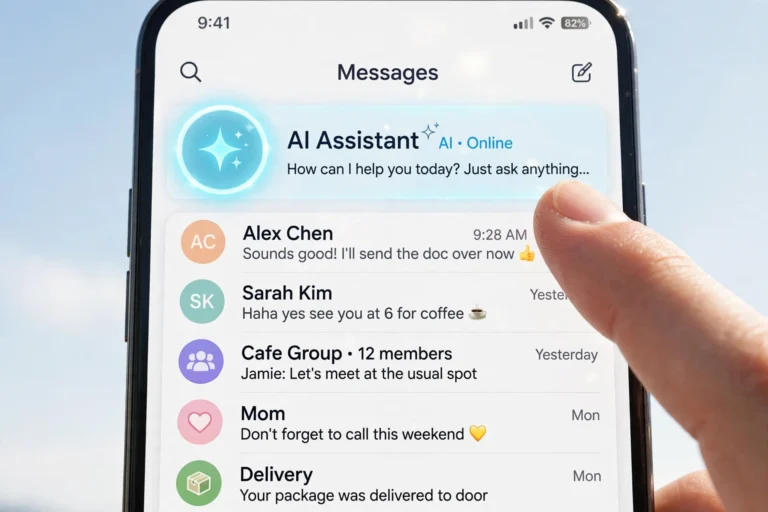
- If you see a glowing blue-purple circle (sometimes with a sparkle icon), Meta AI is available on your account.
- If you do not see it, it likely has not rolled out to your region yet — check back after updating the app.
Note: Meta AI appears on personal WhatsApp accounts. If you only use WhatsApp Business, availability may differ, so check your personal account first.
Step 2: Update WhatsApp to the Latest Version
Meta AI needs a recent version of WhatsApp to work. An outdated app is the most common reason people cannot find it.
Steps:
- Open the App Store (iPhone) or Google Play Store (Android).
- Search for WhatsApp.
- If you see an Update button, tap it and wait for the download to finish.
- Open WhatsApp again and check the Chats tab for the Meta AI circle.
Step 3: Open Your First Meta AI Chat
Starting a conversation with Meta AI feels exactly like starting a chat with a person. Tap the glowing circle, say hello, and you are off.
Steps:
- Open WhatsApp and go to the Chats tab.
- Tap the glowing Meta AI circle at the top of the screen.
- Tap Continue or Get started if a welcome screen appears.
- Type your first question in the message box — for example: “What is the capital of Japan?”
- Tap Send. Meta AI replies in a few seconds.
The chat works like any other WhatsApp conversation: it stays in your chat list, and you can delete it the same way you delete a normal chat.
Step 4: Use Meta AI in a Group Chat
One of Meta AI’s best tricks is joining group conversations. Planning a trip with friends? Settling a debate? You can pull the AI into the chat without leaving the group.
Steps:
- Open any group chat in WhatsApp.
- In the message box, type @ and then Meta AI.
- Select Meta AI from the mention suggestions.
- Type your question after it — for example: “@Meta AI suggest a 3-day itinerary for Paris on a budget”.
- Send the message. Everyone in the group can see the AI’s answer.
Good to know: only the message mentioning Meta AI is shared with the AI — not the rest of the group history.
Step 5: Talk to Meta AI by Voice
Not convenient to type? Talk instead — handy for driving, cooking, or quick questions on the go.
Steps:
- Open your Meta AI chat.
- Tap the microphone icon to dictate a question, or look for the voice/headphones icon to start a live voice conversation where supported.
- Speak naturally — full sentences work best.
- Meta AI replies with a spoken answer, plus a text version you can read.

Step 6: Generate Images with Meta AI
Meta AI can create original images from a text description — a fun feature most people never try.
Steps:
- In your Meta AI chat, describe the image you want. Start with “Imagine” for best results.
- Example: “Imagine a cozy cabin in snowy mountains at sunset, digital art style.”
- Send the message and wait a few seconds while the image generates.
- Tap the image to view it full-screen, then forward it to any chat like a normal photo.
- Not happy with it? Reply “make it more colorful” or “try again” to get a new version.
Generated images are AI-created, so use them for fun, wallpapers, and creative projects — not as real photographs.
7 Smart Things to Try with Meta AI This Week
Try these real tasks to get comfortable fast:
- Writing help: “Write a polite message declining a dinner invitation.”
- Quick answers: “How many grams are in a cup of flour?”
- Translations: “Translate ‘Where is the nearest pharmacy?’ into Spanish.”
- Planning: “Plan a 5-day workout routine for beginners with no equipment.”
- Summaries: paste a long article and ask “Summarize this in 5 bullet points.”
- Ideas: “Give me 10 birthday gift ideas for someone who loves cooking, under $30.”
- Learning: “Explain how interest rates work like I’m a teenager.”
“Act as my travel planner. I’m visiting London for 4 days in spring with a mid-range budget. Suggest a day-by-day itinerary with food stops.”
This kind of detailed prompt — with context, constraints, and a clear request — gets dramatically better answers than a vague “plan my trip.” Copy it, change the details, and make it yours.
Pro Tips for Better Answers
- Be specific. “Write about dogs” is vague; “Write a 50-word funny caption about my golden retriever’s birthday” gets something usable.
- Give context. Mention who the answer is for, the tone you want, and any limits (length, budget, language).
- Ask follow-ups. Meta AI remembers the conversation — reply “shorter”, “more formal”, or “give me 3 more” to refine answers.
- One task per message. Splitting complex requests into steps produces cleaner results.
- Ask it to format. Say “as a table,” “as bullet points,” or “as a step-by-step list” to get answers shaped how you need them.
Curious how Meta AI stacks up against the big standalone chatbots? Read our Gemini vs ChatGPT: Which Is Better in 2026? comparison to see where each one shines.
Privacy and Limitations: What to Know
A few honest caveats:
- It can be wrong. Like all AI chatbots, Meta AI sometimes gives confident but incorrect answers. Double-check important facts — health, legal, and financial topics especially.
- Your prompts may be used to improve the product. Avoid sharing passwords, bank details, addresses, or other sensitive personal information in AI chats.
- It does not see your private chats. Meta AI only receives the messages you send directly to it (or messages in a group that mention @Meta AI). Your end-to-end encrypted chats stay private.
- Knowledge has limits. For very recent news or niche local information, a search engine is still more reliable.
- Availability varies. Features like voice mode and image generation roll out at different times in different regions.

FAQ
Is Meta AI on WhatsApp free?
Yes — Meta AI is completely free inside WhatsApp. No subscription, no credit card, no announced message limit for everyday use.
Do I need to download a separate app for Meta AI?
No. Meta AI is built into WhatsApp itself. As long as it has rolled out in your country and your app is updated, the Meta AI circle appears at the top of your Chats tab — nothing else to install.
Why can’t I find Meta AI on my WhatsApp?
The three most common reasons: it has not launched in your country yet, your WhatsApp is outdated (update it from your app store), or you are on a WhatsApp Business account where availability differs. Update first, then check the top of your Chats tab.
Can Meta AI read my private WhatsApp messages?
No. Meta AI only sees what you send directly to it — your direct AI chats and group messages that mention @Meta AI. Your regular chats remain end-to-end encrypted and private.
Can I delete my Meta AI chat history?
Yes. Delete a Meta AI conversation exactly like a normal chat: long-press it in your chat list and choose Delete. You can also manage AI data in WhatsApp under Settings > Privacy where available.
Conclusion
Learning how to use Meta AI on WhatsApp comes down to this: update the app, tap the glowing Meta AI circle, and start chatting. Try @Meta AI in a group, test voice mode when your hands are busy, and generate an image just for fun.
Once you are comfortable, go deeper with our ChatGPT beginner guide for standalone AI chatbots.