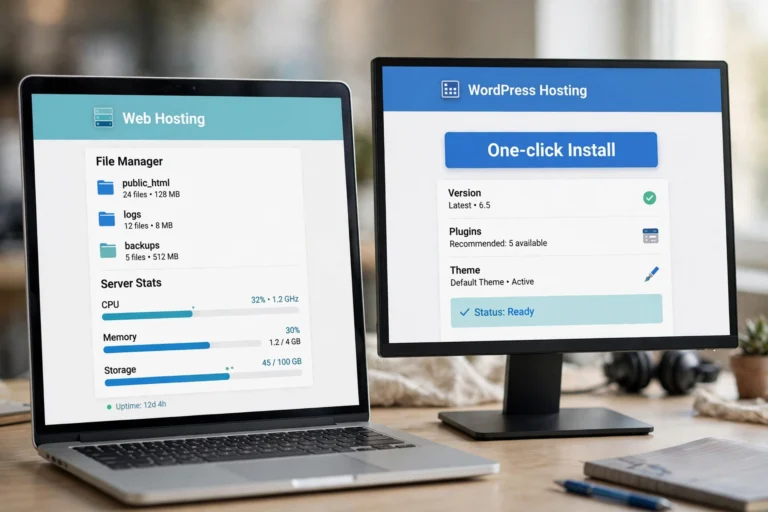
What Is a WordPress Plugin? Explained Simply (2026)
If you are building a website with WordPress, one word will follow you everywhere: plugins. A WordPress plugin is a piece of software you install on your WordPress site to add new features — contact forms, online stores, SEO tools, photo galleries, backups, and just about anything else you can imagine. Think of WordPress as a smartphone and plugins as its apps: the phone works fine out of the box, but the apps turn it into exactly the tool you need.
A fresh WordPress install handles the basics well — pages, posts, comments, and a clean design — but it is deliberately simple. Every feature beyond that, from a newsletter signup box to a full e-commerce checkout, comes from plugins. There are more than 59,000 free plugins in the official WordPress directory, plus thousands of premium ones sold by independent developers. This guide explains what plugins are, how they work, where to find safe ones, how many you should install, and exactly which ones your site actually needs.

What Is a WordPress Plugin? The Simple Definition
A WordPress plugin is an add-on program written for WordPress that extends what your site can do — without you writing a single line of code. You install it from your WordPress dashboard, click activate, configure a few settings, and your site gains a brand-new capability.
The smartphone analogy is the easiest way to think about it. Your phone ships with calls, texts, and a camera — the essentials. Everything else (maps, banking, photo editing) comes from apps you choose and install yourself. WordPress works the same way: the core software gives you the essentials, and plugins are the apps that shape your site into a blog, a business site, a store, a portfolio, or a membership community.
What Do WordPress Plugins Actually Do?
Almost every impressive thing you have seen on a WordPress site was done with a plugin. Common examples include:
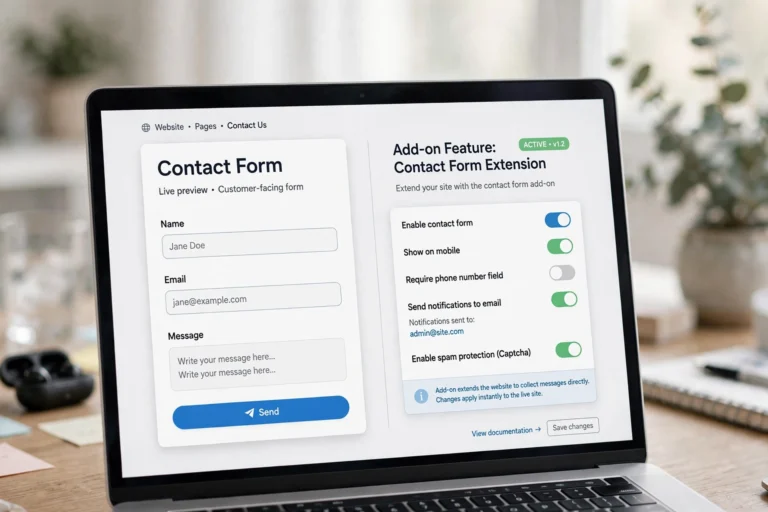
- Contact forms — add a “get in touch” form so visitors can email you without you publishing your address
- SEO tools — plugins like Rank Math analyze your posts and tell you how to rank higher on Google
- E-commerce — WooCommerce turns any WordPress site into a full online store with products, carts, and payments
- Backups — automatically save copies of your site so you can restore it if anything breaks
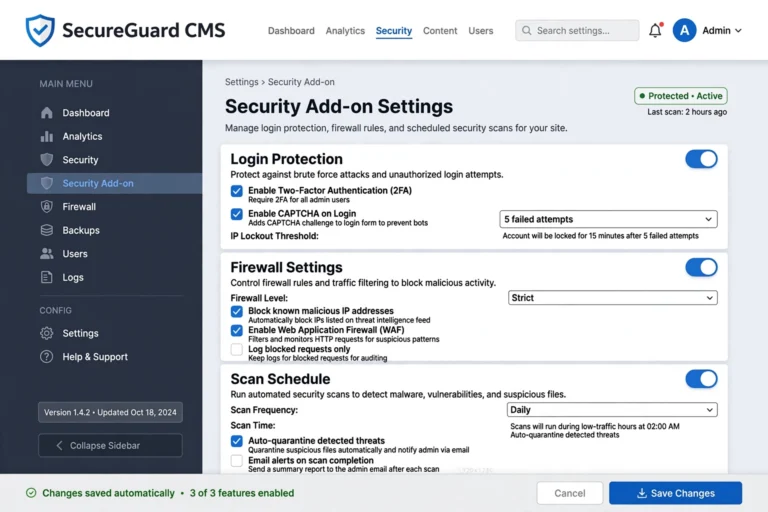
- Security — firewalls and malware scanners that block hackers and brute-force login attempts
- Speed optimization — caching plugins that make your pages load faster
- Photo galleries and sliders — turn plain image uploads into polished galleries and homepage sliders
- Newsletters and popups — collect email subscribers and grow your mailing list
- Social sharing — add share buttons so readers can spread your content
- Multilingual sites — translate your content and serve it in multiple languages
If you can describe the feature, there is probably a plugin for it — that is the entire point of the ecosystem.
WordPress Plugins vs Themes: What Is the Difference?
Beginners often mix up plugins and themes, so here is the clean distinction: themes control how your site looks; plugins control what your site does. A theme decides your layout, colors, fonts, and overall style. A plugin adds functionality — a contact form, a store, a booking calendar — regardless of which theme you use.
You can switch themes freely and your plugins keep working, and you can swap plugins without changing your design. Keep them in their lanes: pick a theme for appearance, and add plugins only for features the theme does not already provide.
How Do WordPress Plugins Work? (Step by Step)
Installing a plugin is one of the simplest things you will do in WordPress. The whole process takes about a minute:
- Step 1: In your WordPress dashboard, go to Plugins → Add New.
- Step 2: Search for the feature you want, for example “contact form”.
- Step 3: Check the plugin’s rating, number of active installs, and “last updated” date — these tell you it is trustworthy and maintained.
- Step 4: Click Install Now, wait a few seconds, then click Activate.
- Step 5: Configure the plugin’s settings (most add a new menu item in your dashboard sidebar).
That is it. The feature is now live on your site. Deactivating or deleting the plugin later removes the feature — your content stays put, and nothing about your theme or other plugins changes.
Where to Find Safe WordPress Plugins
You have three main sources, and knowing which to trust matters:
- The official WordPress plugin directory (wordpress.org/plugins) — over 59,000 free plugins, every one reviewed by the WordPress team before listing. This is the safest place to start.
- Inside your dashboard — the Add Plugins screen searches this same directory, so you never have to leave WordPress to install from it.
- Premium marketplaces and developer sites — paid plugins like WP Rocket or Elementor Pro are sold by their developers or marketplaces such as CodeCanyon. Only buy from reputable sellers with refund policies and update histories.
Safety checklist before installing anything: high ratings with plenty of reviews, 10,000+ active installs, updated within the last few months, tested with your WordPress version, and responsive support from the developer. A plugin with 2 stars and no update in three years is a red flag — skip it no matter how good it sounds.
Free vs Premium Plugins: Which Should You Pick?
Free plugins cover the needs of most sites, and the best ones are genuinely excellent — the free versions of Rank Math, UpdraftPlus, and Contact Form 7 power millions of websites. Premium plugins (typically $30–100/year) add advanced features, priority support, and more frequent updates.
The practical rule: start free, upgrade only when a free plugin’s limits actually block you. A beginner blog rarely needs a paid plugin for anything. When your site grows — more traffic, an online store, client work — premium support and pro features start paying for themselves.
How Many Plugins Is Too Many?
There is no magic number. A well-built site can run 30+ lightweight plugins with no issues, while a single badly coded plugin can drag a site to a crawl. What matters is quality, not quantity.
Follow these habits: install only plugins you actively use (delete the rest), avoid two plugins that do the same job, keep everything updated, and test your site speed after adding something new. If your site suddenly feels sluggish, a bloated or outdated plugin is one of the first suspects — our guide on why WordPress sites get slow walks through the full diagnosis.
Essential WordPress Plugins Most Sites Need
You do not need dozens of plugins on day one. Nearly every site benefits from this starter set:
- SEO plugin (Rank Math or Yoast) — helps your content rank on Google
- Backup plugin (UpdraftPlus) — automatic backups stored off-site
- Security plugin (Wordfence) — firewall and login protection
- Contact form plugin (Contact Form 7 or WPForms) — let visitors reach you
- Caching plugin (WP Rocket or W3 Total Cache) — faster page loads
Start with these five categories, add more only as real needs appear, and you will have a fast, secure, professional site without the plugin bloat beginners often end up with.
FAQ
Can I install plugins on WordPress.com?
Only on the Business plan and above. Free, Personal, and Premium WordPress.com plans do not allow plugin installs — you use only the features they include. On self-hosted WordPress.org (the version you install on your own web hosting), you can install any plugin at any time. Our WordPress.com vs WordPress.org comparison breaks down this difference in full.
Do WordPress plugins slow down my site?
Good plugins barely affect speed; bad ones can slow it noticeably. The slowdown comes from poorly coded, outdated, or overlapping plugins — not from the number of plugins alone. Stick to well-rated, actively maintained plugins and remove anything you do not use.
What happens if I deactivate a plugin?
The feature it provided stops working, but your content and settings are safe. Most plugins keep their settings saved, so reactivating later restores everything. Deleting a plugin removes its files; some also offer to clean up their database entries on uninstall.
Can I build my own WordPress plugin?
Yes — plugins are just PHP code following WordPress’s plugin API, and thousands of developers build custom ones for clients. But for standard features, an existing plugin is almost always the smarter choice: it is tested by millions of users and maintained for free.
Conclusion
WordPress plugins are what turn a simple WordPress install into any kind of website you want — a blog, a store, a portfolio, or a business hub — no coding required. Start with the official plugin directory, install only what you need, keep everything updated, and let the five essential categories (SEO, backups, security, contact forms, and caching) carry your site’s foundation.
Keep learning: How to Start a Blog for Free to launch your site today, What Is Web Hosting? Explained Simply before you choose a host, and Why Is My WordPress Site Slow? to keep your plugin-powered site running fast.