Why Is My 144Hz Monitor Only Showing 60Hz? (2026)
why is my 144hz monitor only showing 60hz is one of the most common “new monitor” frustrations — you unbox a shiny 144Hz (or 165Hz) display, plug it in, and Windows stubbornly runs it at 60Hz. The good news: this is almost never a defective monitor. It is almost always a cable, a port, or a setting, and the fix usually takes five minutes.
This guide walks through the causes in order of likelihood: the cable bottleneck, plugging into the wrong port, the Windows setting everyone misses, the monitor’s own menu, and finally driver and hardware limits. Work through them in order and your monitor will almost certainly hit its full refresh rate.
Cause 1: Your Cable Cannot Carry 144Hz
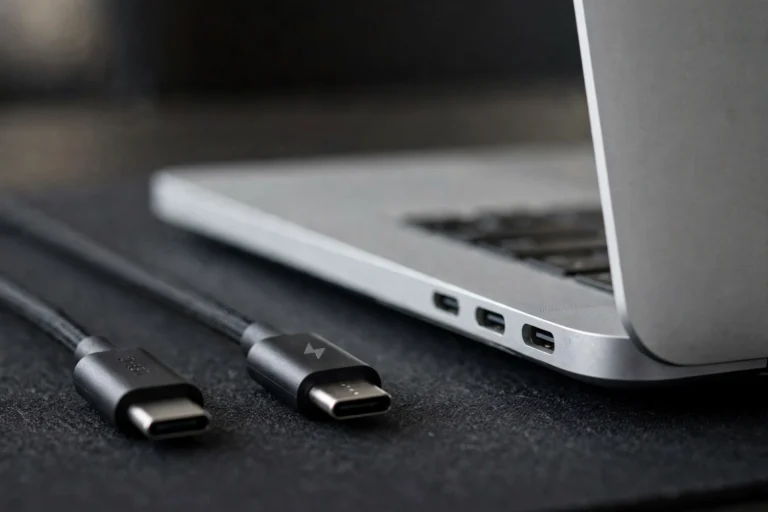
This is the number one reason, by far. Not all cables are equal, and the random HDMI cable from your drawer probably tops out at 60Hz at your monitor’s resolution. Here is what each connection type supports:
- DisplayPort 1.2 or newer: the safest choice. DP 1.2 handles 1080p at 240Hz and 1440p at 165Hz with room to spare. If your monitor and GPU both have DisplayPort, use it — this solves the problem most of the time.
- HDMI 2.0 or newer: fine for most setups. HDMI 2.0 carries 1080p at 240Hz and 1440p at 144Hz. HDMI 2.1 goes further still, handling 4K at 120Hz+.
- HDMI 1.4 or older: the bottleneck. HDMI 1.4 maxes out at 1080p/120Hz and 1440p/60Hz. That dusty old cable from 2015 is very likely your 60Hz ceiling.
- Use the cable in the box. Monitor manufacturers include a cable rated for the panel’s full specs — usually DisplayPort. If you swapped it for a longer or prettier cable, swap back and test.
- Beware adapters and docks. HDMI-to-DisplayPort adapters, cheap USB-C docks, and long cable runs can all silently cap you at 60Hz. Test with a direct, short, quality cable first.

“Nine times out of ten, ‘my 144Hz monitor is stuck at 60Hz’ ends at the cable. The monitor is fine, Windows is fine — the cable just cannot carry the signal.”
Cause 2: You Are Plugged Into the Motherboard, Not the GPU
On desktop PCs, the HDMI and DisplayPort sockets on the motherboard (up near the USB ports, vertical) connect to the CPU’s integrated graphics — not your dedicated graphics card. Integrated graphics often cap external displays at 60Hz.
- Look at the back of your PC. The graphics card’s ports sit lower down, horizontal, in the expansion slot area. That is where your monitor belongs.
- Move the cable to the GPU’s ports. Use DisplayPort on the graphics card if available. This single change fixes the issue for a huge number of new PC owners.
- Laptop users: check which port does what. On gaming laptops, the HDMI port usually routes through the dedicated GPU, but some USB-C/DisplayPort outputs go through integrated graphics. Check your laptop manual if the refresh rate will not budge.
Cause 3: Windows Is Still Set to 60Hz
Even with the right cable in the right port, Windows defaults new displays to 60Hz. You have to tell it to use more — and this setting is buried deeper than it should be:
- Open Settings > System > Display > Advanced display. (On Windows 11, scroll down in the Display page to find Advanced display.)
- Select your 144Hz monitor from the dropdown at the top if you have multiple displays.
- Under “Choose a refresh rate,” pick 144Hz (or 165Hz, or whatever your panel’s maximum is). Click Keep changes when prompted.
- Do this per monitor. Each display has its own refresh rate setting — setting one does not change the others.
- NVIDIA users can also use the Control Panel: right-click the desktop, open NVIDIA Control Panel > Display > Change resolution, select the monitor, and set the refresh rate there. AMD users: AMD Software > Display > Custom Resolutions.
If 144Hz does not appear in the dropdown at all, the cable or port is still the bottleneck — Windows only offers refresh rates the full chain can support. Go back to Causes 1 and 2.
Cause 4: The Monitor’s Own Menu Is Limiting It
Some monitors ship with their high refresh rate disabled in their own on-screen menu, or need an “overclock” mode switched on:
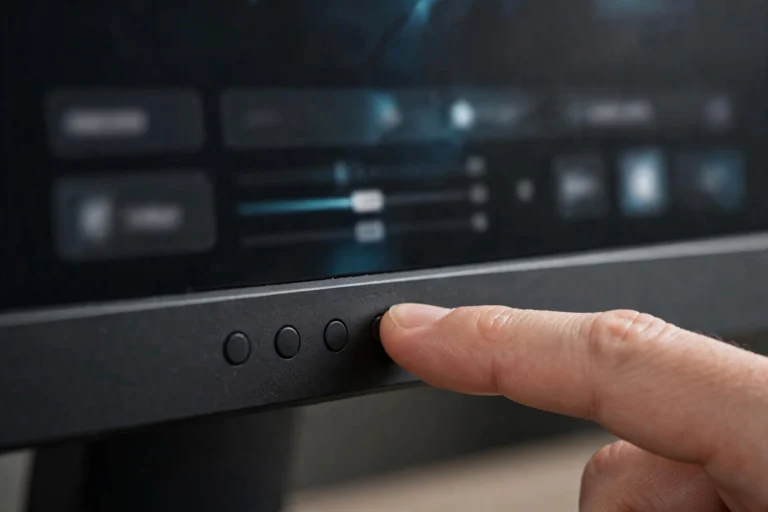
- Open the monitor’s OSD menu using the buttons or joystick on the monitor itself (usually on the bottom edge or behind the lower-right corner).
- Look for refresh rate or overclock settings. Brands label it differently: ASUS calls it Overclocking, Acer uses Over Drive or a refresh rate toggle, some monitors have a Gaming mode that unlocks higher rates.
- Enable 144Hz/165Hz mode and confirm. The screen may go black for a few seconds — that is normal. Then recheck the Windows setting from Cause 3.
- Check the input source too. Make sure the OSD shows you are on the DisplayPort input (not HDMI 1) if that is the cable you switched to.
Cause 5: Driver and Hardware Limits
If everything above checks out and 144Hz still will not appear, look at the ends of the chain:
- Update your GPU drivers. Outdated drivers can fail to expose higher refresh rates. Get the latest from NVIDIA, AMD, or Intel directly — not just Windows Update.
- Integrated graphics have real limits. Older Intel UHD or basic AMD integrated graphics may genuinely cap at 60Hz over HDMI at 1440p. A dedicated GPU or a DisplayPort connection (if available) is the way past it.
- Resolution vs. refresh rate trade-off. Bandwidth is finite: if you are pushing 4K, even good cables top out at lower refresh rates. Dropping to 1440p may unlock 144Hz+ on the same cable.
- Try a different port on the GPU. Rarely, one specific port misbehaves. Swapping to another DisplayPort output rules out a bad port.
FAQ
Can an HDMI cable do 144Hz at all?
Yes — HDMI 2.0 and newer handle 144Hz at 1080p and 1440p just fine. The problem is older HDMI 1.4 cables and ports, which cap 1440p at 60Hz. When in doubt, DisplayPort removes all guesswork.
Why does my monitor show 144Hz in games but 60Hz on the desktop?
Some games set their own refresh rate independently of Windows. Set the Windows desktop to 144Hz as well (Cause 3) so everything — desktop, browser, and games — runs smooth.
Will running at 144Hz wear out my monitor faster?
No. The panel is designed and rated for its advertised refresh rate — running it at 144Hz is normal operation, not overclocking in any harmful sense. (Manufacturer “overclock” modes that push beyond the rated spec are the only exception, and even those are conservative.)
My second monitor is stuck at 60Hz. Is that normal?
Very common — each monitor negotiates independently, and secondary monitors often end up on older cables or motherboard ports. Apply the same checklist per display: cable, port, Windows setting.
Does 144Hz matter if my games only run at 60fps?
Yes, noticeably. A 144Hz panel still makes the desktop, mouse cursor, scrolling, and video feel dramatically smoother even when games render at lower frame rates. The upgrade is about the whole experience, not just gaming.
Conclusion
So why is my 144hz monitor only showing 60hz? In nearly every case, the chain breaks at one of three links: an old HDMI cable that cannot carry the bandwidth, a cable plugged into the motherboard instead of the graphics card, or the Windows refresh rate setting still sitting at its 60Hz default. The monitor itself is rarely at fault.
Use the DisplayPort cable that came in the box, plug it into your graphics card, set 144Hz in Settings > System > Display > Advanced display, and check the monitor’s own menu for any overclock toggle. Five minutes of checking, and that buttery-smooth refresh rate you paid for is finally yours.