How to Save ChatGPT Conversation (2026)
Knowing how to save ChatGPT conversation history matters the moment a chat contains something valuable — research for a paper, code that finally worked, a business plan draft, or a long brainstorming session you don’t want to lose. ChatGPT keeps your chats in the sidebar automatically, but sidebar history isn’t a backup: chats can be deleted, accounts can be closed, and shared links can expire. This guide covers six reliable ways to save your conversations, from one-click exports to permanent archives.
Pick the method that matches what you need the chat for — sharing, citing, archiving, or reusing.
Method 1: Keep Chats in the Sidebar (and Archive Them)
The simplest option is the one built in. Every conversation is saved automatically in the left sidebar, and you can organize it:
- Rename important chats. Hover over a chat, click the three dots, and rename it something findable — “Q3 marketing plan” beats “Untitled chat 47.”
- Archive instead of delete. The archive option (in the chat’s menu) removes it from the sidebar without deleting it. Archived chats stay in your account and can be restored anytime from Settings, then Archived chats.
- Pin key conversations. Pinning keeps your most important chats at the top of the sidebar where you won’t lose them in the scroll.
This is fine for day-to-day use, but it’s not a real backup — if you delete your account, everything goes with it.
How to Save ChatGPT Conversation as a Shared Link
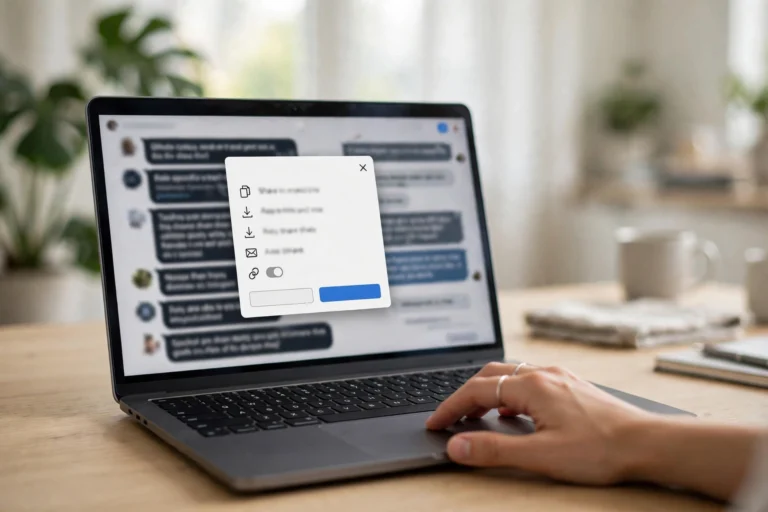
Sharing creates a public (but unlisted) copy of the conversation with its own URL:
- Step 1: Open the conversation and click the share icon (an upward arrow) in the top right.
- Step 2: Choose whether to share with your name or anonymously.
- Step 3: Copy the link. Anyone with it can view the full conversation.
- Managing links: Settings, then “Shared links” shows every link you’ve created, and you can delete any of them to revoke access.
Shared links are great for sending a chat to a colleague or citing it in academic work, but remember: the link dies if you delete the conversation, and shared chats may be used to improve models depending on your settings.
How to Save ChatGPT Conversation as a PDF
For a permanent, portable copy — one you can attach to an email, file with a project, or print — export to PDF:
- Step 1: Open the conversation you want to save.
- Step 2: Press Ctrl+P (Windows) or Cmd+P (Mac) to open the print dialog.
- Step 3: Change the destination to “Save as PDF.”
- Step 4: Adjust settings if needed (background graphics on keeps code blocks readable), then save.
The result is a clean document of the full conversation. For very long chats, the PDF can get lengthy — consider saving just the key exchange by copying it into a document instead (see Method 5).
Method 4: Export All Your Data at Once
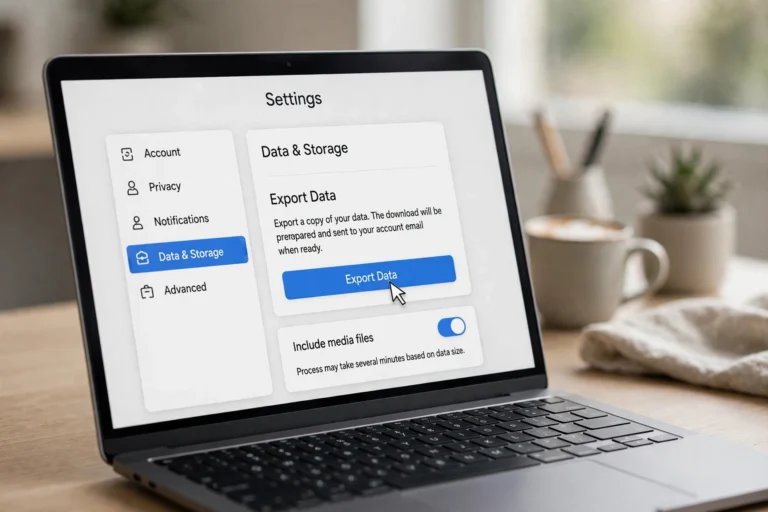
ChatGPT offers a full account export — every conversation you’ve ever had, in one download:
- Step 1: Click your profile icon, then Settings, then “Data controls.”
- Step 2: Click “Export data” and confirm.
- Step 3: You’ll get an email with a download link, usually within minutes to a few hours.
- What you get: a zip file containing your conversations in JSON and HTML formats, readable in any browser.
Do this export quarterly if your chats contain real work. It’s the only method that backs up everything at once, and it’s your safety net before deleting an account.
Method 5: Copy Key Parts Into Your Notes
Sometimes you don’t need the whole conversation — just the answer that mattered:
- Copy the response. Hover over any ChatGPT message and click the copy icon to grab the clean text (without timestamps or UI clutter).
- Paste with context. Drop it into Notion, Google Docs, or your notes app along with the prompt you used — an answer without its question is useless six months later.
- Note the date and model. Add one line: “ChatGPT, March 2026.” Models change, and future you will want to know which one produced this.
This method is ideal for code snippets, formulas, outlines, and writing drafts — the pieces you’ll actually reuse.
Method 6: Screenshot Long or Visual Conversations
For chats with images, charts, or formatting that copy-paste mangles, screenshots preserve exactly what you saw:
- Full-page capture. Most browsers can screenshot an entire scrolling page (in Chrome: DevTools, then “Capture full size screenshot”). This grabs the whole conversation in one tall image.
- Organize them. Save screenshots in a dedicated folder with descriptive names and dates.
- Limitation: screenshots aren’t searchable or editable text — use them as a visual record alongside a text copy, not instead of one.

Organizing Your Saved Conversations
Saving chats is only useful if you can find them later. A light organization system pays off fast:
- Use folders or projects. ChatGPT’s projects/folders feature groups related chats — one project per client, course, or topic keeps the sidebar from becoming a junk drawer.
- Name files consistently. For PDF and text exports, use a pattern like 2026-03-12_chatgpt_marketing-plan.pdf — date first, so files sort chronologically.
- Keep one index note. A single document listing your most valuable saved chats (“Q3 plan — PDF in /exports, key numbers copied to Notion”) beats digging through folders months later.
- Prune yearly. Once a year, delete or archive exports you never opened. A backup you can’t navigate is barely better than no backup.
- Store copies in two places. Keep exports both locally and in cloud storage. Chat histories have been lost to accidental deletions and closed accounts — redundancy is the whole point of saving them.
One more habit worth building: every time you save a conversation, spend ten seconds writing a one-line summary at the top of the file — what the chat was about and why you kept it. Future you, staring at a folder of fifty generically-named exports, will be grateful for those ten seconds.
FAQs About How to Save ChatGPT Conversation
Does ChatGPT automatically save my conversations?
Yes — every chat is saved to your sidebar automatically unless you’ve turned off chat history in Data controls. Note that with history off, new conversations aren’t saved at all, so export anything important first.
Can I recover a deleted ChatGPT conversation?
No. Deleted conversations are permanently removed and can’t be restored by support. This is exactly why archiving (not deleting) and periodic data exports matter.
Do shared ChatGPT links expire?
They don’t expire on a timer, but the link stops working if you delete the conversation or your account. For anything that must last — like an academic citation — save a PDF as well.
Where is the export data button in ChatGPT?
Click your profile icon in the bottom-left (or top-right on mobile), open Settings, go to “Data controls,” and click “Export data.” The download link arrives by email.
Conclusion
To save a ChatGPT conversation, match the method to the need: archive and rename chats for daily organization, share links for collaboration and citations, print-to-PDF for permanent records, full data export for complete backups, and copy-paste for reusable snippets. Whatever you choose, don’t rely on the sidebar alone — export anything you’d be upset to lose, because deleted chats are gone for good.